


At first glance, WooCommerce makes sales reporting look simple. You log into WordPress, open Analytics, and see revenue numbers, order counts, and charts. That’s usually where problems start.
WooCommerce shows order data, not accounting-ready financial data. It does not show how much money actually landed in your bank, how much payment processors deducted in fees, or how refunds affected net revenue. Taxes appear in isolation, without context for payouts or reconciliation.
As your store grows, this gap becomes expensive. Sellers rely on WooCommerce Analytics for bookkeeping, then struggle to reconcile Stripe or PayPal deposits, miss fee deductions, or misreport sales tax. Month-end turns into spreadsheet work and guesswork instead of clean reporting.
This guide shows you:
- Where to find WooCommerce sales reports
- What each report does and does not include
- Why manual reporting breaks down
- How automation solves the problem for serious sellers
Key Takeaways from this Post
WooCommerce sales data is fragmented across orders, analytics, and payment processors, which makes accurate reporting difficult as volume grows.
Relying on WooCommerce Analytics alone leads to reconciliation issues, fee blind spots, and tax mistakes.
Link My Books automates WooCommerce, syncing clean summaries directly into Xero or QuickBooks so your books match your bank without manual work.







What Most WooCommerce Sellers Get Wrong With Sales Reports
Most WooCommerce sellers are not doing anything wrong on purpose. They are using the tools WooCommerce gives them and assuming those tools were built for proper financial reporting. They were not.
Here’s where things usually break down.
- Sellers confuse orders with income. WooCommerce records when an order is placed, not when money settles. Payment processors like Stripe or PayPal deduct fees, process refunds later, and batch payouts. Your WooCommerce revenue almost never matches your bank deposits one-to-one.
- Fees live outside WooCommerce. Payment processing fees, chargebacks, currency conversion costs, and dispute adjustments do not appear in WooCommerce Analytics. Sellers only notice this when their profit looks higher in WooCommerce than in their bank account.
- Taxes look complete but are not usable. WooCommerce can show collected tax, but it does not explain who is responsible for remittance, how refunds affect tax totals, or how taxes relate to net payouts. This creates problems when preparing VAT or sales tax reports later.
- Sellers try to fix this with spreadsheets. They export orders from WooCommerce, download payout reports from Stripe or PayPal, and manually stitch everything together. This approach works at very low volume and collapses quickly as order counts increase.
There is an easier way. Instead of forcing WooCommerce reports to behave like accounting data, Link My Books connects WooCommerce and payment processors directly to Xero or QuickBooks. It turns fragmented sales activity into clean, reconciled summaries that actually match your bank.
How to Get Your WooCommerce Sales Report the Easy Way With Link My Books
If your goal is accurate bookkeeping, clean reconciliation, and tax-ready numbers, you should not start inside WooCommerce at all.
The easiest and most reliable way to get a complete WooCommerce sales report is to use Link My Books. It removes the need to download multiple reports, merge spreadsheets, or manually reconcile payouts.
Here’s what to do:
- Connect WooCommerce to Link My Books
- Set Up Tax and Mapping Rules
- Let Link My Books Generate Your Sales Report Automatically
- Reconcile in One Click
Instead of working with fragmented order data, Link My Books produces accounting-ready summaries that match your bank deposits.
Step 1: Connect WooCommerce to Link My Books
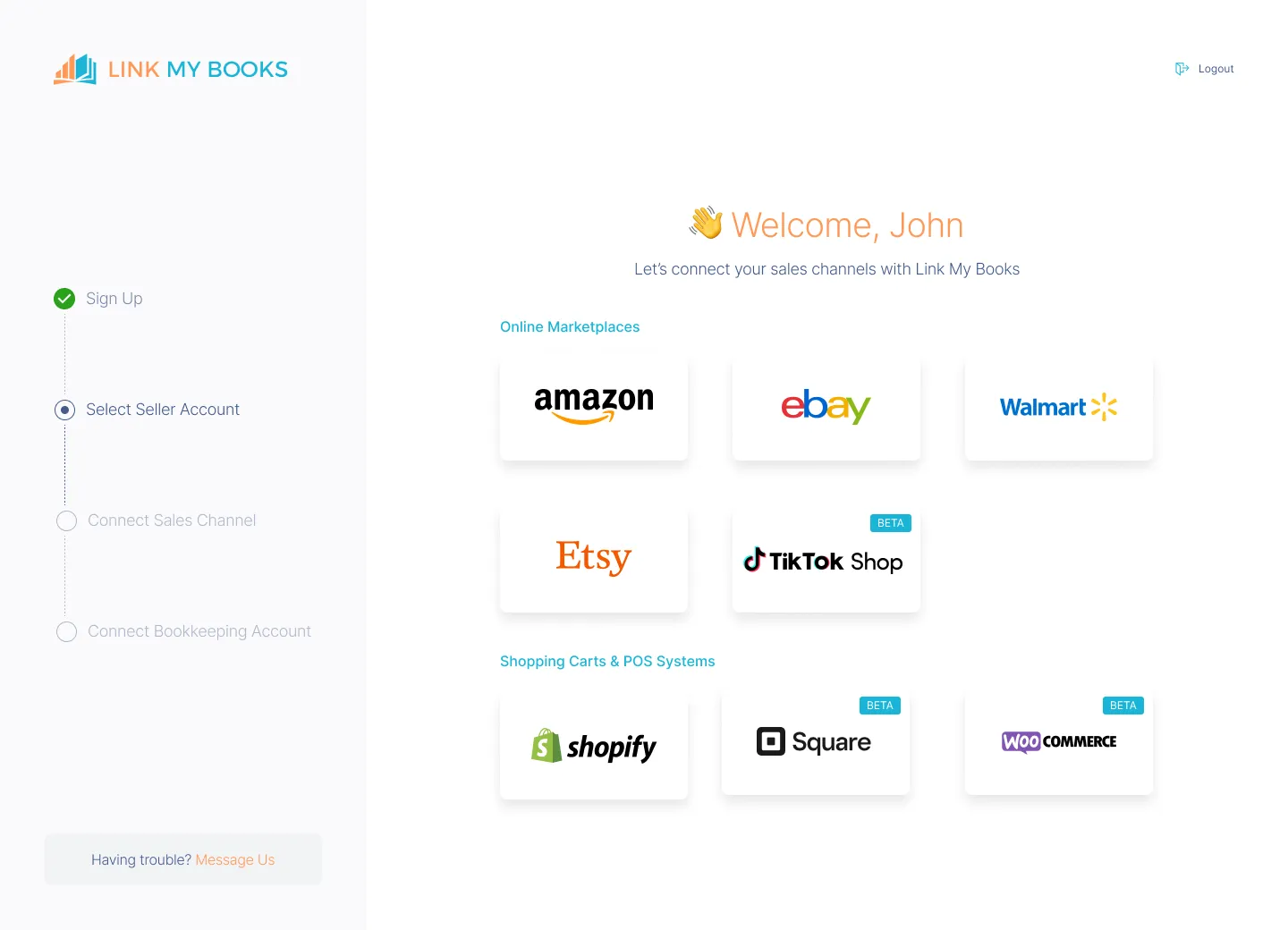
- Sign up for a free Link My Books trial
- Connect your WooCommerce store
- Connect your payment processor (Stripe, PayPal, or both)
- Connect Xero or QuickBooks
This setup only needs to be done once.
Step 2: Set Up Tax and Mapping Rules
- Use the guided tax wizard to define how sales tax or VAT should be handled
- Map WooCommerce sales, refunds, fees, and tax to the correct accounts in Xero or QuickBooks
- Choose your sync mode (manual or automatic)
You do not need accounting expertise to complete this. Many sellers invite their accountant at this stage for a quick review.
Step 3: Let Link My Books Generate Your Sales Report Automatically

Once connected, Link My Books does the following for every payout period:
- Pulls WooCommerce order data
- Pulls Stripe or PayPal settlement data
- Groups transactions into clean payout summaries
- Separates sales, refunds, fees, and tax correctly
- Posts a single, balanced summary into Xero or QuickBooks
Each summary matches exactly what hits your bank account.
No spreadsheets. No manual adjustments.
Step 4: Reconcile in One Click
Because Link My Books posts summaries that match real payouts, reconciliation becomes simple:
- Open your bank feed in Xero or QuickBooks
- Match the payout to the Link My Books summary
- Reconcile in one click
Your WooCommerce sales report now lives inside your accounting software, fully reconciled and audit-ready.
What You Get Compared to Manual WooCommerce Reports
- Gross sales and refunds in context
- Payment processor fees correctly deducted
- Tax figures aligned with actual settlements
- Accurate net revenue
- Books that match your bank every month
This is why most growing WooCommerce sellers stop using WooCommerce Analytics for bookkeeping and rely on Link My Books instead.
Want to simplify your bookkeeping? Try Link My Books today.
If you still want to do it the manual way, here’s how:
How to Get Your WooCommerce Sales Report Manually
- View Sales in WooCommerce Analytics
- Export a WooCommerce Orders Report
- Download Payment Processor Reports (Stripe or PayPal)
WooCommerce does not provide a single, complete “sales report” that you can use for bookkeeping. Instead, sales data is spread across three different places, each serving a different purpose.
If you want a full picture, you must pull data from all three.
The Three Places WooCommerce Sales Data Lives
- WooCommerce Analytics: High-level performance data (orders, revenue, refunds).
- WooCommerce Orders Export: Line-level order details.
- Payment Processor Reports (Stripe, PayPal, etc.): Actual money movement and fees.
This separation is intentional. WooCommerce tracks commerce activity, not settlements. Payment processors control payouts, fees, disputes, and timing.
Step 1: View Sales in WooCommerce Analytics
- Log into WordPress Admin
- Go to WooCommerce > Analytics
- Open Revenue or Orders
What WooCommerce Analytics Shows Accurately
- Gross sales by date range
- Number of orders
- Refund totals
- Tax collected per order
- Average order value
This data is useful for store performance, not bookkeeping.
What WooCommerce Analytics Does Not Show
- Payment processor fees
- Net payouts
- Chargebacks and disputes
- Timing differences between order date and payout date
Important clarification: WooCommerce Analytics reports order-based revenue, not cash-based income. This is why Analytics totals rarely match your bank statements.
Step 2: Export a WooCommerce Orders Report
- Go to WooCommerce > Orders
- Use filters for date range and status
- Click Export to download a CSV
This gives you line-level data such as:
- Order ID
- Customer
- Product
- Subtotal
- Tax
- Shipping
- Refund status
Why This Still Isn’t Enough
Order exports still:
- Exclude Stripe or PayPal fees
- Do not show payout grouping
- Do not explain partial refunds or delayed settlements
You now know what was sold, but not what you were paid.
Step 3: Download Payment Processor Reports (Stripe or PayPal)
This is the step most sellers miss.
WooCommerce never touches your money. Stripe, PayPal, Square, or another gateway does.
From your payment processor dashboard:
- Balance or payout reports
- Fee breakdowns
- Refund and dispute adjustments
These reports explain:
- Why a $1,000 sales day becomes a $920 payout
- Why deposits arrive days later
- Why fees vary by transaction
Only after combining this data can you reconcile sales to your bank.
Why Manual WooCommerce Reporting Breaks at Scale
At this point, you are working with:
- One WooCommerce Analytics report
- One WooCommerce orders export
- One or more payment processor reports
Every month.
This is where errors, missing fees, and tax mistakes creep in.
That’s exactly why Link My Books exists. It pulls WooCommerce orders and payment processor settlements together, then posts clean, reconciled summaries directly into Xero or QuickBooks without spreadsheets.
How Link My Books Makes WooCommerce Sales Reporting Simple and Reliable
WooCommerce was built to manage orders. Accounting software was built to manage money. Link My Books sits between the two and does the heavy lifting neither system handles well on its own.
Instead of forcing WooCommerce reports into spreadsheets, Link My Books converts WooCommerce activity into accounting-ready data that actually reconciles.
Automated Payout Reconciliation
Link My Books connects WooCommerce with your payment processors and accounting software, then builds summaries that match real payouts.
What this means in practice:
- Sales, refunds, fees, and tax are grouped correctly
- Each payout equals one clean accounting entry
- Bank deposits reconcile without manual adjustments
This alone removes the biggest pain point WooCommerce sellers face at month-end.
Accurate Fee and Refund Handling
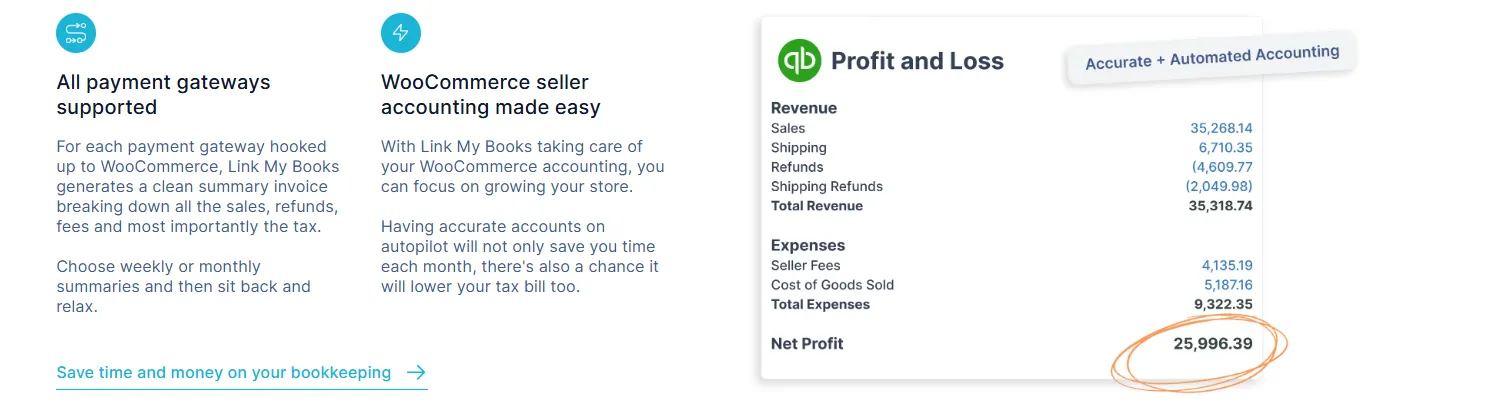
WooCommerce does not track processor fees. Link My Books does.
It automatically:
- Pulls Stripe and PayPal fee data
- Separates transaction fees, refunds, and adjustments
- Posts them to the correct expense accounts
You stop overstating revenue and start seeing your real margins.
Tax-Ready Reporting Without Guesswork
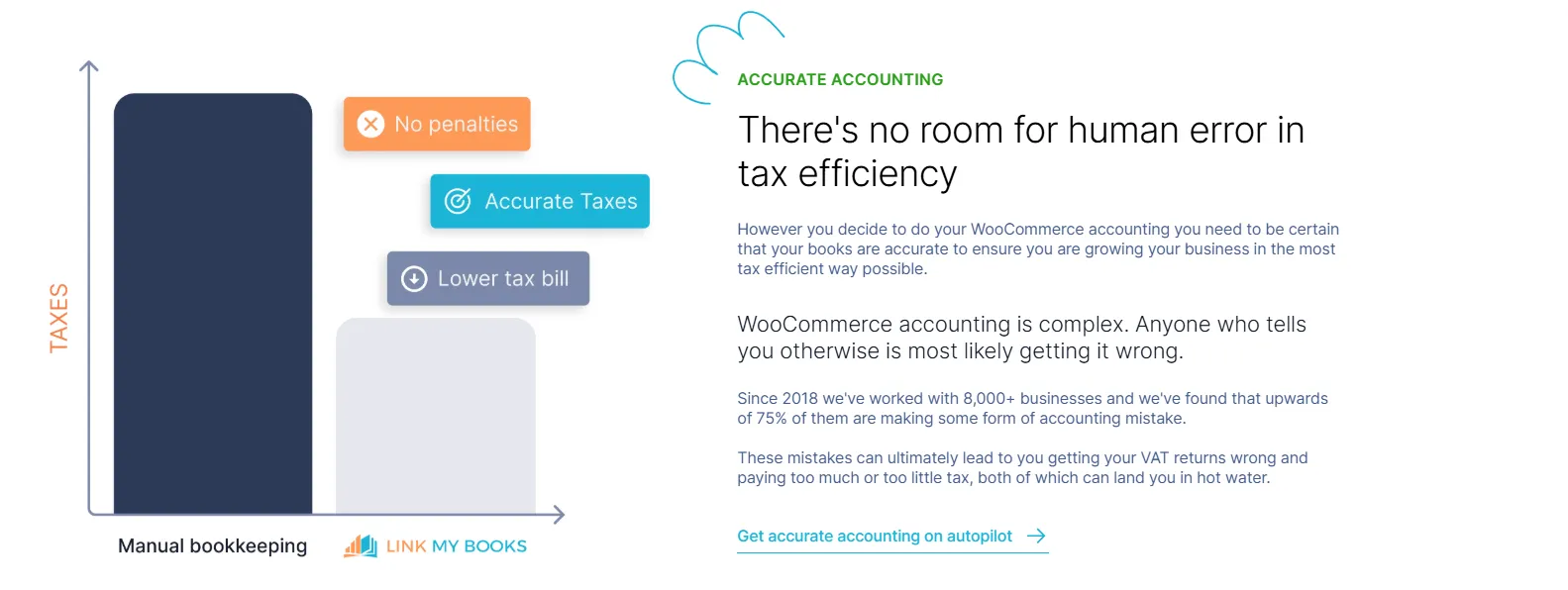
Sales tax and VAT reporting often breaks when sellers rely on WooCommerce exports alone.
Link My Books:
- Applies correct tax rules consistently
- Separates tax from revenue
- Handles refunds properly from a tax perspective
- Prevents accidental overpayment caused by misreported figures
Your sales reports are usable for tax filing, not just internal dashboards.
Clean Summaries Inside Xero or QuickBooks
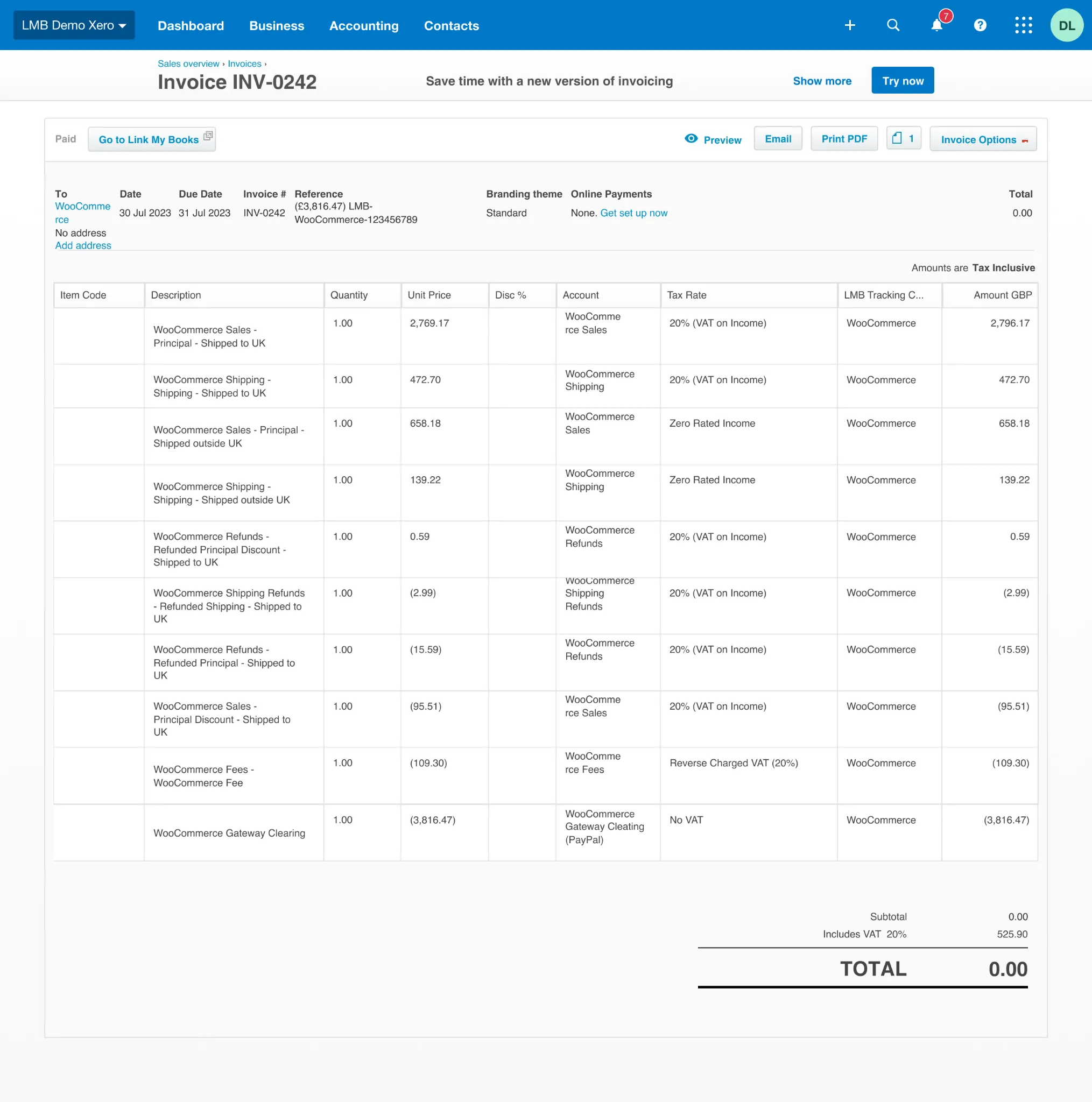
Instead of thousands of line-level entries, Link My Books creates summary invoices or journals that are easy to review.
Benefits:
- Faster month-end close
- Cleaner general ledger
- No bloated chart of accounts
- Easier collaboration with accountants
This is especially important once order volume increases.
Real Time Visibility Without Extra Work
Because data syncs automatically, your accounting software always reflects:
- Net revenue, not just gross sales
- True profitability after fees and refunds
- Accurate cash flow timing
You get clarity without logging into WooCommerce, Stripe, and PayPal separately.
Time Savings That Scale With Your Store
Manual WooCommerce reporting takes longer every month as sales grow.
With Link My Books:
- Setup takes minutes, not days
- Monthly bookkeeping drops to minutes
- Reporting scales without extra effort
This is why growing WooCommerce sellers switch early instead of fixing errors later.
Essential WooCommerce Sales Report Data for Accurate Bookkeeping
If you want books that reconcile and tax figures you can trust, you need more than WooCommerce order totals. WooCommerce tracks commerce activity. Bookkeeping requires settlement-aware financial data.
Below are the only data points that actually matter for accurate WooCommerce bookkeeping, regardless of whether you work manually or use automation.
The Core Problem to Understand First
- WooCommerce records orders
- Payment processors control money movement
- Accounting software expects summarized, net figures
If any of these layers are missing or misunderstood, your numbers will never line up.
The Data You Must Track (And Why)
Fact check note: WooCommerce does not know net payouts or fees. Stripe and PayPal do not know product or tax context. Accounting software cannot infer missing data correctly.
Why Each Data Point Matters in Practice
Gross Sales (WooCommerce)
Gross sales are useful for performance analysis but misleading for bookkeeping. They do not account for:
- Refunds issued later
- Processor fees
- Disputes or chargebacks
This is why gross sales almost never equal income.
Refunds (WooCommerce + Processor)
Refunds affect:
- Revenue
- Tax owed
- Cash flow timing
WooCommerce may show a refund, but the actual cash impact only appears in the payment processor payout.
Payment Processor Fees (Stripe / PayPal)
Fees are deducted before money reaches your bank. If you ignore them:
- Revenue looks inflated
- Profit is overstated
- Reconciliation fails
These fees never appear in WooCommerce Analytics.
Sales Tax (WooCommerce)
WooCommerce records tax at order level, but bookkeeping requires:
- Tax separated from revenue
- Refund-related tax adjustments
- Alignment with net settlements
This is where most manual reporting errors occur.
Net Payouts (Stripe / PayPal)
This is the single source of truth for bookkeeping.
Accounting software reconciles to:
- What hit the bank
- On what date
- For what net amount
Everything else must support this number.
How Link My Books Uses This Data Correctly
Instead of treating each data source in isolation, Link My Books connects:
- WooCommerce for order and tax data
- Stripe and PayPal for settlement and fee data
- Xero or QuickBooks for final posting
It then produces payout-based summaries where:
- Gross sales, refunds, fees, and tax are separated correctly
- The net total matches the bank deposit
- Reconciliation works the first time
This is the accounting-ready version of a WooCommerce sales report.
How to Read WooCommerce Sales Reports Correctly
Most reporting mistakes happen at the interpretation stage, not during export. Sellers look at the right screens but draw the wrong conclusions because WooCommerce mixes operational data with financial signals.
The key is understanding what each report is designed to answer.
Daily vs Monthly vs Yearly WooCommerce Reports
WooCommerce reports are order-date based, not payout-date based. Accounting and bank reconciliation are always payout-based.
The Most Common Misreadings (And Why They Hurt)
Treating Gross Sales as Income
WooCommerce shows gross sales before:
- Payment processor fees
- Refunds issued later
- Disputes or chargebacks
This inflates perceived revenue and leads to incorrect profit assumptions.
Ignoring Timing Differences
An order placed on March 30 may settle on April 2. WooCommerce records the sale in March. Your bank records the money in April.
This timing gap is normal, but it breaks reporting if you rely on WooCommerce alone.
Assuming Taxes Are “Handled”
WooCommerce records tax collected at checkout. It does not:
- Adjust tax for refunds automatically in reports
- Align tax figures with net payouts
- Distinguish between collected tax and payable tax in accounting terms
This is why tax totals often look correct in WooCommerce but wrong in accounting software.
What “Correct” Interpretation Looks Like
For bookkeeping purposes, your logic should always flow like this:
- Start with net payouts from the payment processor
- Break payouts into sales, refunds, fees, and tax
- Reconcile the net amount to the bank
- Use WooCommerce data only to explain why the numbers look the way they do
This mirrors how accounting software is designed to work.
How Link My Books Solves the Interpretation Problem
Instead of forcing you to interpret WooCommerce reports manually, Link My Books does the interpretation for you.
It:
- Uses WooCommerce data for sales and tax context
- Uses Stripe or PayPal data for settlement accuracy
- Posts payout-based summaries into Xero or QuickBooks
- Aligns reporting periods with actual cash movement
This removes guesswork and prevents misreading reports entirely
Why You Do Not Need a Separate WooCommerce Sales Report If You Use Link My Books
If you are using Link My Books, you do not need to download or manage a separate WooCommerce sales report at all.
Link My Books already:
- Pulls WooCommerce order and tax data
- Pulls settlement, fee, and refund data from payment processors
- Creates payout-based summaries
- Syncs everything directly into Xero or QuickBooks
- Matches entries to your bank deposits
Your accounting software becomes your single source of truth. There is no added value in exporting WooCommerce reports on top of that.
When a Manual WooCommerce Sales Report Still Makes Sense
You may still look at WooCommerce reports if you want to:
- Monitor daily store performance
- Review product or customer trends
- Spot sales spikes or seasonal patterns
These are operational insights, not bookkeeping tasks.
Why This Matters as Your Store Grows
At low volume, manual reports feel manageable. As order count increases:
- Reporting time increases linearly
- Error risk increases exponentially
- Confidence in numbers drops
Automation prevents this before it becomes a problem.
FAQ: WooCommerce Sales Reports
How Do I See Sales Statistics on WooCommerce?
You can view basic sales statistics directly inside WooCommerce by going to WooCommerce > Analytics in your WordPress dashboard. This shows gross sales, orders, refunds, and tax collected for a selected date range.
These figures are useful for tracking store performance, but they are not suitable for bookkeeping or reconciliation because they exclude payment processor fees and payout timing. For accounting purposes, sellers typically rely on automated summaries inside their WooCommerce accounting software rather than WooCommerce’s dashboards.
Does WooCommerce Report Sales to the IRS?
No. WooCommerce does not report sales to the Internal Revenue Service or any other tax authority.
WooCommerce is a shopping cart system, not a payment processor or tax reporting entity. Tax reporting obligations depend on:
- Your location
- Your payment processor (e.g. Stripe, PayPal)
- Your business structure
Payment processors may issue forms such as 1099-K in the US, but WooCommerce itself does not submit sales data to tax authorities.
How Do I Keep Track of WooCommerce Sales for Taxes?
Manually, you would need to combine:
- WooCommerce order and tax data
- Refund data
- Payment processor fees and settlements
This is time-consuming and error-prone, especially once refunds and delayed payouts are involved.
Most sellers solve this by using an automated workflow that produces tax-ready figures inside their accounting software. Instead of relying on raw exports, tools like Link My Books generate summaries that align sales, refunds, and tax with real payouts, which simplifies preparing a WooCommerce Sales Tax Report without spreadsheet work.
Does WooCommerce Keep Track of Transactions?
WooCommerce keeps track of orders, not financial transactions.
It records:
- Order totals
- Tax charged
- Refund status
It does not record:
- Payment processor fees
- Net payouts
- Bank deposits
That financial transaction data lives with the payment processor and your accounting software, not WooCommerce itself. This distinction is the source of most WooCommerce bookkeeping confusion.
WooCommerce Is Not Recording Transactions. How Do I Resolve This?
In most cases, WooCommerce is recording orders correctly, but the issue lies elsewhere. Common causes include:
- Payment gateway connection issues
- Orders stuck in pending or failed status
- Webhook failures between WooCommerce and the payment processor
First, confirm that orders appear in WooCommerce > Orders. If payouts or fees are missing, check the payment processor dashboard rather than WooCommerce.
If your accounting records still do not match your bank, the issue is usually reporting structure, not missing data. This is why sellers move away from manual exports and toward automated WooCommerce transaction report workflows that reconcile payouts properly.
Make WooCommerce Sales Reporting Effortless
If you are still downloading WooCommerce reports, exporting CSVs, and trying to reconcile payouts by hand, the problem is not missing data. The problem is that WooCommerce was never designed to produce accounting-ready reports.
You do not need another spreadsheet or another workaround. You need a system that connects WooCommerce orders, payment processor settlements, and your accounting software into one clean workflow.
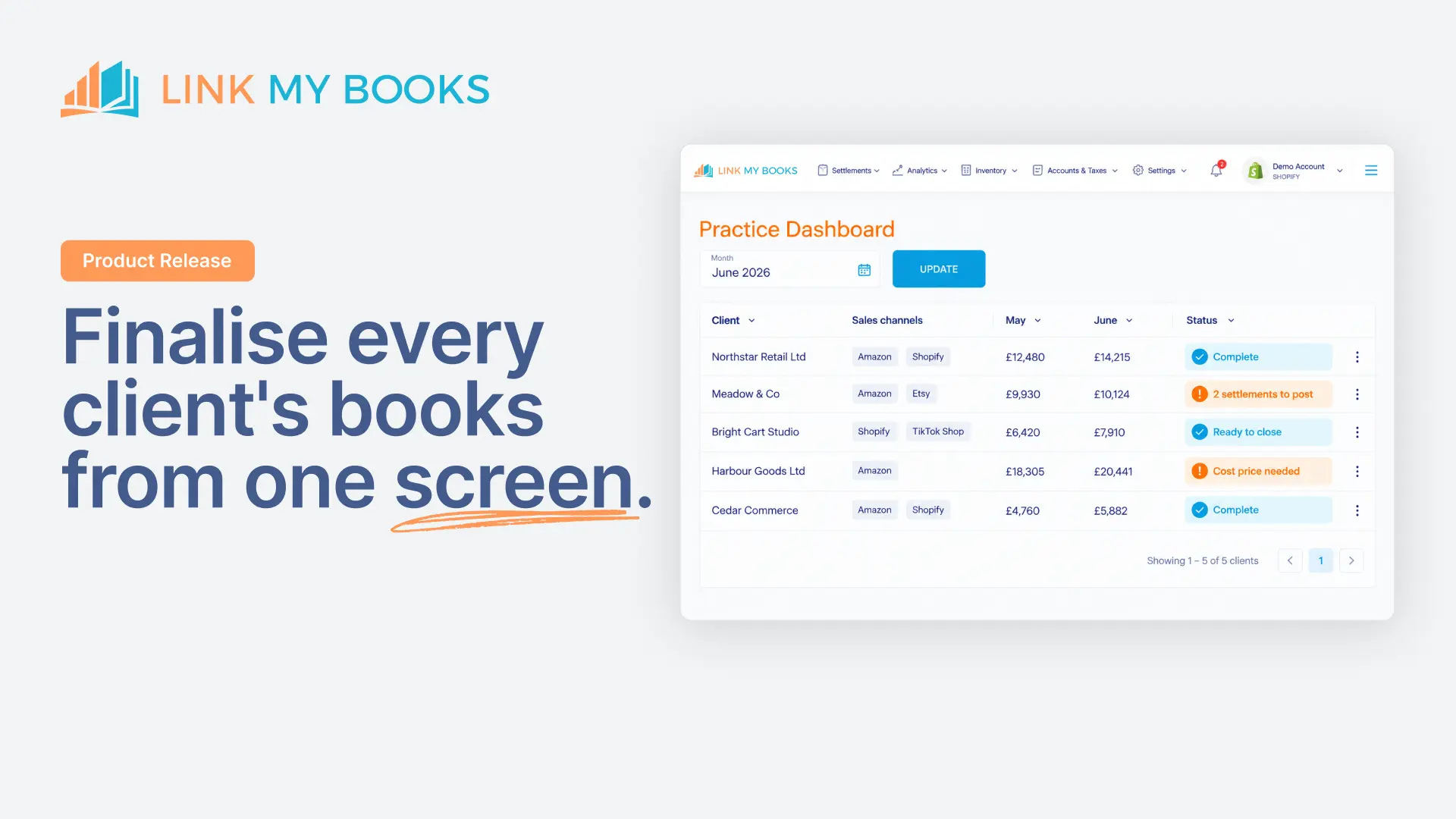
Link My Books automates WooCommerce sales reporting end to end. It pulls sales, refunds, fees, and tax data, creates payout-based summaries, and syncs them directly into Xero or QuickBooks so your books match your bank every time.
That means:
- No manual report downloads
- No reconciliation guesswork
- No overstated revenue or missed fees
- No tax figures that fall apart at month-end
If you want WooCommerce sales reports that are actually usable for bookkeeping and tax, start with automation instead of exports.
Start your free Link My Books trial and turn WooCommerce sales data into clean, reconciled financials in minutes!




.webp)



.png)