


Manually tracking WooCommerce sales in spreadsheets is still common, especially for newer sellers. But as your order volume grows, fees stack up, and VAT comes into play, spreadsheets quickly become time-consuming and error-prone.
This guide includes a free WooCommerce bookkeeping spreadsheet, explains how to use it correctly, and shows why most growing sellers eventually switch to automated bookkeeping with Link My Books.
Key Takeaways from this Post
This free WooCommerce bookkeeping spreadsheet helps you track sales, fees, refunds, and VAT—but it's best used as a short-term solution for low-volume sellers.
Spreadsheets become error-prone and time-consuming once you're VAT registered, selling internationally, or processing high order volumes across multiple payment gateways.
Link My Books automates WooCommerce bookkeeping by syncing sales, fees, and taxes directly into QuickBooks or Xero—eliminating spreadsheets entirely while keeping your books accurate and reconciled.







Free WooCommerce Bookkeeping Spreadsheet
If you’re not ready to automate yet, a spreadsheet can help you understand your numbers, as long as you know its limits.
🔥 Download the Free WooCommerce Bookkeeping Spreadsheet 🔥
This free WooCommerce accounting spreadsheet is designed to help sellers manually track:
- Gross sales
- Refunds
- Payment gateway fees
- VAT or sales tax
- Net payouts
- Monthly profit
It’s best used as a short-term solution, not a long-term bookkeeping system.
Who Should Use This Spreadsheet?
This spreadsheet is suitable if you are:
- A new WooCommerce seller
- Processing low order volumes
- Not VAT registered
- Using one payment gateway
- Comfortable with Excel or Google Sheets
You should avoid relying on spreadsheets if you are VAT registered, selling internationally, using multiple gateways, or reconciling hundreds of orders per month. At that point, errors become almost inevitable.
How to Use the WooCommerce Bookkeeping Spreadsheet
To get accurate results, you must follow a consistent process. Skipping steps is where most spreadsheet-based bookkeeping goes wrong.
Step 1: Confirm the Transaction Types
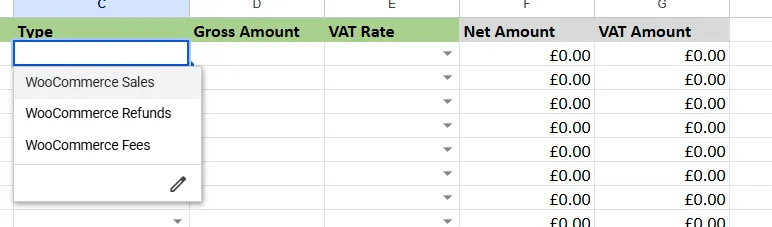
Before entering anything, identify every transaction type you need to track:
- Product sales
- Refunds and partial refunds
- WooCommerce fees
If you miss the category, your totals will not reconcile with your bank deposits.
Step 2: Confirm VAT Rates (If VAT Registered)
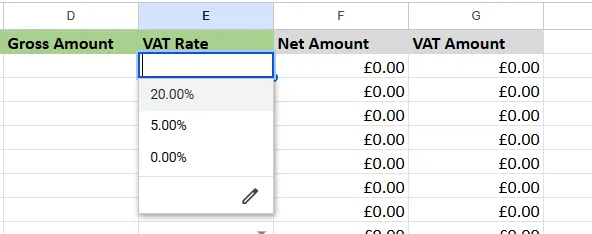
If you are VAT registered, spreadsheets become much more complex.
You must separate:
- Standard-rated sales
- Zero-rated sales
- VAT-exempt transactions
- VAT collected by marketplaces or gateways
- VAT you owe vs VAT already remitted
Many sellers incorrectly apply VAT to all WooCommerce sales, which leads to overpayments. This is one of the most common errors we see. Refer to a proper WooCommerce VAT guide to understand how different transactions should be treated.
Step 3: Add Transactions to the Spreadsheet
Once your categories are set, you can start adding data:
- Enter gross sales totals for the period
- Subtract refunds separately
- Record payment gateway fees
- Record VAT collected in a separate column
- Calculate net payout amounts
Every figure must tie back to a report source. Guessing or rounding will break reconciliation later.
Where to Get the Figures to Populate the Spreadsheet
WooCommerce does not provide one single report that shows everything you need.
You will usually need data from:
- WooCommerce transaction report
- Stripe or PayPal payout reports
- WooCommerce Payments dashboard
- Your bank statements
This is where spreadsheets become fragile. WooCommerce shows orders, payment gateways show payouts, and banks show net deposits. These rarely align neatly without manual adjustments.
How to Find Out Your True WooCommerce Profit
A spreadsheet can calculate profit, but only if the inputs are correct.
To calculate true profit, you must start with:
- Gross sales
- Minus refunds
- Minus fees
- Minus VAT or sales tax
- Minus cost of goods sold
Most sellers only see the net payout hitting their bank and assume that’s profit. It isn’t. Without separating fees and taxes properly, profit margins are often overstated or understated.
This is exactly why spreadsheets break down as volume increases.
Alternatives to Using a Spreadsheet
Many WooCommerce sellers realise spreadsheets are holding them back and look for alternatives. Unfortunately, most of the “obvious” options still leave major gaps in accuracy, reconciliation, and tax handling.
WooCommerce Reports Alone
WooCommerce’s built-in reports are useful for operational insights, but they are not designed for accounting.
They focus on orders, not cash movement. This means:
- Reports show gross order values, not what you actually receive
- Payment gateway fees are missing or incomplete
- Refunds may appear in different periods than the original sale
- VAT is not consistently separated in a way that matches accounting requirements
Most importantly, WooCommerce reports do not reconcile to your bank account. Your bank shows net payouts from Stripe, PayPal, or WooCommerce Payments, while WooCommerce shows individual orders. There is no natural one-to-one match.
As a result, sellers using WooCommerce reports alone still end up exporting data into spreadsheets to “make the numbers fit”.
Accounting Software Alone (QuickBooks or Xero)
Some sellers assume their accounting software can replace spreadsheets on its own. In reality, QuickBooks and Xero only see what hits the bank.
From the bank feed’s perspective:
- One deposit represents dozens or hundreds of WooCommerce orders
- Fees, refunds, and chargebacks are already netted off
- VAT or sales tax is bundled into the total
Without additional context, accounting software has no way to know:
- How much of a deposit is sales vs fees
- Which portion relates to VAT or sales tax
- Whether refunds were issued
- Which gateway the payout came from
This forces sellers to manually split deposits, post adjusting journals, or maintain spreadsheets alongside their accounting software. The result is often duplicated work and inconsistent records.
Manual CSV Imports
CSV imports feel like a step up from spreadsheets, but they usually create new problems.
While importing WooCommerce or gateway CSV files can reduce typing, you still have to:
- Decide how each column maps to your chart of accounts
- Manually apply VAT or tax logic
- Group transactions so they match payouts
- Fix discrepancies when totals don’t line up with the bank
CSV imports also introduce timing issues. Orders, refunds, and payouts rarely fall neatly into the same accounting period, which leads to mismatches during reconciliation.
In practice, CSV imports are spreadsheets with extra steps, not a true alternative.
Why Automation Is the Only Scalable Alternative
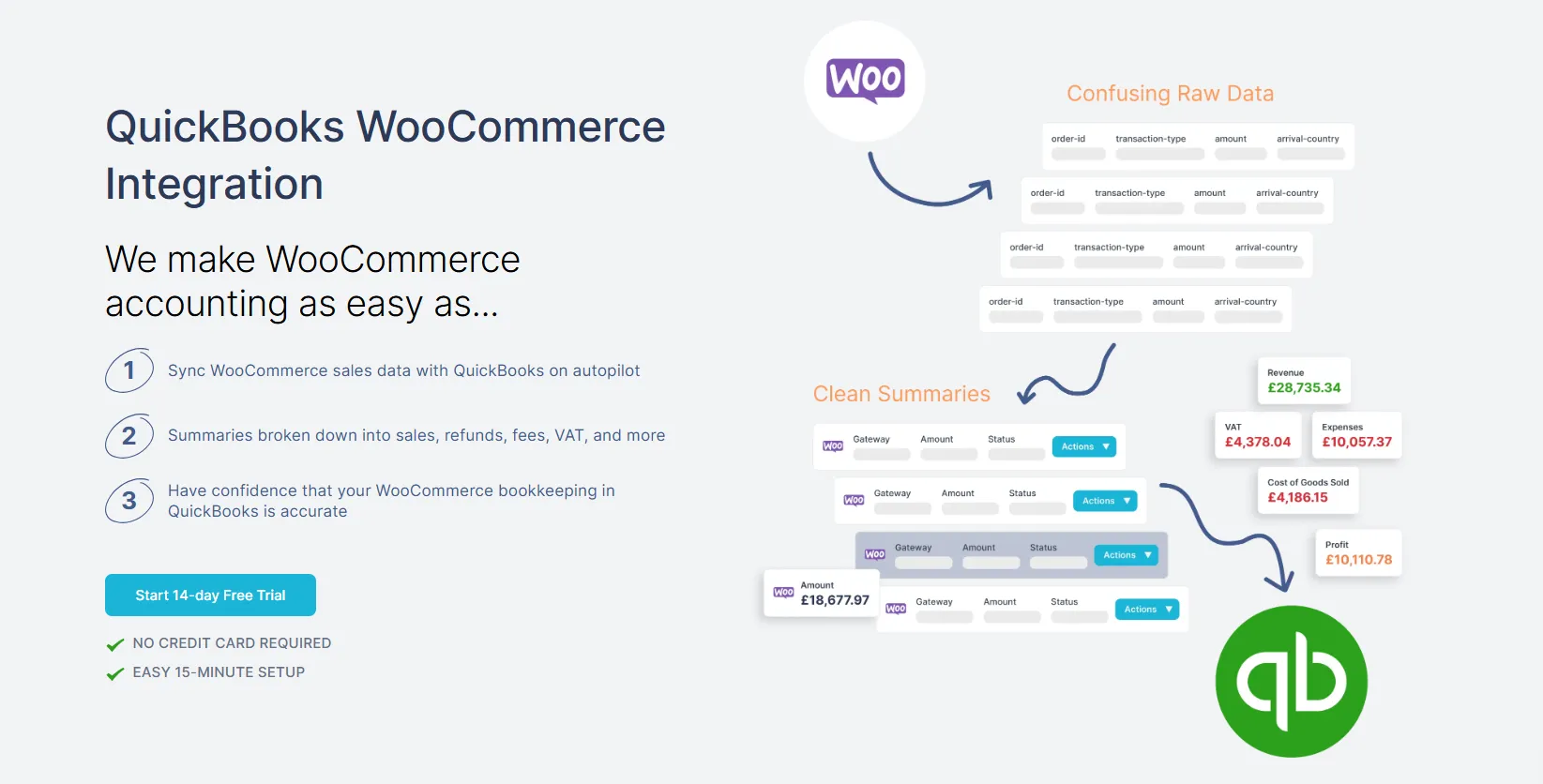
All of the options above fail for the same reason: they don’t understand how WooCommerce payouts actually work.
WooCommerce bookkeeping is payout-based, not order-based. Each payout contains:
- Sales
- Refunds
- Gateway fees
- Taxes
Automation tools like Link My Books are built specifically to handle this structure. Instead of forcing you to reconcile orders to deposits manually, they:
- Pull WooCommerce and gateway data automatically
- Separate sales, fees, refunds, and taxes correctly
- Apply consistent VAT or tax treatment
- Post clean summaries that match bank deposits exactly
At low volumes, spreadsheets can work. Once you care about accuracy, compliance, and time, automation stops being a “nice to have” and becomes the only practical alternative.
WooCommerce Bookkeeping Methods Compared
Key Takeaway from the Comparison
- Spreadsheets and CSVs can work in the early stages, but they rely on manual interpretation of complex payout data. As soon as order volume, VAT, or multiple payment gateways are involved, errors become inevitable.
- Link My Books is the only option in this comparison that understands WooCommerce payout structure, applies tax logic automatically, and produces entries that reconcile to the bank without manual intervention.
How Link My Books Makes WooCommerce Bookkeeping Simple & Fast
Before diving into spreadsheets, it’s important to understand what the easy and scalable option looks like.
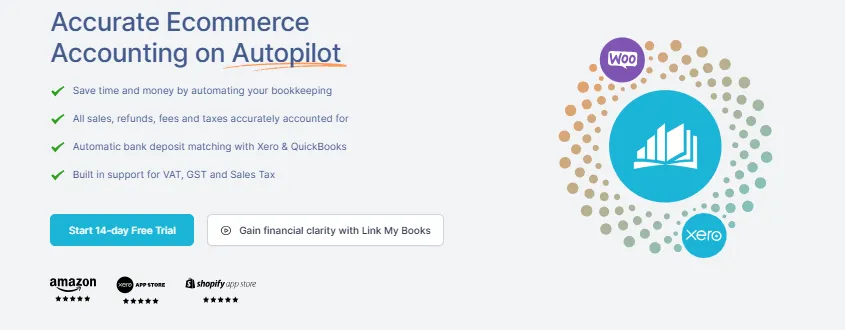
Link My Books automates WooCommerce bookkeeping by pulling sales data and payout information directly from WooCommerce and supported payment gateways, then posting clean, reconciled summaries into QuickBooks or Xero. Instead of tracking hundreds or thousands of transactions manually, you reconcile each payout in minutes.
What Link My Books Does for WooCommerce Sellers

Instead of building and maintaining spreadsheets every month, Link My Books creates one summary per payout that matches your bank feed exactly. Your books stay accurate, audit-ready, and easy for your accountant to review.
For low-volume sellers, spreadsheets can work temporarily. For anyone serious about scaling, automation quickly becomes the better option.
And you can try Link My Books out for free, no credit card needed!

FAQ
What is the best spreadsheet app for WooCommerce sellers?
Excel and Google Sheets are the most commonly used options for WooCommerce sellers because they are flexible and widely available. However, neither is built for payout reconciliation, VAT logic, or multi-gateway WooCommerce setups. As order volume grows, most sellers move from spreadsheets to a WooCommerce accounting software, which automates reconciliation and reduces errors.
Can you export WooCommerce transactions to Excel?
Yes. WooCommerce allows you to export order and payment data, either directly from WooCommerce or via plugins. Most sellers rely on the WooCommerce transaction report to populate spreadsheets, but these exports are order-based and do not match gateway payouts or bank deposits without additional manual work.
Is there a faster way to do WooCommerce bookkeeping than spreadsheets?
Yes. Automating WooCommerce bookkeeping is significantly faster and more accurate than using spreadsheets. With WooCommerce QuickBooks integration, Link My Books syncs WooCommerce sales, fees, refunds, and taxes directly into QuickBooks or Xero, eliminating manual spreadsheets entirely and ensuring clean reconciliation.
How should WooCommerce sellers handle VAT in spreadsheets?
Handling VAT in spreadsheets requires manually separating standard-rated, zero-rated, and non-taxable sales, as well as identifying VAT already collected or remitted by platforms or gateways. This is one of the most common sources of errors. For a detailed breakdown of VAT rules and common mistakes, see our full WooCommerce VAT guide.
Is a WooCommerce bookkeeping spreadsheet enough for long-term accounting?
For very small sellers, spreadsheets can work temporarily. However, once you are VAT registered, selling internationally, or using multiple gateways, spreadsheets become unreliable. Most growing businesses switch to automated WooCommerce seller accounting workflows to ensure accuracy, compliance, and scalability.
When should I stop using a WooCommerce bookkeeping spreadsheet?
You should consider moving away from spreadsheets if:
- You are VAT registered
- You process refunds frequently
- You use Stripe, PayPal, or multiple gateways
- Your WooCommerce payouts no longer match your bank easily
At this stage, automation is no longer a convenience but a requirement to keep your books accurate.
Make Your WooCommerce Accounting Simple With Link My Books
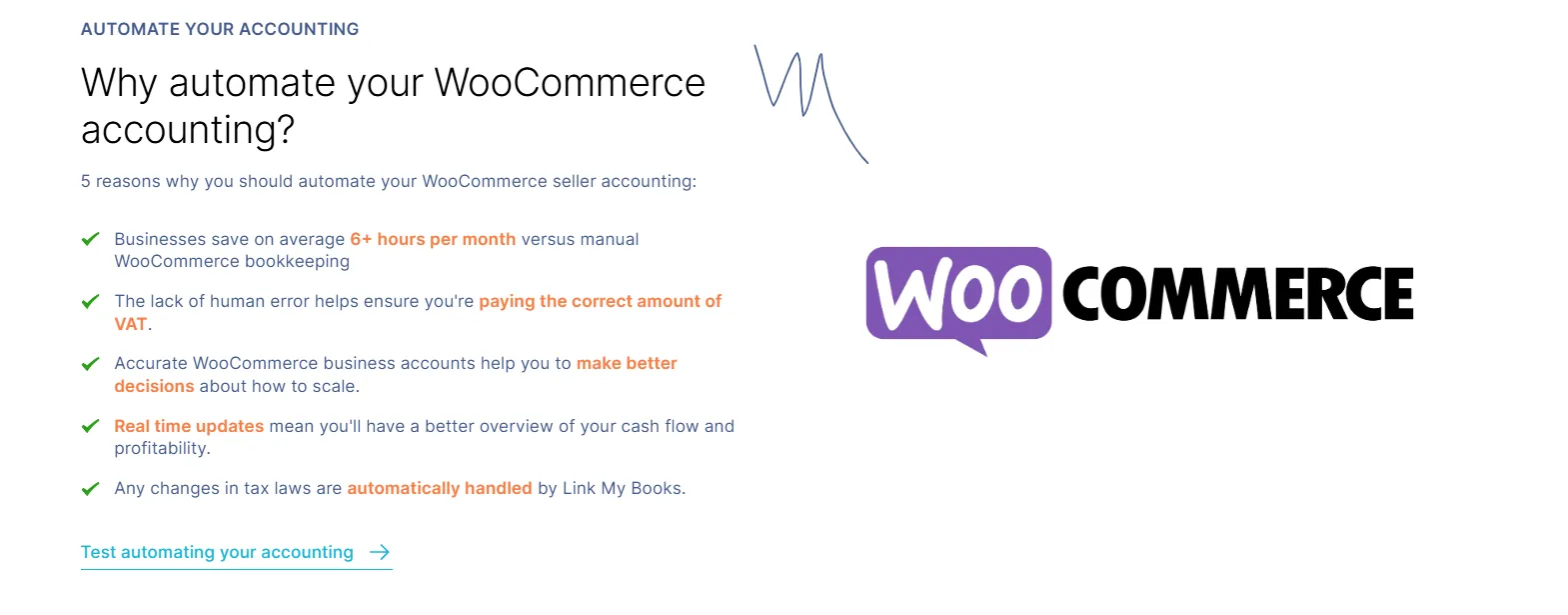
Spreadsheets can help you get started, but they are not built for scaling WooCommerce businesses. As soon as you deal with multiple gateways, VAT, refunds, or higher order volumes, manual bookkeeping becomes risky and time-consuming.
Link My Books automates WooCommerce bookkeeping by syncing sales, fees, refunds, and VAT directly into QuickBooks or Xero, fully reconciled and audit-ready.
No more spreadsheets. No more guesswork. Just accurate accounting, on autopilot.
Start your free 14-day trial and let Link My Books handle the heavy lifting.


.webp)



.png)