


Every eBay payout you receive includes a mix of sales, refunds, shipping, fees, and sometimes VAT - and while eBay provides detailed transaction reports, they’re buried under multiple menus, limited to 90 days, and hard to interpret without a spreadsheet marathon.
Whether you’re trying to reconcile your payouts, calculate VAT, or prepare year-end accounts, understanding how to access and use your eBay transaction report is essential. In this guide, we’ll show you both methods - the easy way with Link My Books, which automates everything, and the manual way if you still want to download the reports yourself.
Key Takeaways from this Post
eBay transaction reports show detailed records of every sale, fee, refund, and tax charge - crucial for accurate bookkeeping.
Many sellers only rely on payout summaries, missing the full breakdown needed for VAT and profit tracking.
Link My Books automates eBay reporting, syncing transactions directly to Xero or QuickBooks - saving hours and preventing costly tax mistakes.







Where Most Sellers Go Wrong with eBay Transaction Reports
Most eBay sellers think their payout amount equals their revenue. It doesn’t. Every eBay payout is a net figure - the result of multiple transactions bundled together:
- Sales minus refunds, selling fees, shipping costs, and VAT or marketplace taxes.
If you record that net payout as a single sale in QuickBooks or Xero, your books will never show true revenue or correct VAT. This causes three major problems:
- VAT overpayment or double-reporting: When eBay collects and remits VAT on your behalf, failing to separate those transactions can inflate your taxable sales.
- Mismatched reconciliations: The payout in your bank feed doesn’t match your recorded figures, leaving you with unreconciled balances.
- No clear profit view: Without separating fees and taxes, your profitability reports are distorted.
That’s why the key to accurate eBay bookkeeping is using the Transaction Report - or better yet, automating it completely.
Instead of juggling CSVs and spreadsheets, Link My Books pulls your eBay data automatically, categorizes every line item, and posts it directly into your accounting software with the correct VAT mapping.
How to Get an eBay Transaction Report the Easy Way (With Link My Books)
If you’ve ever tried to download, filter, and reconcile eBay’s transaction reports manually, you already know how time-consuming it can be. Each payout contains hundreds of line items, and eBay only lets you export 90 days at a time - making year-end reporting a nightmare.
Link My Books eliminates that hassle completely. It connects your eBay account directly to Xero or QuickBooks Online, automatically imports every payout, and posts a clean, summarized entry that matches your bank feed perfectly.
Here’s how to set it up step by step:
Step 1: Sign Up for Link My Books
- Start a Free Trial of Link My Books.
- Create your account - no credit card needed for the 14-day trial.
- Log in and select your accounting platform (Xero or QuickBooks Online).
Once you’re in, you’ll land on your Link My Books dashboard, ready to connect your first sales channel.
Step 2: Connect Your eBay Account
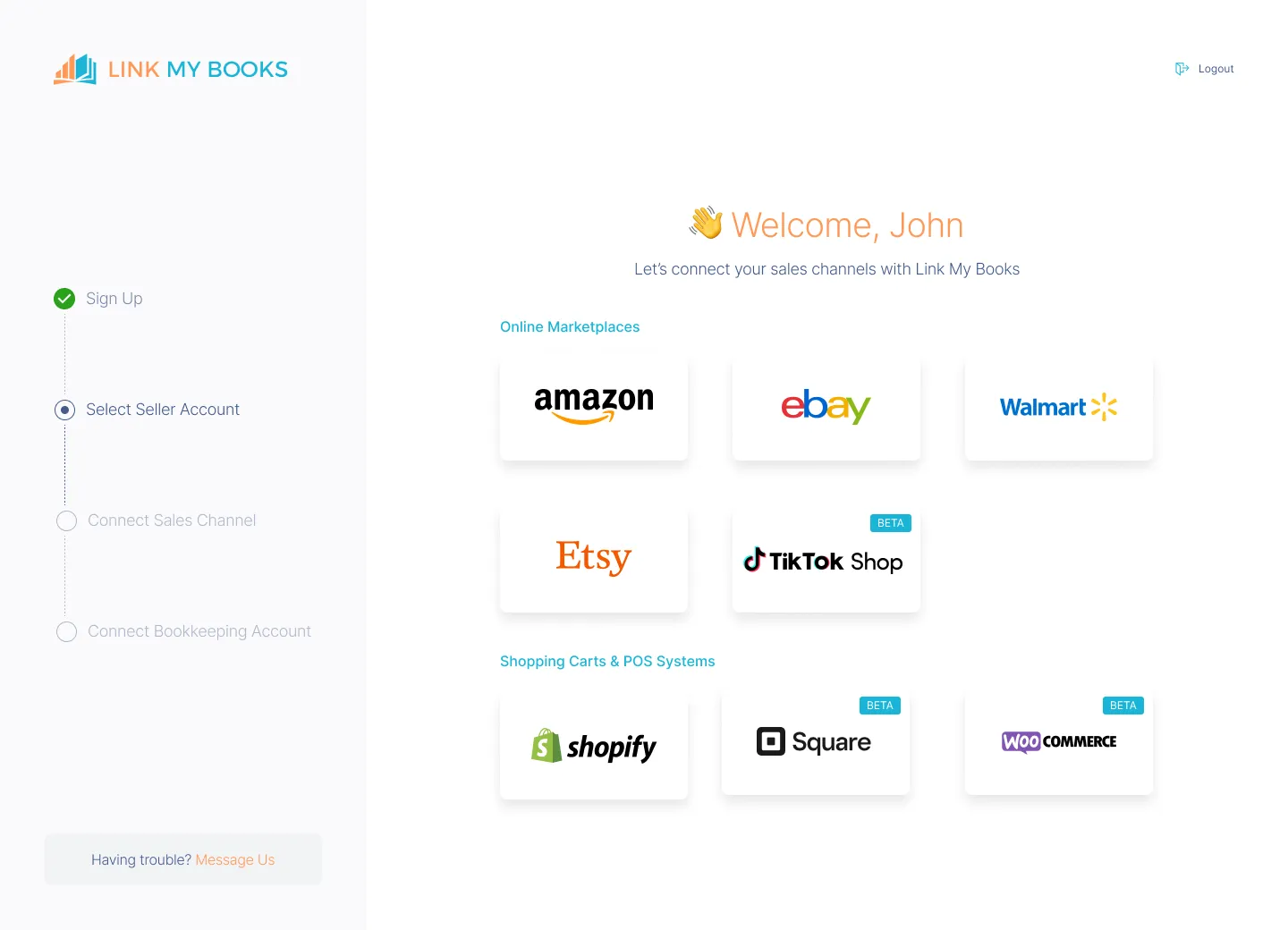
- Connect your eBay account to Xero or QuickBooks via Link My Books.
- From the dashboard, select Add Account → eBay.
- You’ll be redirected to eBay to authorize secure access.
- Link My Books will import your eBay payout data automatically - including up to three months of historical transactions on entry-level plans.
This connection is read-only and 100% secure. Link My Books only pulls the financial data it needs - sales, refunds, fees, and VAT - nothing else.
Step 3: Map Your Accounts and Tax Settings

- Use the Setup Wizard to map income, refund, and fee categories to your existing accounts in Xero or QuickBooks.
- Follow the Guided Tax Wizard to confirm your VAT or sales-tax setup.
- Link My Books automatically separates transactions where eBay collected and remitted VAT from those where you’re responsible for reporting.
✅ This ensures your VAT and OSS filings stay accurate - no more manual adjustments or overpaid taxes.
Step 4: Sync Your Payouts Automatically

- Link My Books fetches each new eBay payout automatically.
- Every sale, refund, fee, and tax line is categorized correctly.
- You’ll see one summarized entry per payout - which matches your bank feed exactly.
This one-click reconciliation means your books stay up-to-date and balanced, without downloading any CSVs.
Step 5: Review and Relax
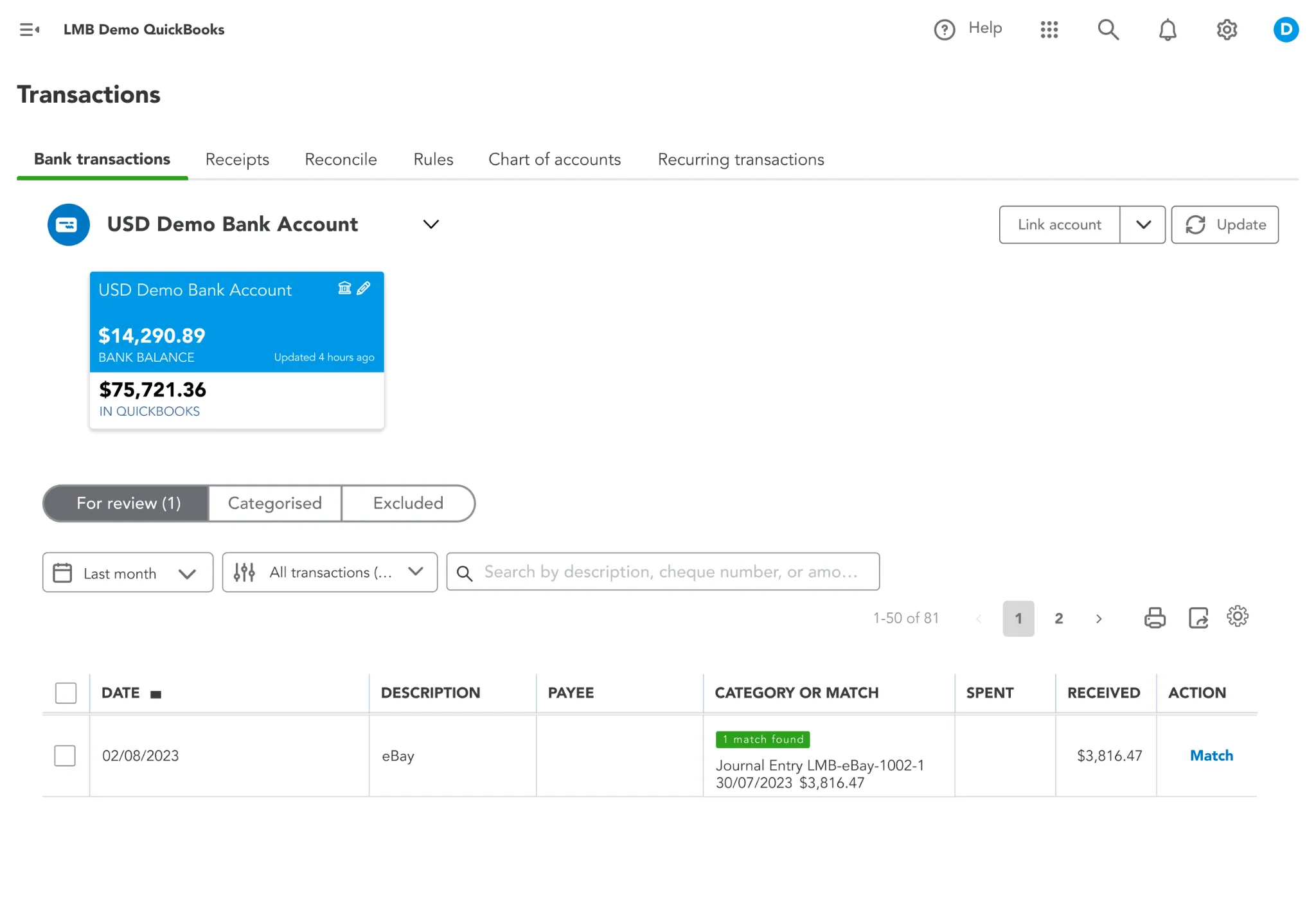
- In QuickBooks or Xero, open Bank Feed → Match Transactions.
- You’ll see each eBay payout ready to match with a single click.
- Review your summaries in Link My Books anytime for audit-ready visibility.
✅ What once took hours of spreadsheet work now takes less than 15 minutes per month.
Link My Books turns your eBay bookkeeping into a hands-off process.
You’ll always know where your money is going - and never have to touch a transaction report again.

👉 Start your free 14-day trial of Link My Books today and automate your eBay accounting from day one.
How to Get an eBay Transaction Report Manually
If you prefer to download your eBay transaction data yourself, you can do that directly inside Seller Hub or My eBay. These reports include every sale, refund, fee, tax, and payout - but they can be tricky to work with because eBay limits exports to 90-day windows and provides only raw CSV files.
Here’s exactly how to access and export your data:
Option A: Download from Seller Hub (Recommended for Most Sellers)
- Log in to Seller Hub: Sign in to your eBay account and open Seller Hub.
- Go to the Payments Tab: At the top of the page, click Payments to view your payout and transaction history.
- Select Earnings: In the left menu, choose Earnings. This section lists every sale, refund, and associated fee within your selected period.
- Set Your Date Range: Use the filters to choose your desired date range (eBay typically allows up to 90 days at a time).
- Generate and Download Your CSV File: Click Generate CSV or Download. eBay will create a spreadsheet with all your transactions.
What You’ll See in the File
Each line of the CSV includes:
Option B: Download from My eBay (Alternative Path)
- Go to My eBay → Payments.
- Select Reports and Taxes, then under Earnings click See All.
- Choose your date range and select Generate CSV.
This report contains the same columns as the Seller Hub version - the only difference is navigation.
Option C: Generate Other Report Types
If you need Orders or Listings data rather than payout information:
- Go to Seller Hub → Reports.
- From the Download section, select your report type (Orders, Listings, or custom).
- Export to CSV.
This replaces the older File Exchange tool and lets you schedule recurring reports.
Date-Range Limits and History Notes
- eBay’s standard data retention window for transaction-level exports is roughly 90 days, though some payout detail may persist longer in your dashboard.
- For long-term reporting, you’ll need to download multiple files and merge them manually.
- Sellers running multi-currency accounts should note that exchange-rate adjustments may not appear line-by-line in the CSV.
Why Manual Reporting Is So Time-Consuming
Manually working with eBay CSVs can feel like balancing dozens of moving parts:
- You must combine sales, refunds, and fees from multiple files if you sell year-round.
- VAT and marketplace-collected tax amounts often need extra filtering before they can be imported into accounting software.
- The 90-day export cap means you’ll repeat the process four to six times a year to keep complete records.
That’s why most professional sellers skip all this manual work entirely by using Link My Books to automate the process. Your sales tax data will be ready, accurate, and synced with your eBay accounting software.
How Link My Books Makes Accounting for eBay Easy
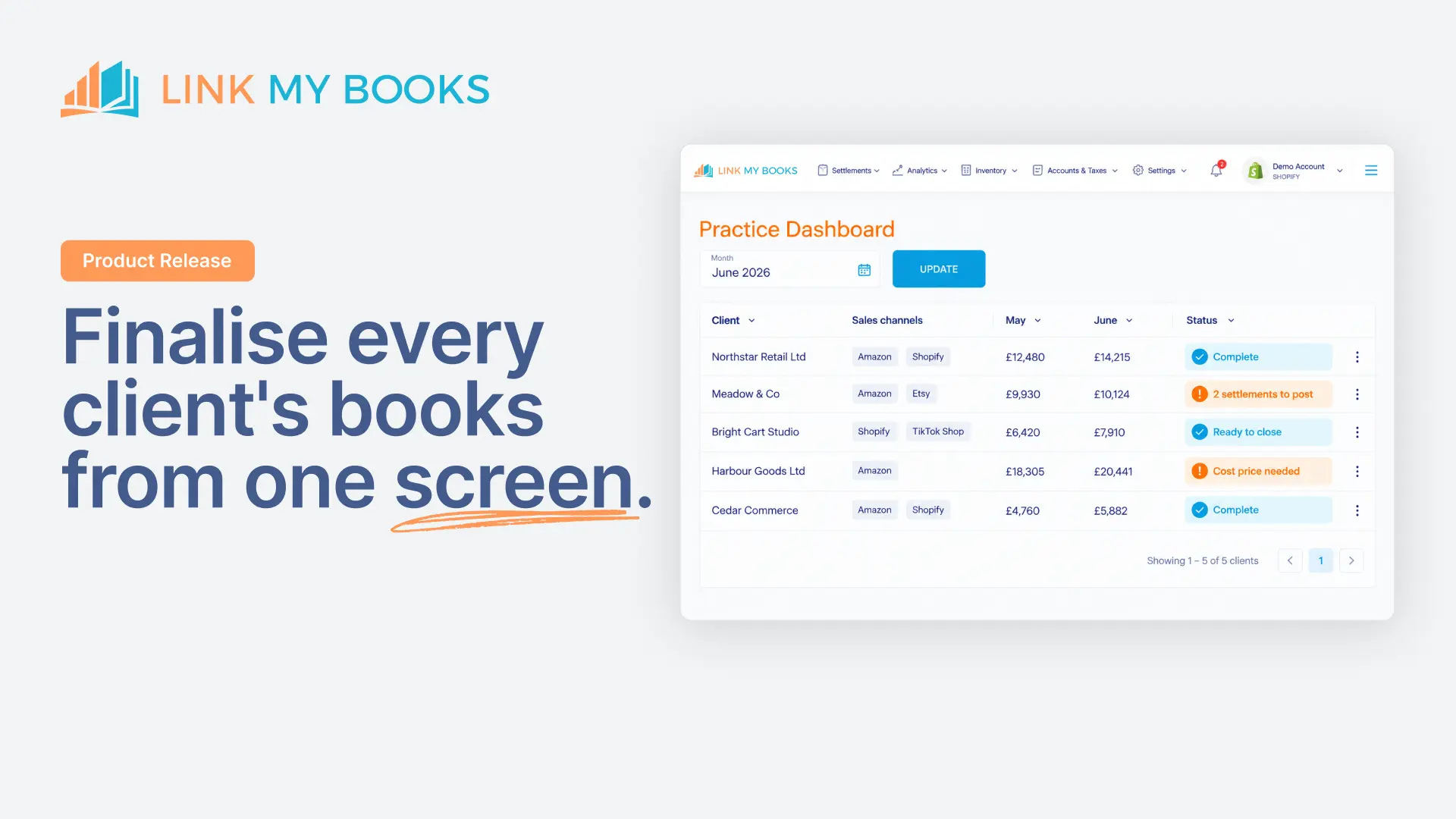
Link My Books connects your eBay account directly to Xero or QuickBooks Online, automatically importing your payouts and generating accurate, audit-ready entries for each settlement. It replaces manual data entry with a fully automated workflow that saves time, prevents VAT errors, and ensures every penny is reconciled perfectly.
Here’s what it does for you:
1. Automatic Payout Reconciliation
✅ You’ll spend less than 15 minutes a month on bookkeeping - even if you process hundreds of transactions.
2. Built-In VAT and OSS Compliance
For UK and EU sellers, getting VAT right can be the hardest part of eBay bookkeeping.
Link My Books solves that automatically by:
- Separating Marketplace Facilitator VAT (collected and remitted by eBay) from VAT you must declare.
- Applying the correct Standard, Reduced, or Zero VAT rates for each transaction.
- Mapping taxes correctly to your accounting software’s tax codes so your VAT return is always accurate.
💡 Result: No more double-reporting or overpaying VAT at year-end.
3. Fee and Expense Categorization

Link My Books automatically categorizes every fee type - including final value fees, ad spend, payment processing fees, and international surcharges - and assigns them to the correct expense accounts.
That means your Profit & Loss report reflects true margins instantly, without manual journal entries.
4. Multi-Channel Support

If you sell on more than one platform, Link My Books becomes even more powerful.
It integrates with:
- Amazon
- Shopify
- Etsy
- TikTok Shop
- Walmart
- WooCommerce
- Square
All your data syncs into one accounting file, giving you a clear cross-channel performance view and consistent VAT treatment across every marketplace.
5. Real-Time Financial Insights

Link My Books gives you a clear snapshot of your eBay profits and costs.
- Track sales and expenses per marketplace or product line.
- Compare your results against industry benchmarks (unique to Link My Books).
- Use the built-in profitability and COGS tracking tools to see your real margins.
6. Accountant-Backed UK Support

All Link My Books support agents are qualified accountants, based in the UK, with deep e-commerce expertise.
They help you configure mappings, verify tax settings, and ensure your books align with HMRC or IRS rules.
This hands-on, accountant-led onboarding is one of the biggest reasons sellers switch from competitors like A2X.
✅ In short: Link My Books does everything eBay’s transaction report does, automatically and error-free.
Your sales, fees, refunds, and taxes are imported, mapped, and reconciled automatically, so you can focus on selling, not spreadsheets.
👉 Start your free 14-day trial of Link My Books today and experience effortless eBay bookkeeping.
Essential eBay Transaction Report (Earnings Report) Figures to Know
eBay refers to this data as the Earnings report inside Seller Hub, but many sellers call it the Transaction Report because it shows every sale, refund, fee, and tax in detail.
Whatever the name, these figures are essential for reconciling payouts, tracking VAT, and understanding your true profit margins.
Below is a breakdown of the key fields you’ll see when you download your report, what they mean, and how they affect your bookkeeping.
Why These Figures Matter
Each field tells part of the financial story behind your sales.
If you only record the net payout, your books will miss critical details like fees, taxes, and refunds - making your VAT filings and profit reports unreliable.
Accurate categorization of these values ensures:
- VAT compliance: You only report the sales you’re actually responsible for.
- Accurate profitability: All fees and refunds are correctly applied.
- Easy reconciliation: Each payout matches your bank feed to the cent.
That’s exactly what Link My Books automates - importing each field directly from eBay, mapping taxes correctly, and posting a clean summary entry for every payout.
How to Use eBay Transaction Report Figures for VAT Calculation
VAT reporting can quickly become complicated for eBay sellers, especially since eBay acts as a marketplace facilitator in many regions. That means sometimes eBay collects and remits VAT for you, and sometimes you’re responsible for reporting it yourself. Knowing which is which is essential for accurate bookkeeping and tax compliance.
The eBay Transaction Report (called the Earnings report inside Seller Hub) gives you all the figures you need - if you know how to interpret them.
Step 1: Identify Which Sales Include Marketplace-Collected VAT
eBay collects VAT on your behalf in specific circumstances:
- When you sell to UK or EU customers from outside those regions.
- When the consignment value is under £135 / €150.
- When you sell as a non-UK or non-EU business shipping goods to UK or EU buyers.
In these cases, the VAT is Marketplace-Collected Tax - you don’t need to remit it, but you must still record it correctly in your accounts to avoid double-reporting.
You’ll see these transactions in your CSV under fields like:
- Marketplace-Collected Tax
- Tax Type: eBay-Collected or Facilitator-Collected
✅ In Link My Books: These amounts are automatically excluded from your VAT turnover and tagged as “Marketplace Facilitator VAT,” ensuring compliance with HMRC or EU OSS rules.
Step 2: Identify Seller-Collected VAT
If you hold inventory in the UK or EU (for example, through a local fulfillment center) or you sell to domestic buyers, you’re responsible for collecting VAT.
You’ll see these in your report under:
- Seller-Collected Tax or Tax Type: VAT
These transactions form part of your taxable sales and must be included in your VAT return.
✅ In Link My Books: These are automatically mapped to the correct VAT code (Standard, Reduced, or Zero Rate) based on the destination country and your account setup.
Step 3: Track Refunds and Adjust VAT Accordingly
Refunds can’t be ignored when calculating VAT.
If you issue a partial or full refund, you must also adjust your VAT total for that order.
The Refunds field in your transaction report shows the amount refunded to buyers, while the Tax column shows how much VAT was associated with that refund.
✅ In Link My Books: Refund transactions are automatically created in your accounting software and linked to the original sale, adjusting VAT and revenue totals for you.
Step 4: Reconcile Your VAT Totals
To confirm your VAT figures align:
- Filter your eBay transaction report to show only Seller-Collected Tax entries.
- Sum those totals for the period you’re filing.
- Compare this with your VAT summary in QuickBooks or Xero.
If you use Link My Books, the VAT summary in your accounting software will already match eBay’s data - because it’s imported, categorized, and reconciled automatically.
Step 5: Maintain Records for Compliance
Even though eBay may collect VAT on some transactions, you’re still legally required to:
- Keep records of all sales and VAT charges.
- Report your sales through your VAT or OSS return.
- Retain digital records under Making Tax Digital (MTD) rules if you’re in the UK.
✅ Link My Books stores these records automatically and keeps your VAT data audit-ready - no need to manually archive CSV files or spreadsheets.
Why You Need an eBay Transaction Report (and When You Don’t)
Your eBay transaction report (or Earnings report inside Seller Hub) is more than just a list of sales. It’s a complete financial record showing how much you sold, how much eBay deducted in fees, what taxes were applied, and what ultimately hit your bank account.
Why You Need It
Even if you’re not an accountant, these reports matter for three reasons:
- VAT and Sales Tax Compliance: The report shows which transactions include Marketplace-Collected VAT (handled by eBay) and which you’re responsible for. Without this, you risk double-reporting or missing taxable sales entirely.
- Profit Tracking: It breaks down sales, fees, refunds, and ad spend, so you can see your actual margins instead of just your gross revenue.
- Bank Reconciliation: The net amount in your transaction report matches what appears in your bank feed. You need these figures to confirm your books balance correctly in QuickBooks or Xero.
When You Don’t Need It
If you’re using Link My Books, you never have to download or interpret these reports manually.
Here’s why:
- All the same data is pulled automatically through eBay’s API - sales, refunds, fees, and taxes are imported directly.
- Payouts are summarized and matched to your bank feed, so reconciliation takes one click.
- VAT and sales-tax entries are already mapped, separating eBay-collected and seller-collected tax automatically.
- Audit-ready summaries are generated for you inside your accounting software, so you always have the full record without the CSV clutter.
In short, if you’re doing manual bookkeeping, the transaction report is essential.
If you’re using Link My Books, it’s already done for you - accurately, automatically, and error-free.
👉 Automate your eBay bookkeeping and skip the downloads - start your free 14-day trial of Link My Books today.
FAQ on eBay Transaction Reports, Tax, and Accounting

How do I download an eBay transaction report?
Go to Seller Hub → Payments → Earnings, choose your date range, and click Generate CSV. You can also access it via My eBay → Payments → Reports and Taxes → Earnings → See All.
For a full walkthrough, see our guide on eBay bookkeeping.
Will eBay send me a 1099?
If you meet IRS thresholds for Form 1099-K, eBay will issue it as a third-party payment processor. For the 2025 tax year, the threshold reverts to $20,000 and 200 transactions under updated IRS rules. Even if you don’t receive the form, you must still report taxable income.
Does eBay automatically collect sales tax or VAT?
Yes - in most U.S. states and many UK/EU transactions, eBay acts as a marketplace facilitator, collecting and remitting tax on your behalf. You’re still responsible for your own seller-collected VAT where applicable.
For details on how this works, read our full eBay VAT guide.
How can I find sales by country on eBay?
Use Seller Hub → Reports → Orders, then filter by country or export the CSV. The Orders report shows site-level sales that help with VAT and OSS reporting.
You can also explore our eBay sales report tutorial for tips on analyzing this data efficiently.
How far back can I see my eBay sales or export data?
eBay lets you set custom date ranges, but most reports limit exports to about 90 days per file. For year-end records, download multiple reports or schedule recurring exports in Seller Hub.
When you use Link My Books, all of this data syncs automatically - no manual exports needed.
What’s the difference between seller-collected tax and marketplace-collected tax?
Seller-collected tax is the VAT or sales tax you personally remit. Marketplace-collected tax is when eBay collects and remits it on your behalf (e.g., low-value UK imports under £135).
Link My Books automatically separates these in your accounting software, preventing double-reporting on your eBay VAT filings.
Do I need the transaction report if I use Link My Books?
No. Link My Books pulls the same data through eBay’s API - including sales, fees, refunds, and taxes - and posts a summarized entry that matches your bank feed exactly. You’ll always have audit-ready reports without downloading CSVs.
How do I connect eBay to QuickBooks or Xero the easy way?
Sign up for Link My Books → Add Account → eBay → run the Setup Wizard to map income, fees, and tax → enable AutoPost.
Once set up, payouts sync automatically into your books.
Simplify Accounting for eBay with Link My Books

Manually exporting eBay transaction reports every quarter, matching them to your bank feed, and separating VAT line by line isn’t just tedious - it’s risky. A single formula error in your spreadsheet can mean overstated income or overpaid VAT.
Link My Books replaces all of that manual work with a simple, automated system built specifically for eBay sellers and accountants.
Here’s what you get:
- Accurate bookkeeping: Every sale, fee, refund, and tax synced automatically into Xero or QuickBooks.
- One-click reconciliation: Each payout matches your bank feed perfectly.
- VAT and OSS compliance: Marketplace-collected and seller-collected taxes handled automatically.
- Multi-channel visibility: Combine eBay with Amazon, Etsy, Shopify, and more for complete financial clarity.
- Accountant-backed support: Every setup is guided by qualified accountants who understand e-commerce bookkeeping.
💡 In short, you’ll go from spending hours reconciling spreadsheets to having audit-ready books every month - automatically.
👉 Start your free 14-day trial of Link My Books today and experience effortless, accurate eBay bookkeeping.


.webp)



.png)