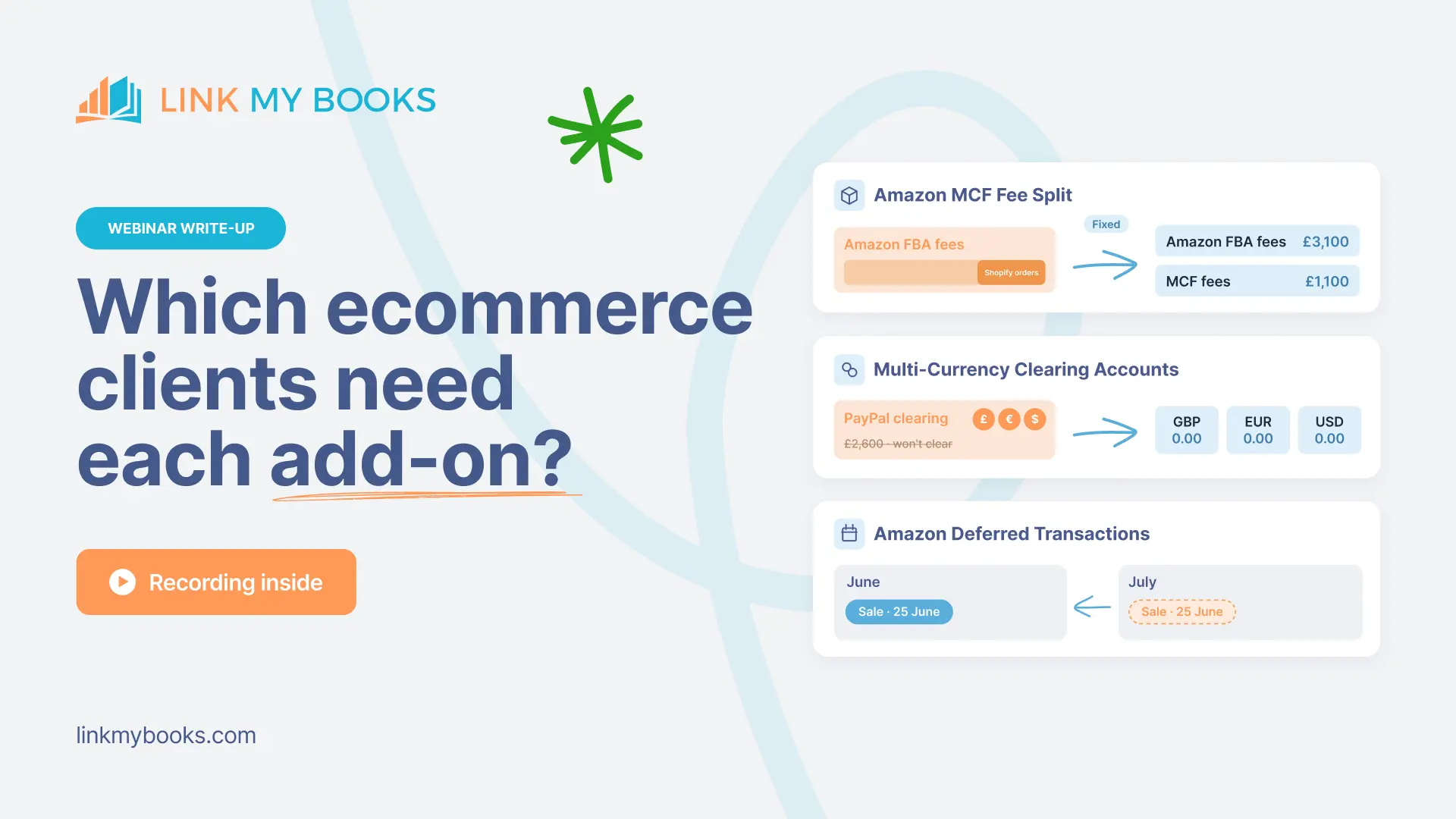
An ecommerce client's books can match every bank deposit and still put Amazon fees, PayPal currencies or Amazon sales in the wrong place. Here's how to check which clients need each of our three ecommerce accounting add-ons, and switch it on.
Key Takeaways from this Post
Ask three questions about every ecommerce client. Does Amazon ship orders from their other channels? Are they paid in more than one currency through PayPal, Stripe or Klarna? Does Amazon hold their pay?
See every eligible client on one page. Account add-on options in your accountant portal lists the clients with an add-on opportunity, and you can switch each one on there.
Prepare before switching on Amazon Deferred Transactions. Turn off auto-post, choose the start date carefully and check no backfilled month falls in a VAT period you've already filed.







An ecommerce client's books can be reconciled to every bank deposit and still tell the wrong story.
Fulfilment costs for a client's Shopify orders can sit against Amazon, and PayPal payouts in several currencies can share one clearing account.
Amazon can also hold back pay, so a June sale lands in July.
None of these shows up when you reconcile, because the totals still match.
Here's how to find which clients have each problem, and how to switch on the Link My Books add-on that fixes it.
Where can you see which clients need an add-on?
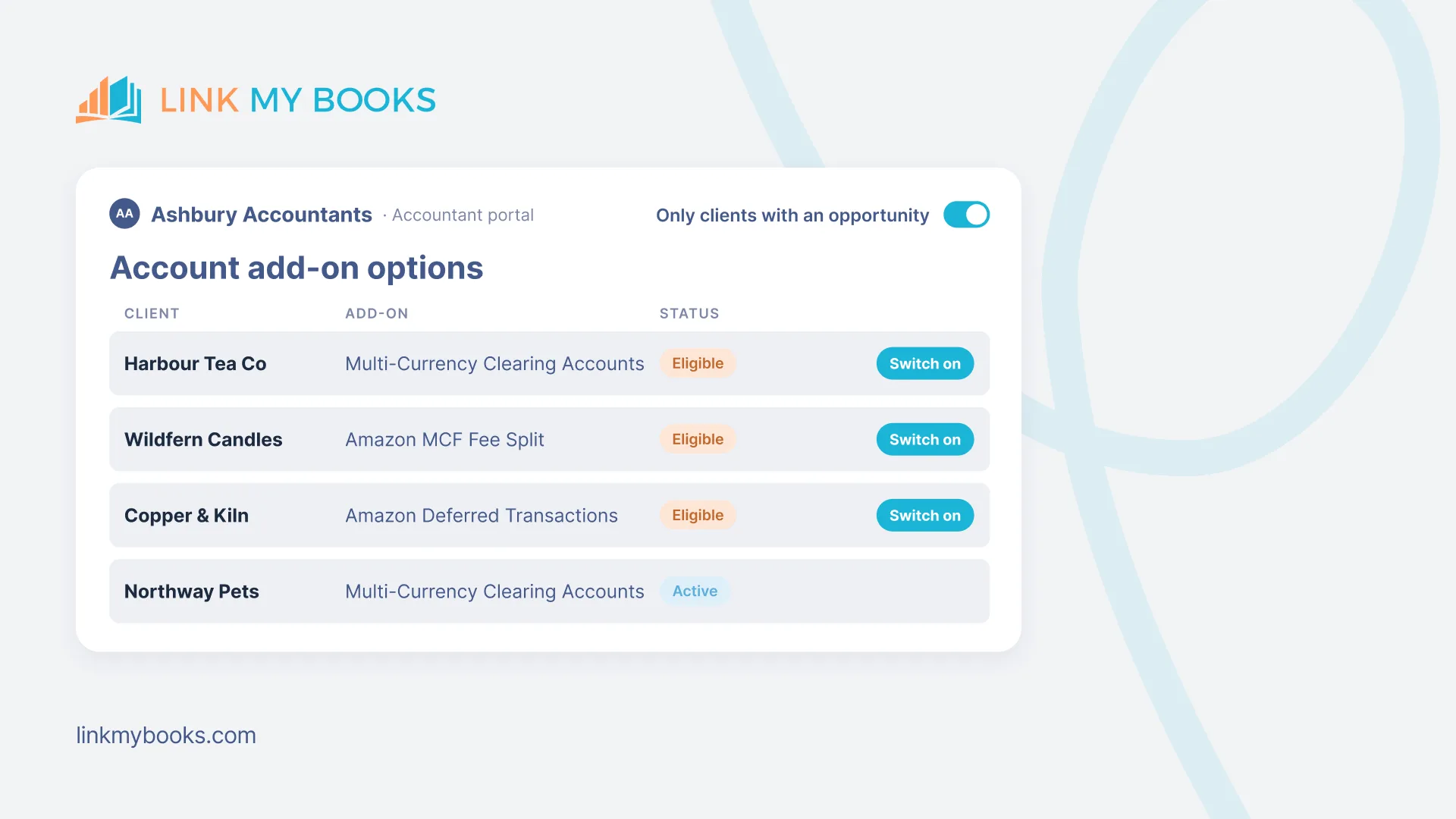
Start with the Account add-on options page in your accountant portal.
It lists every client. Switch on "only clients with an opportunity" and the list narrows to the clients eligible for at least one add-on.
Click into an eligible client to switch the add-on on from the same page. Its status then changes to active.
Inside a client's account, a banner at the top also shows any add-on that account is eligible for.
Only the account's billing owner can switch on an add-on, on a paid plan rather than during a trial.
If the client is on your firm's subscription, that's you.
If the client pays for their own account, they switch it on. Or you can email support and copy them in, and our team switches it on once they approve.
1. Amazon MCF Fee Split: does Amazon ship your client’s orders from other channels?
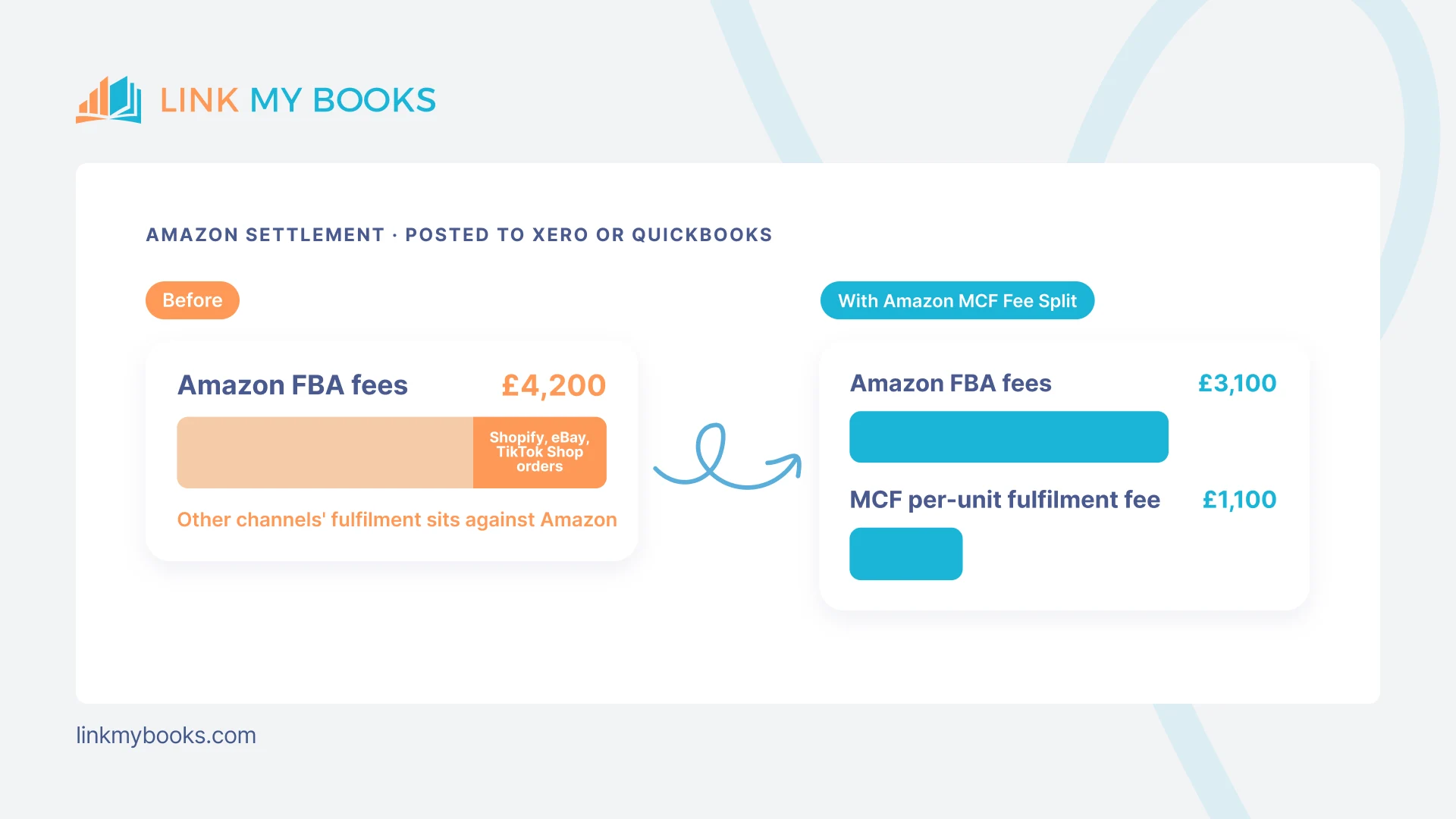
If a client sells on Shopify, eBay or TikTok Shop, Amazon may fulfil some of those orders from FBA stock. That's Multi-Channel Fulfilment (MCF).
Amazon reports those fees in the Amazon settlement, so they land in Amazon FBA fees alongside the fees for genuine Amazon orders.
Amazon then looks less profitable than it is, and the other channels look more profitable than they are.
It also leaves no way to tell whether MCF costs less than a third-party logistics firm or shipping from the client's own warehouse.
Until now, the only fix has been a manual journal for every settlement.
How to check: ask the client whether Amazon fulfils any orders from their other channels. We also detect MCF orders in the client's Amazon sales data, so these clients show as eligible on the add-on page.
How to switch on Amazon MCF Fee Split:
- Create an account for the split fees in the client's chart of accounts, such as Multi-Channel Fulfilment Fees.
- Switch on the add-on from the banner, the add-on page or the settlement settings.
- Map the new account and save.
From then on, each Amazon settlement splits the FBA per-unit fulfilment fee in two.
The share for Amazon orders stays in Amazon FBA fees, and the share for other channels' orders moves to the MCF account.
That gives you a fair comparison of profit by channel, and it works across every Amazon marketplace.
For how to treat MCF costs in the books, see our guide for accountants on Amazon MCF costs.
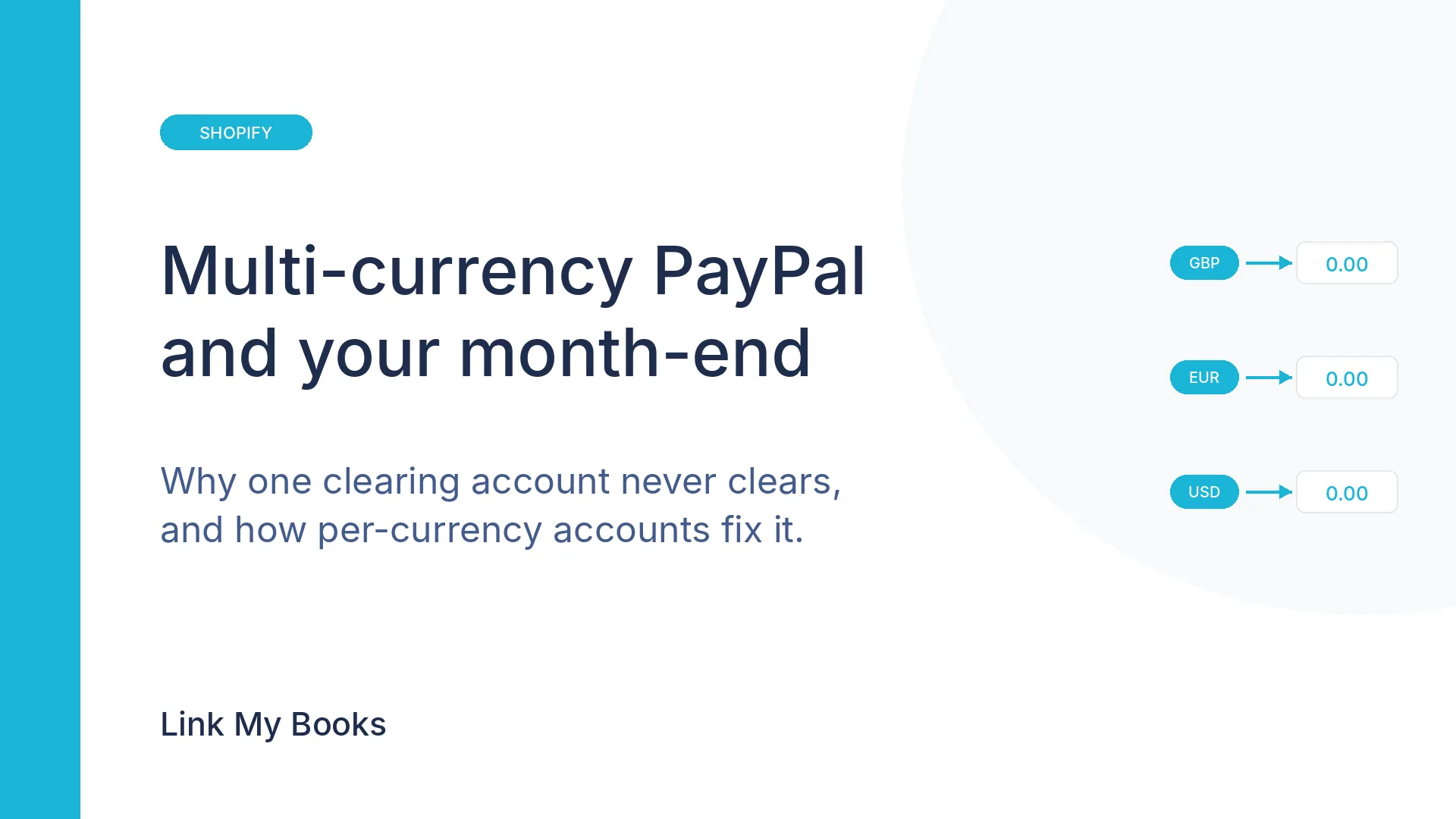
2. Multi-Currency Clearing Accounts: is your client paid in more than one currency through PayPal or Stripe?
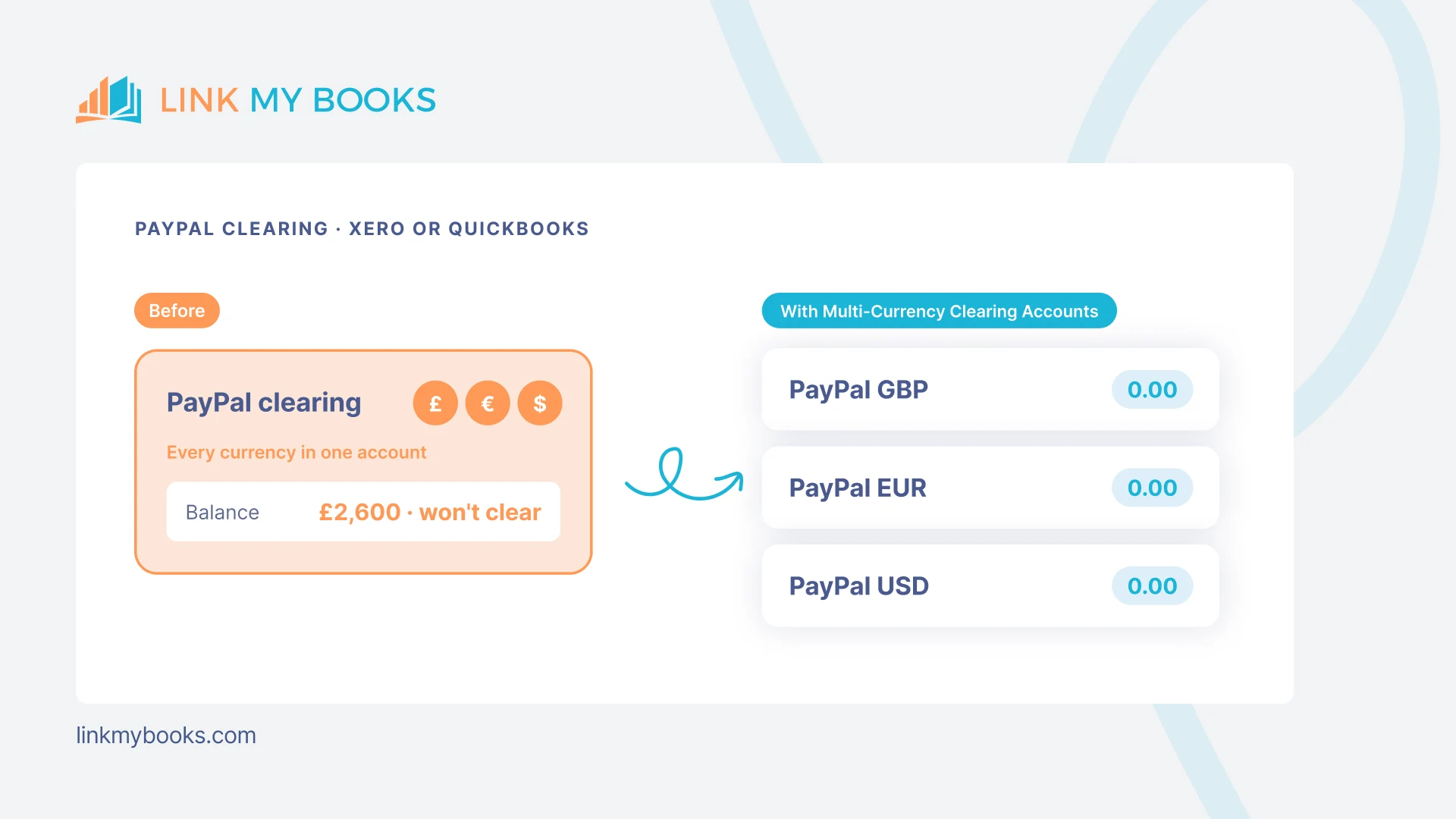
When a Shopify or WooCommerce store takes PayPal, Stripe or Klarna payments in more than one currency, each one still runs through the same clearing account.
The gateway reports each currency separately, but the clearing account mixes them together.
Exchange differences, unmatched payouts and timing gaps build up in one balance that never clears.
How to check: open the client's gateway clearing account and look for more than one currency. We also flag any client paid through a gateway in more than one currency in the last 90 days.
How to switch on Multi-Currency Clearing Accounts:
- If a currency the client receives isn't set up yet, add it from the settlements dashboard first.
- Switch on the add-on and tick each currency.
No mapping is needed, because we create the clearing accounts for you.
Each currency then posts to its own clearing account, set up in that currency, such as PayPal GBP, PayPal EUR and PayPal USD.
You reconcile each one to the gateway's report in its own currency.
Exchange gains and losses go to realised gains and losses, and each clearing account clears to zero.
For setting up gateways across a whole client book, see our guide to reconciling multiple payment gateways.
3. Amazon Deferred Transactions: does Amazon hold your client’s pay?
Amazon now holds the money from most sales until seven days after delivery, known as DD+7. Business customers can also get up to 45 days' credit.
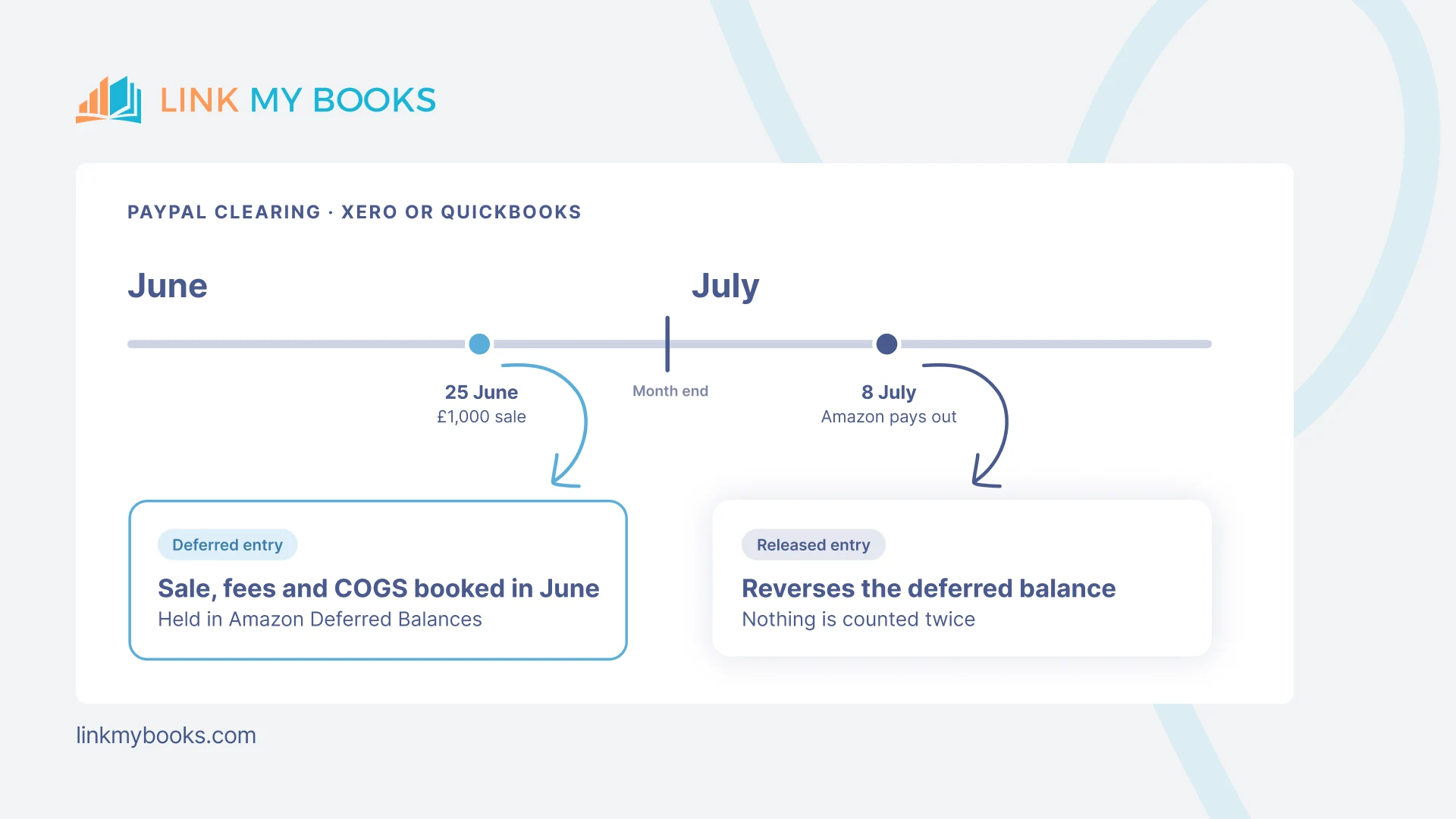
The settlement then dates the order on the day Amazon releases it. So a sale made on 25 June can land in July's P&L, with its fees and cost of goods sold.
If the client's VAT quarter ends in June, that sale is reported in the wrong VAT period.
Monthly figures also stop matching what the client sees in Seller Central.
Amazon has no report showing what was deferred on the last day of a past month, only what's deferred right now.
Our sellers' guide to Amazon deferred transactions explains DD+7 in more detail.
How to check: ask the client whether DD+7 is active on their Amazon account. If they don't know, Amazon seller support can tell them.
The add-on page only flags clients with more than 2,500 Amazon orders, because they're hit hardest. Smaller Amazon clients can still need it.
If you do monthly management accounts for an Amazon client, they need it too.
Before you switch on Amazon Deferred Transactions:
- Turn off auto-post, so backdated entries don't post to Xero or QuickBooks straight away.
- Choose the start date carefully. It should be when DD+7 began on the account, which is when Amazon stopped holding reserved balances.
- Check no backfilled month falls in a VAT period you've already filed.
- Give a large backfill time to finish before raising a query.
Each month, you'll then see a deferred entry in the month of the sale, held in an Amazon Deferred Balances account.
When Amazon pays out, a released entry reverses it, so nothing is counted twice.
If cost of goods sold tracking is on, the COGS moves with the sale.
Entries appear once every Amazon marketplace's settlements are in, between the 2nd and the 15th of the following month. Clients on daily payouts get them earliest.
See how deferred Amazon entries post to Xero or QuickBooks.
Where we fit in
Link My Books posts each ecommerce client's sales from Amazon, Shopify, eBay, Etsy, TikTok Shop, Walmart, WooCommerce or Square into Xero or QuickBooks, reconciled to the bank deposit.
Our ecommerce accounting add-ons make sure those numbers land against the right channel, in the right currency and in the right month.
It's how 500+ accounting and bookkeeping firms save 5+ hours per client, per month. See how it works for accountants and bookkeepers.
Already a partner? Open Account add-on options in your accountant portal to see which clients are eligible today.
New to Link My Books? Book a demo to see the add-ons with our team.
Watch the add-ons webinar
The recording shows Link My Books Co-Founder (and ex-ecommerce business owner), Daniel Little, switching on all three add-ons in a live demo and answering accountants' questions.
To see which ecommerce clients are ready to process, and what's holding up the rest, watch the Practice Dashboard webinar.
Watch the Practice Dashboard webinar
Cost of goods sold is the next number to get right. The COGS webinar shows how to set up automated COGS tracking, so your ecommerce clients see their true margins.
Join or watch the COGS tracking webinar
Frequently asked questions
Who can switch on a Link My Books add-on?
The account's billing owner, on a paid plan. If the client is on your firm's subscription, that's you. If not, the client can switch it on, or you can email support and copy them in. Once they approve, our team activates it.
Which ecommerce clients need Amazon Deferred Transactions?
Any Amazon client whose pay is held under DD+7, or who sells to business customers on credit. It matters most for clients you do monthly management accounts for, because their monthly figures won't match Seller Central without it.
Can MCF fees be assigned to the sales channel the order came from?
Not yet. Amazon marks MCF orders as non-Amazon orders, but doesn't say which channel they came from, so the fees go to one MCF account. If you know a way to link an MCF order back to its original channel, contact our team.
When do deferred and released entries appear?
Once every Amazon marketplace's settlements for the month are in, between the 2nd and the 15th of the following month. With daily payouts, that's usually in the first few days.