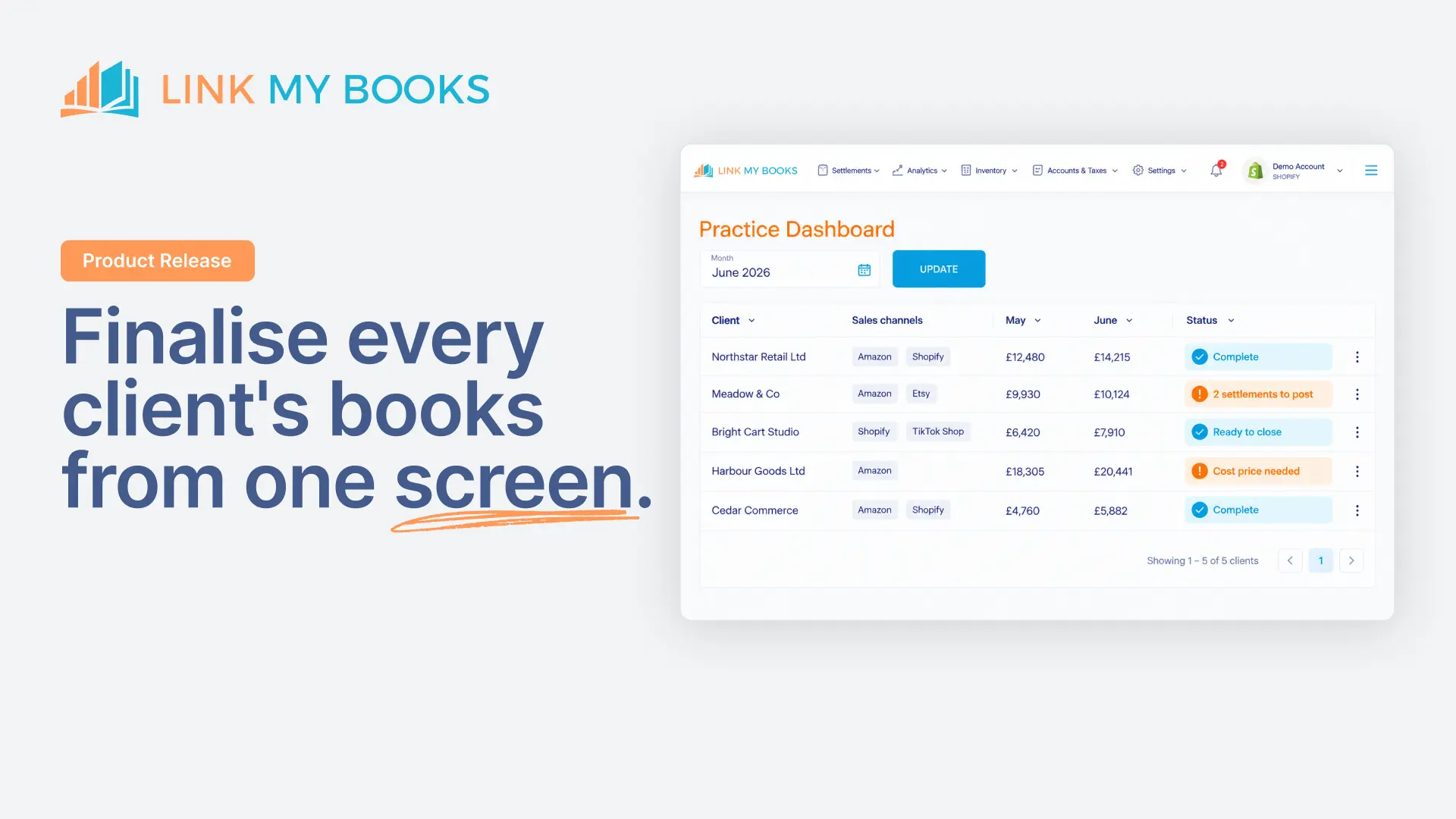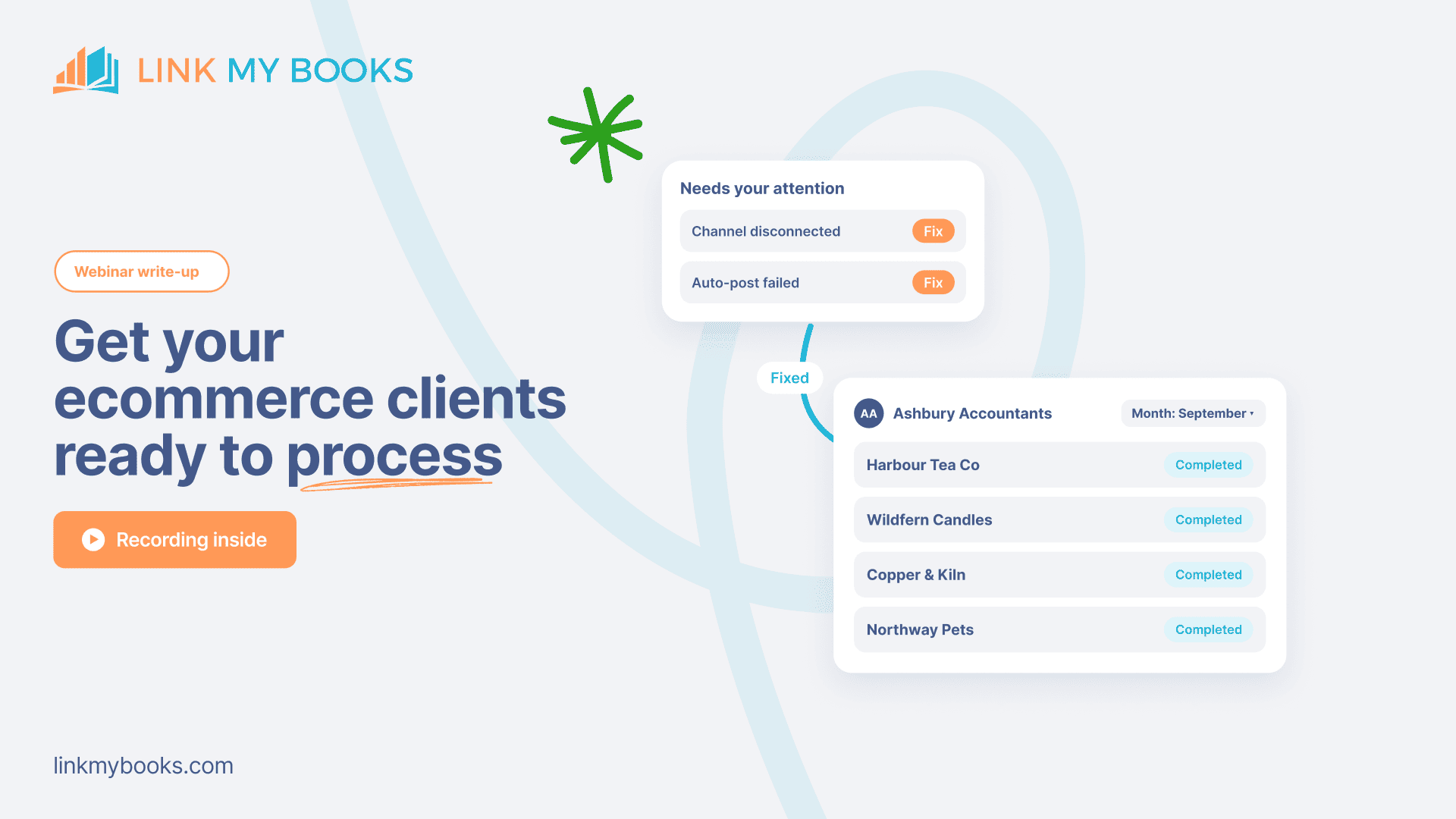
The Practice Dashboard shows which of your ecommerce clients are ready to process, and what’s holding up the rest. Here’s how to use it, step by step, to get every client there.
Key Takeaways from this Post
Start with the ‘needs your attention’ section. Disconnected sales channels, a disconnected Xero or QuickBooks and failed auto-posts sit at the top of the dashboard, each with a way to fix it.
Pick a month to see who’s ready to process. Every client shows as completed, with all sales data imported and posted, or needs attention, with the channel holding it up.
Fix the cause from the client’s page. Open the client, find the channel and the reason, such as an archived account, and fix it without opening each sales channel.







Before you can process an ecommerce client’s month in Xero or QuickBooks, every sale from every channel needs to be in and posted.
Until now, the only way to check was to log into each client, then each sales channel, one at a time.
The Practice Dashboard brings that check onto one screen, for every client. Here’s how to use it, step by step.
Which ecommerce clients need attention this month?
The needs your attention section at the top of the Practice Dashboard lists every client with a problem that will hold up their month.
That means a dropped connection, to a sales channel or to Xero or QuickBooks, or sales data that failed to post automatically.
For most firms, finding these means logging into each client's account and opening every sales channel in turn.
Each channel behaves differently, so the job normally sits with someone senior.
That’s why the dashboard lists them all in one place, so anyone in the team can run the checks.
Start with dropped connections. Nothing imports from a disconnected channel until it’s reconnected, so that client’s sales stay missing from Xero or QuickBooks until someone spots it.
Click the item and it takes you straight to the client and the channel. From there you can:
- Reconnect it yourself, if you have access
- Email the client a reconnect link, sent to the address held in Link My Books
- Copy the link and send it on Slack, WhatsApp or however you normally contact them
Clear one or two each time you log in, and the list stays short.
Below that section, every client sits in one list with their sales channels inside the client file. Each one carries a health score, plus an order count you can sort by.
Our Practice Dashboard overview covers that view in full.
Is this month ready to process for every client?
Pick a month in the Practice Dashboard and every client shows as completed or needs attention.
Completed means all of that client's sales data for the month has been imported from every channel and posted to Xero or QuickBooks. Needs attention means something is still waiting.
There are two kinds of waiting. Either the channel hasn't sent the data yet, or it has arrived and hasn't posted.
Open the client and you'll see which channel is holding things up, and what it needs.
The last six months sit in a second column. Green means completed, and amber means it still needs attention.
For a normal monthly client, expect that column to be mostly green, with only the latest month amber until you've finished it.
Once a month is green, every entry is in the ledger, ready to match to the bank deposit. What's left is your part in Xero or QuickBooks.
Two more things save time on a larger client book. One client file can hold more than one ledger.
A client with a UK limited company and a separate US entity sits in one place, with each channel posting to the right ledger.
And when a client starts selling somewhere new, you add the channel to their existing file by sending them an invite.
Why didn't a client's sales data post to Xero or QuickBooks?
With auto-post switched on, Link My Books posts each client's marketplace sales data to Xero or QuickBooks automatically.
If something still hasn't posted after four attempts, it's flagged in the needs your attention section for a manual review.
Left alone, a failed post shows up later as missing sales data in the client's ledger.
Most fail because of a missing product cost or a missing mapping. Another common cause is an account that someone has archived in the client’s chart of accounts.
The failed item opens in the client's own view, already filtered to what's ready to post.
The action menu tells you why it failed. For an archived account, you either unarchive it in Xero or QuickBooks or update the mapping in Link My Books, and it can then post.
Some firms leave auto-post off on purpose, for example for a client whose product costs change every month, so the costs go in before anything goes across.
Leaving auto-post off doesn't hide anything. The dashboard still shows which sales data is ready to post, so you know exactly what's left before the month can be finalised.
If you're still catching these problems at the end of the month, our guide to spotting bad ecommerce data before month-end sets out what to check first.
Sending each client a monthly report
Once a client’s month is ready, you can also send them a monthly report from the dashboard.
It shows four headline numbers: revenue, orders, average order value and refund rate. Each is compared with the previous month, and with the same month last year where the history is there.
Most of these never reach Xero or QuickBooks, so a sharp change, such as a jump in refund rate, gives you a reason to check in with the client.
Set up your logo, practice name, phone number and address once, and every report goes out under your practice’s name, as a PDF or by email from the dashboard.
Where we fit in
Link My Books posts each ecommerce client's sales from Amazon, Shopify, eBay, Etsy, TikTok Shop, Walmart, WooCommerce or Square into Xero or QuickBooks, reconciled to the bank deposit.
The Practice Dashboard shows which of those clients are ready to process, and what’s holding up the rest.
It's how 500+ accounting and bookkeeping firms save 5+ hours per client, per month. See how it works for accountants and bookkeepers.
Book a demo to see the Practice Dashboard with our team.
Watch the Practice Dashboard webinar
The recording shows Daniel Little, Co-Founder (and ex-ecommerce business owner) of Link My Books, walking through every step on screen, from the needs your attention list to a client that’s ready to process.
Watch the Practice Dashboard webinar
Next, Daniel switches on the add-ons that fix Amazon and PayPal numbers landing in the wrong place in Xero or QuickBooks.
Join or watch the add-ons webinar
Frequently asked questions
Can I reconnect a client's sales channel myself?
Yes, if you have access to that channel. If you don't, the Practice Dashboard lets you email the client a reconnect link in one click, to the email address held in Link My Books. You can also copy the link and send it however you normally contact the client.
Why would an auto-post fail in Link My Books?
Mostly because a product has no cost price or a mapping is missing. It can also fail when an account has been archived in the client's Xero or QuickBooks chart of accounts. After four failed attempts, it appears in needs your attention, with the reason in the action menu.
Can one client file hold more than one legal entity?
Yes. A client file can hold more than one accounting ledger, so a client with separate legal entities can sit in one file. You choose which sales channels connect to which Xero or QuickBooks organisation.
What does the monthly client report compare against?
Each report compares the month you choose with the month before. If the client has more than a year of history in Link My Books, including imported history, it also shows the year-on-year change.