


Square deposits can look simple in your bank feed, but the deposit number rarely tells the full story. One payout can include card sales, cash sales, tips, refunds, chargebacks, and Square processing fees. Square doesn’t “bundle” those transaction types into a single report line, but your bank still receives a net transfer, so reconciliation gets messy when you rely on the deposit alone.
This guide gives you a Square bookkeeping spreadsheet you can use to track each reporting period consistently. I’ll also show you where to export the right data in Square Dashboard, including transactions and fee-by-transfer details, so your spreadsheet ties out cleanly.
If you want to skip spreadsheets entirely, Link My Books automates Square bookkeeping by turning each payout into a clean summary that posts into Xero or QuickBooks and makes bank reconciliation straightforward.
Key Takeaways from this Post
Square payouts hit your bank as a net number, but that deposit can include card sales, tips, refunds, and processing fees all rolled into one transfer.
A spreadsheet helps you separate sales, tips, fees, refunds, and tax so you can reconcile each payout and see real profit, but it still depends on consistent exports and careful data entry.
Link My Books removes the manual work by turning Square payouts into clean summaries that post into Xero or QuickBooks and reconcile to the bank deposit fast.







Who Should Use This Spreadsheet?
Use a Square bookkeeping spreadsheet if you need a simple, repeatable way to track Square activity and keep your numbers consistent month to month.
- New Square sellers: You want a clean process before volume makes cleanup painful.
- Low to moderate transaction volume: You can still manage exports and monthly inputs without losing hours.
- Multi-tender businesses: You take card, cash, gift cards, or invoices and want one place to see the full picture.
- Businesses with tips: You need to separate tips from sales so reporting and payroll stay clean.
- Anyone struggling with bank reconciliation: Your bank gets a net transfer, and you want a clear breakdown of sales, refunds, and fees behind that deposit.
- Bookkeepers supporting Square clients: You need a standardized intake template before you move the client into automation.
Here’s the free Square bookkeeping spreadsheet template. It includes a monthly payout summary, a place to record Square sales, tips, refunds, fees, and taxes, plus a reconciliation check so your spreadsheet ties to the net payout that lands in your bank.
🔥 Download our Square seller accounting spreadsheet here 🔥
How to Use the Spreadsheet (Square)
You’ll use this spreadsheet the same way every reporting period: export the right Square reports, enter totals into consistent buckets, then reconcile to the net transfer that hit your bank account.
Quick steps:
- Confirm the transaction types you’re tracking.
- Confirm your tax setup (VAT or sales tax handling).
- Enter period totals, then reconcile to the Square transfer.
Square lets you view transfers and drill into the payments included in a specific transfer, which is the cleanest way to tie your books to the bank deposit.
Confirm the Transaction Types
Track these categories consistently for every period:
- Sales: Card sales plus any other payment methods you accept through Square.
- Tips: Tips can move separately from product sales in reporting, so keep them visible.
- Refunds: Full and partial refunds.
- Fees: Square processing fees and any other Square charges.
- Taxes: Tax collected on sales (VAT or sales tax, depending on your setup).
Square’s Sales Summary report shows core totals like sales, refunds, tips, and taxes in one place, which makes it a solid “topline” export for your spreadsheet. Square+1
Confirm Your Tax Setup
Set your tax assumptions once so you stay consistent month to month:
- VAT registered: Use the VAT rate(s) you apply in your business, and keep product tax categories consistent so your tax totals stay stable across periods.
- Not VAT registered: Still track any tax collected in reports separately so you don’t treat it as revenue.
- Sales tax setups: Track tax collected as a separate bucket so your sales totals remain clean.
Enter Totals and Reconcile to the Bank Transfer
For each reporting period:
- Export your Square reports: In Square Dashboard, go to Reports, select the report, apply filters, then export to CSV.
- Enter totals into the spreadsheet buckets: Sales, tips, refunds, fees, taxes.
- Reconcile to the transfer: In Square Dashboard, open your transfers list, select the transfer that matches your bank deposit, and use the transfer detail view to confirm what payments are included.
- If needed, export the transfer’s transaction details: Square lets you export transaction details from the transfers view as a CSV for deeper tie-outs.
Common mistakes that create mismatches:
- Recording only the net transfer as revenue: You lose fees and refunds and your P and L lies.
- Mixing reporting periods: Your spreadsheet period must match the Square transfer date range you’re reconciling.
- Forgetting tips: Tips can inflate “sales-like” totals if you don’t split them cleanly.
Where to Get the Figures in Square Dashboard (Expanded + Table)
For a Square spreadsheet, you want two exports:
- Sales Summary (totals): Fast topline totals for the period (gross sales, refunds, net sales, discounts, tips, tax, fees).
- Transfers (payout tie-out): The transfer view that lets you match the bank deposit to the payments included in that transfer, then export transaction details as a CSV if you need a deeper reconciliation.
Export your Sales Summary report (period totals)
In Square Dashboard:
- Go to Reports
- Select Sales Summary
- Set your date range and filters (location, device, etc.)
- Click the export icon, choose columns, and export to CSV
This export gives you clean totals for the spreadsheet buckets: sales, refunds, tips, tax, and fees.
Match the bank deposit to the Square transfer
Square does not collapse everything into one combined report line, but it does send a net transfer to your bank, and that’s what you reconcile against.
In Square Dashboard:
- Click View all transfers
- Filter by date range
- Click the specific transfer that matches the bank deposit to see transfer details and the individual card payments included
Export transfer-level transaction details (when you need proof)
From the transfers screen, Square lets you export the transaction details for your selected transfer date range as a CSV. This is what you use when a payout doesn’t match and you need to identify the exact fee/refund/payment causing the variance.
Pull fees correctly (Square deducts fees per transaction)
Square charges processing fees per transaction and deducts them before each transfer. You can view fees paid per transfer by opening a transfer, and you can export fee detail for transactions included in that transfer date range.
Square Export-to-Spreadsheet Mapping Table
How to Find Out Your Profits (Square)
Your Square spreadsheet should help you answer one question fast: After refunds, fees, tax, and costs, what did you actually keep? Square’s Sales Summary gives you the topline totals you need (gross sales, refunds, discounts, tips, taxes, fees). Then you layer in your costs like COGS, shipping, and payroll for a real profit view.
Profit formulas you can use in the spreadsheet
Use these consistently each reporting period:
- Net sales (before fees): Gross sales minus refunds minus discounts
- Net receipts (after Square fees): Net sales minus Square fees
- Gross profit: Net receipts minus COGS
- Operating profit: Gross profit minus operating expenses (shipping labels, rent, software, wages, etc.)
Profit table: What to track and where it comes from
Alternatives to Using a Spreadsheet
A spreadsheet works when your Square volume stays manageable and you stay disciplined with exports and reconciliation. Once transactions grow, the manual process turns into a recurring admin job.
Manual bookkeeping directly in Xero or QuickBooks
You can post Square sales and fees manually, then reconcile payouts against the bank feed. This works, but it takes time and creates more chances for small errors, especially when you deal with tips, refunds, and multiple locations.
A connector app
Some connectors push Square transactions into your accounting software automatically. The risk is messy data: too many individual transactions, poor fee mapping, or summaries that don’t match Square transfers cleanly. That’s how teams end up with unreconcilable “clearing” accounts.
Link My Books (recommended)
If you want to avoid spreadsheets and still keep your books accurate, Link My Books automates the workflow. It turns Square activity into clean payout summaries, posts them into Xero or QuickBooks, and makes reconciliation match the net bank deposit without manual sorting.
How Link My Books Makes Square Bookkeeping Simple and Fast
A Square spreadsheet works until you hit the point where exports, fee logic, and payout matching start stealing hours every month. Link My Books replaces that manual workflow with automated payout summaries that land in Xero or QuickBooks ready to reconcile.
What Link My Books automates for Square sellers
- Payout-based summaries: Link My Books creates a settlement summary per Square payout so the accounting entry matches the bank deposit and you can reconcile fast.
- Clean breakdown of key buckets: You get sales, fees, refunds, and tax captured in the right places, instead of lumping everything into “sales” or “bank charges.”
- One-click reconciliation: Because each payout summary matches the Square deposit, you can match it quickly inside Xero and avoid suspense accounts that never clear.
- Multi-location tracking in Xero: If you run multiple Square locations or gateways, Link My Books can tag payouts with tracking codes automatically so you can report profit by location or payment source in Xero.
How setup works (fast, no technical lift)
- Connect Square: Approve the Square connection inside the Link My Books setup flow.
- Connect Xero or QuickBooks: Choose your accounting platform in the same wizard.
- Set tax and mapping once: After setup, Link My Books applies your rules to every payout automatically.

Link My Books pricing scales by order volume and number of connected sales channels, and you can try the 14-day free trial with no card required!
FAQ
What’s the best spreadsheet app for Square bookkeeping?
Google Sheets works well if you want to share your file with a bookkeeper and keep everything cloud-based. Excel works well if you prefer heavier formulas and offline control. Either way, treat the spreadsheet as a support tool for consistent Square bookkeeping, not a replacement for reconciliation discipline.
Which Square reports should I export for this spreadsheet?
Start with your Square sales report for period totals. It helps you capture gross sales, refunds, discounts, tips, and tax in one view. Then, use your Square sales tax report to confirm tax totals for the same date range, especially if you sell across multiple locations or tax settings.
Why doesn’t my Square bank deposit match my sales total?
Your bank receives a net transfer, while your sales report reflects gross activity. Refunds, fees, timing, and tips can all change what actually lands in the bank. This mismatch shows up constantly in the real world, which is why you need a simple reconciliation check in your spreadsheet every period.
How do I export Square data to CSV?
Open the Square sales report, set the date range, apply any location filters, and export to CSV. If you need tax-specific detail, export your Square sales tax report for the same range so you can validate your tax bucket without guesswork.
How should I record Square fees in my spreadsheet?
Record fees as their own line item so you can see true margin and avoid overstating revenue. If you want a cleaner long-term setup than spreadsheets, check the best accounting software for Square options that summarize payouts properly and keep reconciliation tight.
How do I handle tips from Square in bookkeeping?
Keep tips separate from product sales. Tips often function as a pass-through to staff, so combining them with sales inflates revenue and muddies payroll reporting. Clean bookkeeping keeps tips visible as their own bucket even if they flow through the same payout.
How do I track sales tax or VAT from Square?
Track tax collected separately so you don’t record it as revenue. Your Square sales tax report gives you the totals you need for the period and helps you stay consistent across locations and tax rules.
Do I need Square tax forms to do monthly bookkeeping?
No. Square tax forms help with year-end reporting, but monthly bookkeeping should rely on sales, refunds, fees, and tax totals by period, plus payout reconciliation. Use tax forms as a year-end cross-check, not as your monthly source of truth.
Is there a faster way than using a spreadsheet for Square bookkeeping?
Yes. If you want to stop exporting and manually reconciling, Link My Books automates Square payouts into Xero or QuickBooks with clean summaries for sales, refunds, fees, and taxes.
Make Your Square Accounting Simple With Link My Books
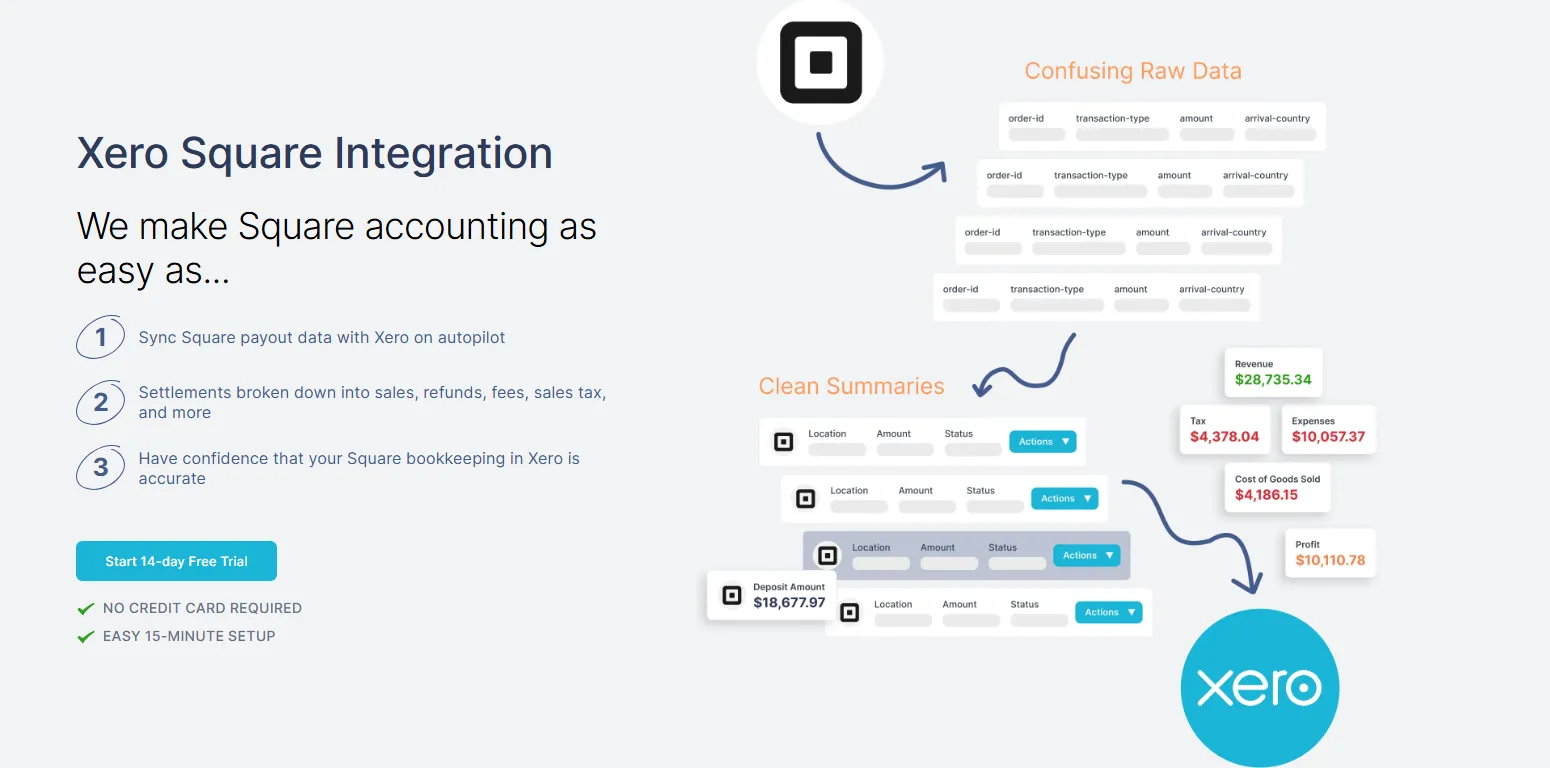
A Square spreadsheet can keep you organized, but it still depends on manual exports, correct fee handling, and consistent payout reconciliation. As transaction volume grows, that monthly admin work becomes the bottleneck, and small mistakes start to snowball into messy books and unreliable profit numbers.
If you want clean accounting without the spreadsheet grind, Link My Books automates Square bookkeeping by converting each Square payout into a clear summary that posts into Xero or QuickBooks and matches the bank deposit for fast reconciliation.
You get accurate sales, refunds, fees, and tax treatment without manual sorting.




.webp)


-optimized.webp)


.png)