


Introduction: Why Recording Walmart Sales in Xero Is Tricky
Recording Walmart sales in Xero sounds simple until you actually try to do it.
Walmart does not pay you per order. Instead, it sends batched payouts that combine sales, refunds, Walmart seller fees, and other adjustments into a single deposit. Xero, on the other hand, only sees the net amount hitting your bank account.
If you record that deposit as income, your books will be wrong. Revenue gets overstated, fees disappear, and reconciliation becomes a monthly headache.
This problem gets worse as volume grows. Sellers end up downloading Walmart reports, building spreadsheets, and manually forcing numbers to match. The result is wasted time and financial reports you don’t fully trust.
In this guide, you’ll learn exactly how to record Walmart sales in Xero the right way, starting with the easiest and most accurate method, then covering the manual alternative if you still want to do it yourself.
Key Takeaways from this Post
Walmart payouts are net deposits, not true revenue. Recording them directly in Xero leads to inaccurate income and missing fees.
Manually tracking Walmart sales, refunds, and fees is time-consuming and error-prone, especially when payouts span multiple days.
Link My Books automates Walmart-to-Xero accounting by breaking payouts into clean summaries that reconcile perfectly to your bank feed.







Where Most Sellers Go Wrong With Recording Walmart Sales in Xero
Most Walmart sellers make the same mistake when recording sales in Xero: they treat the Walmart payout as revenue.
At first glance, this feels logical. A deposit hits the bank, so it must be sales. But Walmart payouts are net settlements, not gross income. Each payout includes:
- Customer sales
- Refunds and returns
- Walmart marketplace fees
- Other adjustments and chargebacks
When you post the net payout as income in Xero, several problems appear immediately.
Revenue Is Overstated or Understated
Because fees and refunds are baked into the payout, your income figure no longer reflects what customers actually paid. This makes profit reporting unreliable and masks how much Walmart is really costing you in fees.
Walmart Fees Disappear From Your Books
Walmart seller fees don’t show up as separate expenses if you only record the payout. Over time, this makes your margins look better than they really are and prevents accurate channel-level analysis.
Bank Reconciliation Never Quite Matches
Walmart payouts often cover multiple days and multiple transaction types. When Xero has a single income entry but the bank deposit represents dozens or hundreds of underlying transactions, reconciliation becomes manual and frustrating.
Reporting Breaks Down as You Scale
As order volume increases, spreadsheet work explodes. Sellers spend hours pulling Walmart transaction reports, fixing mismatches, and second-guessing numbers instead of running the business. If you are recording Walmart payouts directly as sales in Xero, your books may balance, but they are not accurate.
The correct approach is to record Walmart sales at the payout level with a proper breakdown of sales, refunds, and fees so that each deposit reconciles cleanly and your reports stay reliable.
How to Record Walmart Sales in Xero (The Easy way With Link My Books)
The easiest and most accurate way to record Walmart sales in Xero is to automate the process so each payout is broken down correctly and reconciles to your bank feed without manual work.
Instead of downloading Walmart reports and building spreadsheets, Link My Books connects Walmart directly to Xero and does the heavy lifting for you.
Here’s what to do:
- Connect your Walmart seller account to Link My Books
- Connect your Xero account
- Complete the setup and account mapping
- Sync Walmart payouts to Xero
- Reconcile payouts against your bank feed
Each step only needs to be configured once. After that, your Walmart accounting runs automatically in the background.
Step 1: Connect Your Walmart Seller Account
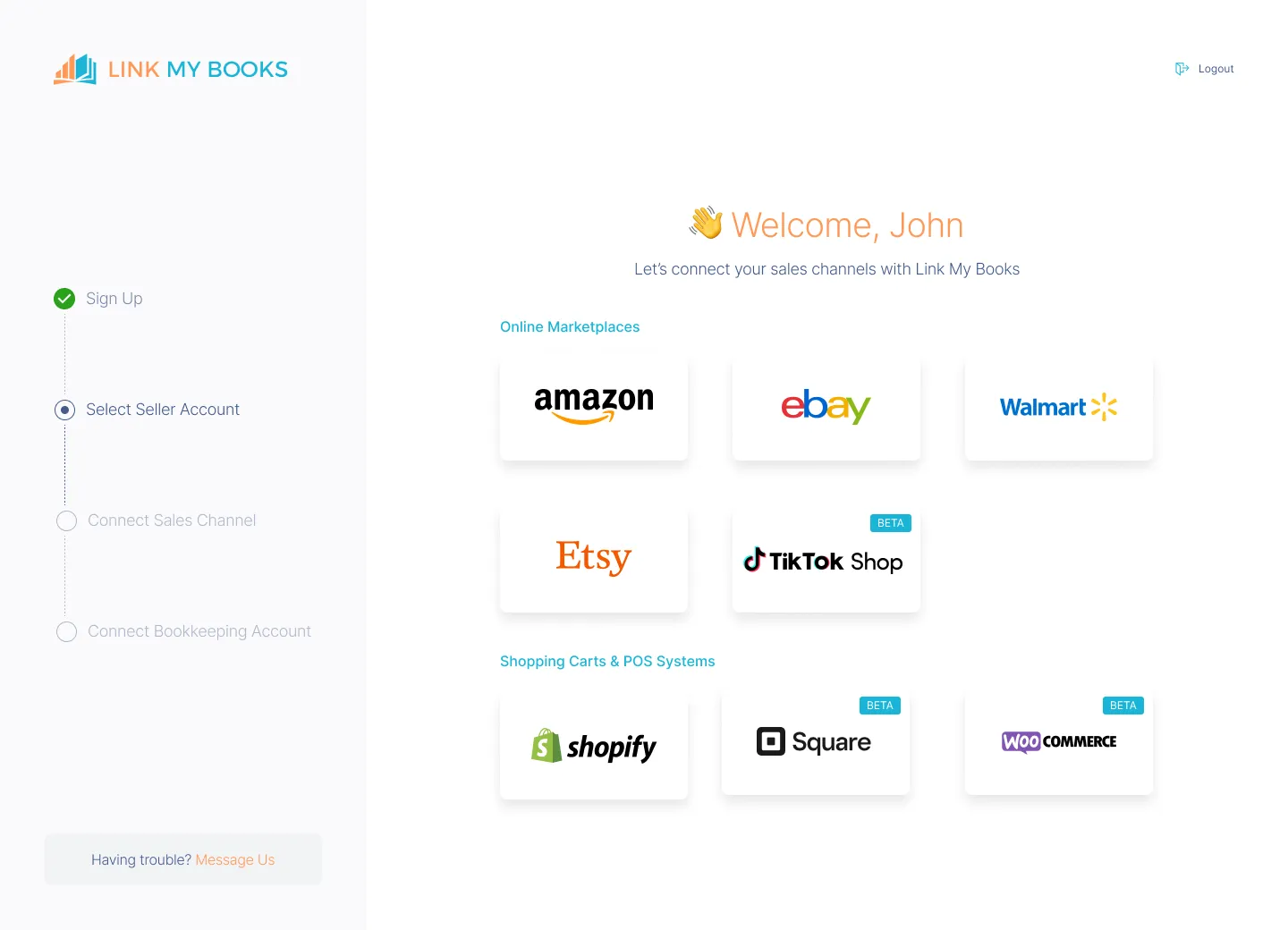
Start by creating a Link My Books account and connecting your Walmart seller account.
You authenticate securely through Walmart Seller Center. Link My Books pulls in the exact data needed to build accurate accounting entries, including:
- Gross sales
- Refunds and returns
- Walmart seller fees
- Payout totals
No orders are posted individually to Xero. Everything is summarized at the payout level, which keeps your accounting software clean and fast.
Step 2: Connect Your Xero Account
Next, connect your Xero account.
During this step, you choose which Xero organization to link if you manage multiple entities. Once connected, Link My Books can create invoices or journal summaries that align perfectly with Xero’s reconciliation workflow.
This ensures that every Walmart payout has a matching entry waiting in Xero when the deposit hits your bank.
Step 3: Map Walmart Sales, Fees, and Refunds
This is where most manual methods fail, but it’s also where Link My Books saves the most time.
You map:
- Walmart sales to your income account
- Walmart refunds to a refunds or contra-income account
- Walmart seller fees to the correct expense account
You do this once during setup. Link My Books remembers these mappings and applies them automatically to every future payout.
Step 4: Sync Walmart Payouts to Xero

Once setup is complete, you can sync Walmart payouts to Xero.
Each payout is posted as a single summarized entry that includes:
- Total sales
- Total refunds
- Total Walmart fees
- Net payout amount
The net total matches the exact amount deposited into your bank account. This design is intentional. It ensures reconciliation in Xero takes seconds, not hours.
Step 5: Reconcile Walmart Deposits in Xero

When the Walmart payout appears in your bank feed, Xero already has a matching entry created by Link My Books.
You simply click Match.

- No splitting transactions.
- No manual adjustments.
- No spreadsheet checks.
Reconciliation becomes a routine task instead of a monthly problem. Link My Books turns Walmart chaos into tax-ready clarity, and you can try it free (no credit card needed).

If you still want to do this the hard way, here’s how:
How to Record Walmart Sales in Xero Manually
- Download Walmart transaction and payout reports
- Separate sales, refunds, and fees
- Summarize data per payout period
- Create manual entries in Xero
- Reconcile the payout to your bank feed
You can record Walmart sales in Xero manually, but it requires multiple reports, careful calculations, and consistent discipline. This approach may work for very low volume sellers, but it becomes difficult to maintain as sales increase.
Here are the steps:
Step 1: Download Walmart Reports
Log in to Walmart Seller Center and download the reports needed to reconstruct each payout.
At a minimum, you will need:
- Walmart transaction report
- Walmart settlement or payout report
These reports show individual sales, refunds, fees, and adjustments, but they are not formatted for accounting use. You’ll need to clean and summarize the data manually.
Common issue: Reports often span different date ranges than your bank deposits, which creates timing mismatches in Xero.
Step 2: Separate Sales, Refunds, and Fees
Open the reports in Excel or Google Sheets and separate transactions into categories:
- Gross sales
- Refunds and returns
- Walmart marketplace fees
- Other adjustments
Each category must be totaled per payout, not per order. If you skip this step and work at the order level, Xero will quickly become cluttered and slow.
This is where most manual errors occur.
Step 3: Summarize Data Per Payout
For each Walmart payout, calculate:
- Total sales
- Total refunds
- Total fees
- Net payout amount
Your summary totals must exactly match the deposit Walmart sends to your bank. If they don’t, reconciliation will fail later.
Even small rounding errors can cause issues, especially when payouts include dozens or hundreds of transactions.
Step 4: Create Manual Entries in Xero
Once your totals are ready, you need to record them in Xero.
Most sellers use one of two methods:
Option 1: Manual invoice or bill-style entry
- Record sales as income
- Record refunds as negative income
- Record Walmart fees as expenses
Option 2: Manual journal entry
- Debit bank clearing account
- Credit income for gross sales
- Debit expenses for Walmart fees
- Adjust for refunds
Both methods work, but both require precision. One incorrect account or date can throw off your reports.
Step 5: Reconcile the Walmart Payout
Finally, go to Xero’s bank reconciliation screen and match your manual entry to the Walmart deposit.
If the totals don’t match exactly, you’ll need to go back to your spreadsheet, re-check reports, and find the discrepancy.
This process repeats for every payout.
Why the Manual Method Breaks Down
Manual Walmart accounting fails at scale because:
- Payouts often span multiple days
- Fees and adjustments are easy to miss
- Reports are not accounting-friendly
- Errors compound month over month
What starts as a “temporary workaround” often becomes a recurring source of stress.
How Link My Books Makes Recording Walmart Sales in Xero Automatic and Easy
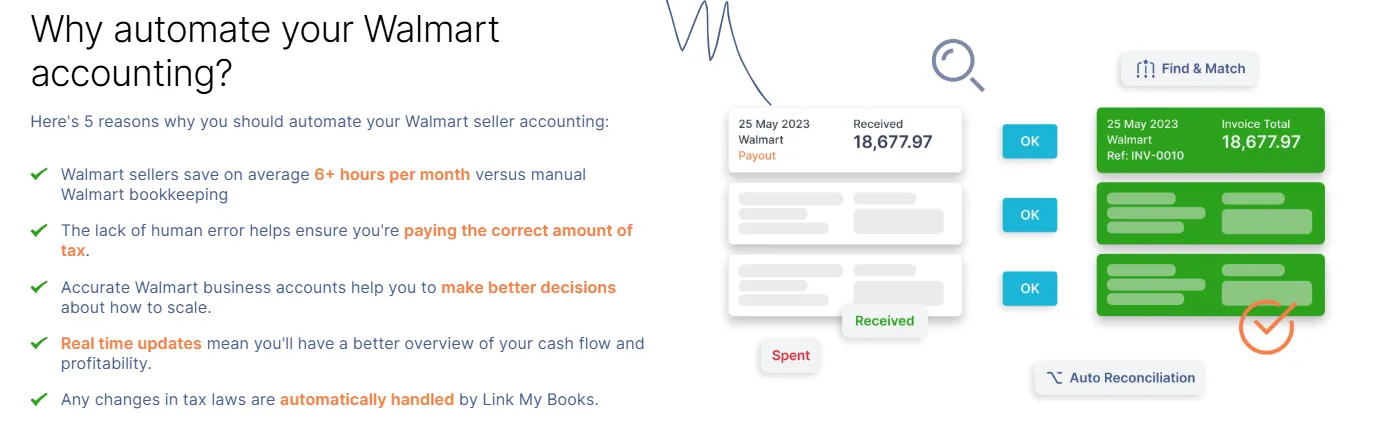
Link My Books is built specifically for e-commerce payouts like Walmart’s, where deposits are net of sales, fees, refunds, and adjustments. Instead of forcing Walmart data into Xero manually, it restructures the data so Xero receives clean, accountant-ready summaries that reconcile perfectly.
Below are the core features that make this work.
Automatic Walmart Payout Breakdown
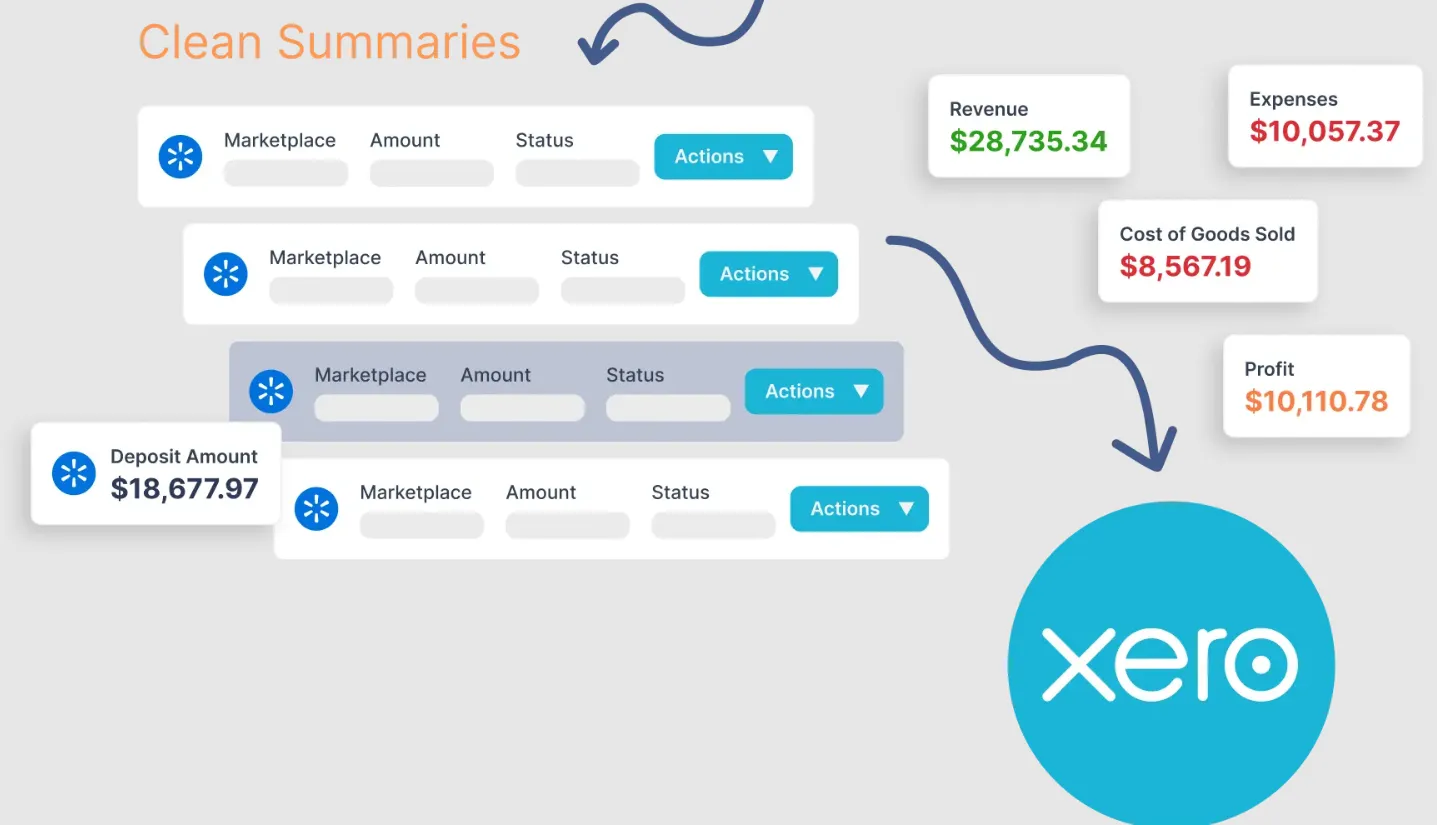
Every Walmart payout is automatically broken down into its true components:
- Gross sales
- Refunds and returns
- Walmart marketplace fees
- Net payout total
Xero receives a single summarized entry per payout, not thousands of individual orders. This keeps your accounting file fast, readable, and scalable.
Your revenue and fees are always reported correctly, without inflating income or hiding costs.
One-Click Bank Reconciliation in Xero
Link My Books posts entries that match Walmart deposits exactly.
When the payout hits your bank feed in Xero, the matching entry is already there. You simply click Match.
Reconciliation becomes a 30-second task instead of a monthly cleanup exercise.
Correct Sales Tax Visibility for Walmart Sellers
Walmart operates as a Marketplace Facilitator in the U.S., meaning it collects and remits sales tax in most states.
Link My Books ensures that:
- Marketplace-collected sales tax is not treated as your income
- Sales and fees are separated cleanly
- Your reports reflect true revenue and costs
You avoid overstating income and get clear visibility into what Walmart collected versus what you actually earned.
Clean Xero Files Without Order-Level Noise

Link My Books does not create individual sales invoices for each Walmart order.
Instead, it posts summarized entries that reflect how money actually flows into your bank account.
This means:
- Faster Xero performance
- Easier month-end close
- Accountant-friendly records
- No cluttered ledgers
This is especially important for sellers doing hundreds or thousands of Walmart orders per month.
Built for Multi-Channel Sellers Using Xero

If Walmart is only one of your sales channels, Link My Books keeps everything consistent.
You can record Walmart alongside Amazon, Shopify, eBay, Etsy, and more, all using the same payout-based logic inside Xero.
Your books remain standardized across channels, making reporting, reconciliation, and handoff to an accountant far easier.
Quick comparison: Manual vs automated
Try Link My Books free for 14 days - no credit card required, no more spreadsheet stress. 👉 Start your free trial now
How to Categorize Walmart Transactions in Xero
Correct categorization is what turns Walmart payouts from “numbers that balance” into financial reports you can actually trust. Whether you automate or work manually, Walmart transactions must be separated properly inside Xero.
Below is the recommended structure for Walmart sellers.
Walmart Sales: Income Account
Walmart customer payments should be recorded as gross sales, not net payouts.
In Xero, this usually means mapping Walmart sales to:
- A dedicated Walmart Sales income account, or
- A general Marketplace Sales income account if you group channels
Keep Walmart sales separate from other channels if Walmart is a meaningful part of your revenue. This makes margin analysis and channel comparison much easier.
Walmart Refunds: Contra-Income or Refunds Account
Refunds and returns should not be posted as expenses.
Instead, record them as:
- Negative income in the same Walmart sales account, or
- A dedicated Walmart Refunds contra-income account
Posting refunds as expenses inflates both revenue and costs, which distorts gross profit reporting.
Walmart Seller Fees: Expense Account
Walmart marketplace fees should always be recorded as expenses.
In Xero, map these to:
- Marketplace Fees, or
- Walmart Seller Fees (recommended if Walmart volume is high)
This includes referral fees, fulfillment-related fees, and other Walmart deductions shown in payout reports.
Accurately tracking Walmart fees lets you see the true cost of selling on the platform and prevents margins from being overstated.
Walmart Payouts: Bank Account (Not Income)
The Walmart deposit that hits your bank account should never be categorized as income.
Instead:
- Match the deposit to the summarized Walmart entry
- Let Xero clear the balance automatically
This keeps your bank account clean and ensures that income and expenses are reported correctly.
Example Walmart Categorization Flow in Xero
For a single Walmart payout:
- Income: Walmart Sales (gross)
- Contra-income: Walmart Refunds
- Expense: Walmart Seller Fees
- Bank: Walmart payout deposit
When structured correctly, the net result matches the bank deposit exactly, and your profit and loss report reflects reality.
How Link My Books Handles Categorization Automatically
Link My Books applies this structure for every payout without manual work.
Once you map the accounts during setup:
- Sales always go to the correct income account
- Refunds reduce revenue properly
- Fees post consistently as expenses
- Payouts reconcile cleanly
This prevents category drift, one of the most common causes of inaccurate Walmart accounting over time.
FAQ: Recording Walmart Sales in Xero

How do I record Walmart sales in Xero correctly?
You should record Walmart sales at the payout level, not per order and not as a net bank deposit. Each payout must be broken into gross sales, refunds, and Walmart seller fees so your income and expenses are accurate.
Can I connect Walmart directly to Xero?
No. Walmart does not offer a native Xero integration. To record Walmart sales properly, you either need to work manually with Walmart reports or use a third-party connector. A dedicated solution like a Walmart accounting software is designed specifically to handle Walmart’s payout structure.
Why doesn’t my Walmart payout match my Xero income?
Because Walmart payouts are net of fees, refunds, and adjustments. If you record the payout as income, Xero will never match Walmart’s underlying data. This is the most common reason sellers struggle with how to reconcile Walmart payments in Xero.
What is the best way to reconcile Walmart payments in Xero?
The best method is to create a summarized entry for each Walmart payout that matches the exact deposit amount. When done correctly, reconciliation in Xero becomes a one-click process.
How should I record Walmart seller fees in Xero?
Walmart seller fees should always be recorded as expenses, not netted against income. Keeping fees visible allows you to understand your true margins and compare Walmart profitability against other channels. This is a core principle of accurate Walmart seller accounting.
Does Walmart collect and remit sales tax?
Yes. Walmart acts as a Marketplace Facilitator and collects and remits sales tax on behalf of sellers in most U.S. states. This means sales tax collected by Walmart should not be treated as your income. Your accounting should reflect gross sales and fees only, not marketplace-collected tax.
Is manual Walmart accounting in Xero sustainable long term?
For very low volumes, manual methods can work. But as payouts grow, spreadsheets, report mismatches, and reconciliation issues compound quickly. Most sellers eventually move to automation once manual Walmart accounting becomes unmanageable.
What’s the easiest way to record Walmart sales in Xero?
Using an automated Walmart Xero integration removes report downloads, spreadsheet work, and reconciliation errors entirely. Link My Books is built specifically to handle Walmart payouts correctly and scale with your business.
Record Walmart Sales in Xero Automatically With Link My Books

Recording Walmart sales in Xero doesn’t need to involve spreadsheets, manual journals, or reconciliation headaches.
Link My Books connects Walmart to Xero, breaks every payout into sales, refunds, and fees, and posts clean summaries that match your bank deposits perfectly. Your books stay accurate, your reconciliation takes minutes, and your reports finally reflect reality.

If you want Walmart accounting that works as your business grows: Start your free trial of Link My Books today.




.webp)




.png)