


Walmart transaction reports are essential for understanding your marketplace performance – but they can be confusing to interpret. Each payout includes a mix of sales, refunds, fees, and taxes, and the totals you see in your bank account rarely match what appears in your Seller Center dashboard.
Most Walmart sellers try to make sense of it by downloading CSV files from the Payments tab, sorting endless rows in spreadsheets, and cross-checking deposits manually in QuickBooks or Xero. It’s tedious, error-prone, and time-consuming – especially when VAT or sales tax comes into play.
That’s why more sellers are turning to automation. Tools like Link My Books connect Walmart directly to your accounting software, automatically importing and categorizing every sale, fee, refund, and tax. Your books stay accurate and up to date - no spreadsheets, no manual reconciliation, and no missed tax adjustments.
In this guide, you’ll learn how to:
- Access and download your Walmart transaction report manually
- Understand the key figures you’ll find inside
- Automate the entire process with Link My Books for clean, compliant books in minutes
By the end, you’ll know exactly how to find your Walmart transaction report, what each number means, and how to simplify your accounting process.
Key Takeaways from this Post
Walmart transaction reports combine multiple figures - including sales, fees, refunds, and taxes - that can be difficult to reconcile manually.
Manual bookkeeping from Walmart CSVs often leads to errors and missed tax adjustments, especially for VAT or sales tax.
Link My Books automates your Walmart accounting by syncing payouts directly into Xero or QuickBooks, applying the correct tax rates automatically and matching every deposit to the cent.







Where Most Sellers Go Wrong With Walmart Transaction Reports
Many Walmart Marketplace sellers assume that simply downloading their payment statement once a month is enough to keep their books accurate. Unfortunately, Walmart’s payout structure makes that far more complicated than it looks. Each payout bundles together multiple types of transactions - from product sales and shipping income to commission fees, advertising charges, refunds, and taxes.
If you record only the net payout as “sales income” in QuickBooks or Xero, you’ll misstate your revenue and likely overpay tax. Here are the most common mistakes sellers make when handling Walmart transaction reports:
1. Treating Payouts as Total Sales
Walmart transfers only the net amount after deducting fees, refunds, and occasionally tax adjustments. When sellers record this as gross income, they end up overstating sales and misreporting VAT or sales tax.
2. Missing Hidden Fees
Marketplace commission, referral fees, WFS (Walmart Fulfillment Services) charges, and advertising costs are all deducted before payout. Many sellers overlook these in their accounting, which skews expense tracking and profitability.
3. Misreporting Tax and VAT
Under Marketplace Facilitator laws, Walmart collects and remits sales tax on behalf of sellers in many states and countries. If you don’t separate that collected tax from your revenue, you risk double-reporting tax in your books.
4. Overlooking Refunds and Adjustments
Refunds can appear days after a sale or payout, often in a different reporting period. Without detailed tracking, you may miss these reversals entirely, causing inflated sales totals.
5. Ignoring Timing Differences
Walmart’s settlement cycles don’t always align neatly with your accounting periods. A single payout might include several days’ worth of overlapping transactions, creating mismatches when you try to reconcile with your bank feed.
The result? Unbalanced books, inaccurate tax filings, and unreliable profit data.
That’s where Link My Books makes the difference. It connects your Walmart account directly to Xero or QuickBooks, automatically pulling each payout and breaking it down into sales, refunds, fees, and taxes - all mapped to the correct accounts and ready for one-click reconciliation.
How to Get Your Walmart Transaction Data the Easy Way (With Link My Books)

Manual CSVs are optional when you automate. Link My Books connects Walmart to Xero or QuickBooks, separates each payout into sales, refunds, fees, and taxes, and posts clean summaries that match your bank feed to the cent. Setup takes minutes and uses a guided wizard, so you do it once and move on.
Step 1: Connect Walmart and your accounting tool
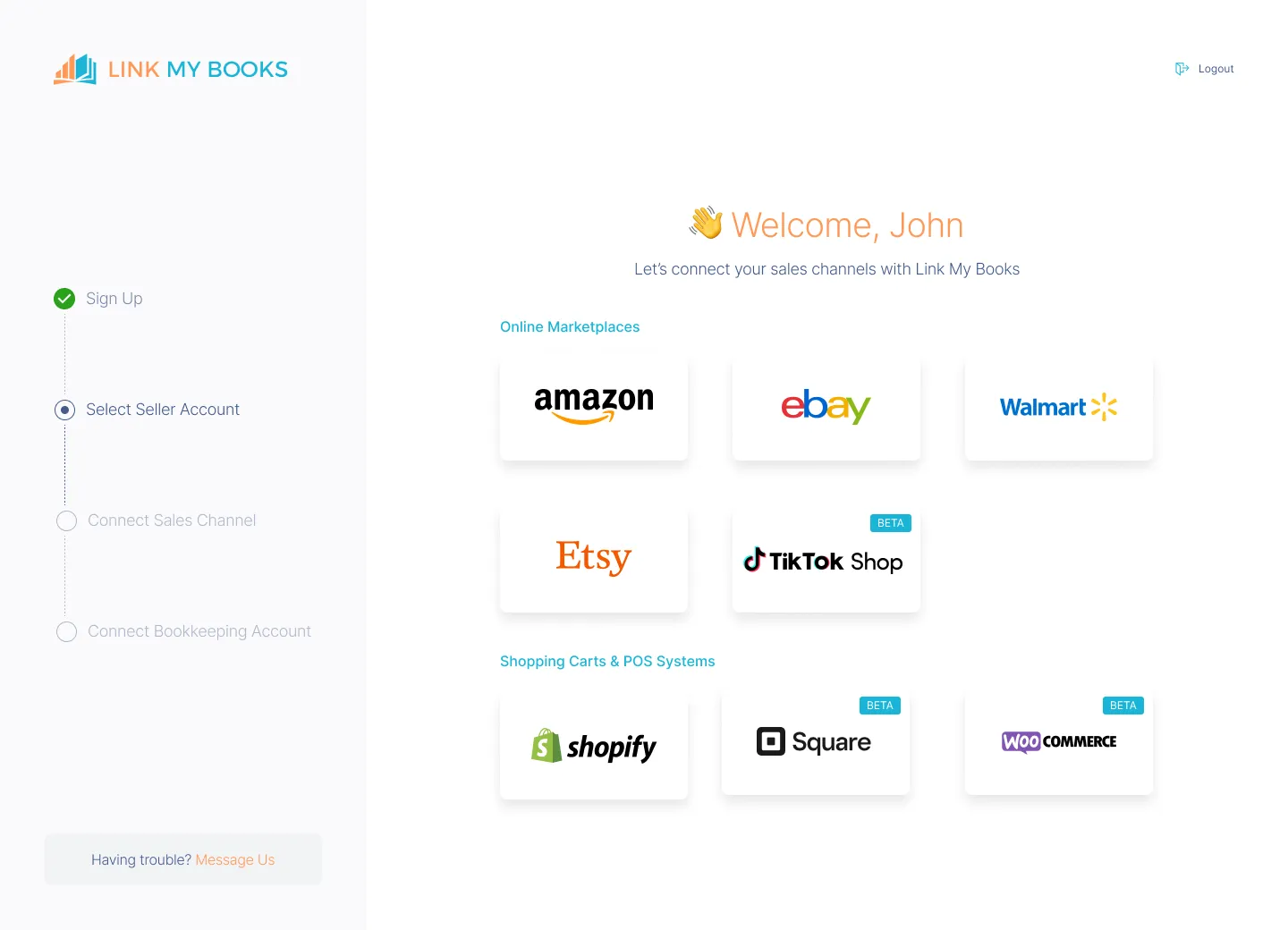
- Create your free Link My Books account and connect your Walmart store.
- Then, link your Xero or QuickBooks account.
- Set your tax preferences once, Link My Books handles it from there.
Step 2: Run the setup and tax wizard
- Map where sales, refunds, shipping income, and fee types should post, then follow the guided tax wizard to apply the right sales tax treatment.
- This prevents double-reporting on marketplace-collected tax and ensures entries are audit-ready.
Step 4: Choose your sync mode

- Pick Manual Sync to review each payout before posting, or enable AutoPost from a chosen start date so new Walmart settlements publish automatically going forward.
Step 5: Reconcile in one click

- Each Walmart payout is posted as a tidy summary that matches the deposit in your bank feed, so reconciliation is literally a single click in Xero or QuickBooks.
- If you sell on multiple channels, Link My Books handles them all in one place.
What you get with Link My Books
- Payout reconciliation: Sales, refunds, fees, shipping, and taxes separated and mapped correctly for instant matching.
- VAT and sales tax confidence: Correct tax treatment applied via the guided wizard to reduce overpayments.
- COGS and profit clarity: Optional COGS tracking and analytics help you see true margins by channel.
- Expert help when you need it: UK-based qualified accountants on support to guide setup and edge cases.
✅ Bottom line: Instead of downloading Walmart statements, splitting lines, and fixing mismatches, Link My Books posts clean, compliant summaries that reconcile automatically.
You save hours and avoid costly tax errors.
And you can check it out for free!

How to Get a Walmart Transaction Report Manually
If you still want to do things the hard way, here’s a detailed walkthrough below:
- Go to Seller Center → Payments
- Open Statements
- Click Download to export
- Pull the Marketplace and WFS payment report
- Reconcile statements to your bank deposits
Step 1: Open the Payments area
Sign in to Walmart Seller Center and navigate to Payments. This page is the hub for statements, transaction search, and reconciliation reports.
Step 2: Choose Statements or Transactions
- Statements: See a settlement-cycle snapshot. You can review the open pay cycle or pick any closed settlement period.
- Transactions: Search individual order-level lines for roughly the past 90 days. Useful for drilling into fees, refunds, or tax lines.
Step 3: Download your report
In Statements, use Download at the top right:
- Export This Page for a PDF of the account summary
- Older Statements to download a CSV with detailed activity for the period, including shipping and commission details
These exports are what you’ll use for manual reconciliation.
Step 4: If you use WFS, pull the WFS-inclusive report
Open the Marketplace and WFS payment report to see all debits and credits for the payment period - for example referral fee rates, shipping charges, and WFS-specific fees.
Step 5: Match to your bank deposits
Use the settlement period totals to tie out each Walmart deposit. Differences usually trace back to facilitator-collected sales tax, WFS fees, or refunds landing after the original sale.
How Link My Books Makes Accounting for Walmart Easy

What takes hours manually now takes minutes.
When you connect your Walmart Marketplace account to Link My Books, your entire bookkeeping process becomes effortless. Every payout you receive from Walmart is automatically imported, categorized, and reconciled inside Xero or QuickBooks - no CSVs, no manual mapping, no guesswork.
Link My Books pulls your Walmart sales, refunds, fees, and taxes directly into your accounting software, separating them into clean summaries that match your bank feed exactly. Each payout is posted as a single, ready-to-reconcile entry that shows the full breakdown of your income, expenses, and taxes.
Here’s what makes it different:
Accurate Tax Handling

Link My Books applies the correct sales tax rules automatically, ensuring you never double-report facilitator-collected tax. Whether Walmart has remitted the tax on your behalf or you’re responsible for it, every transaction is coded correctly for compliance and audit readiness.
Clean, Organized Reporting
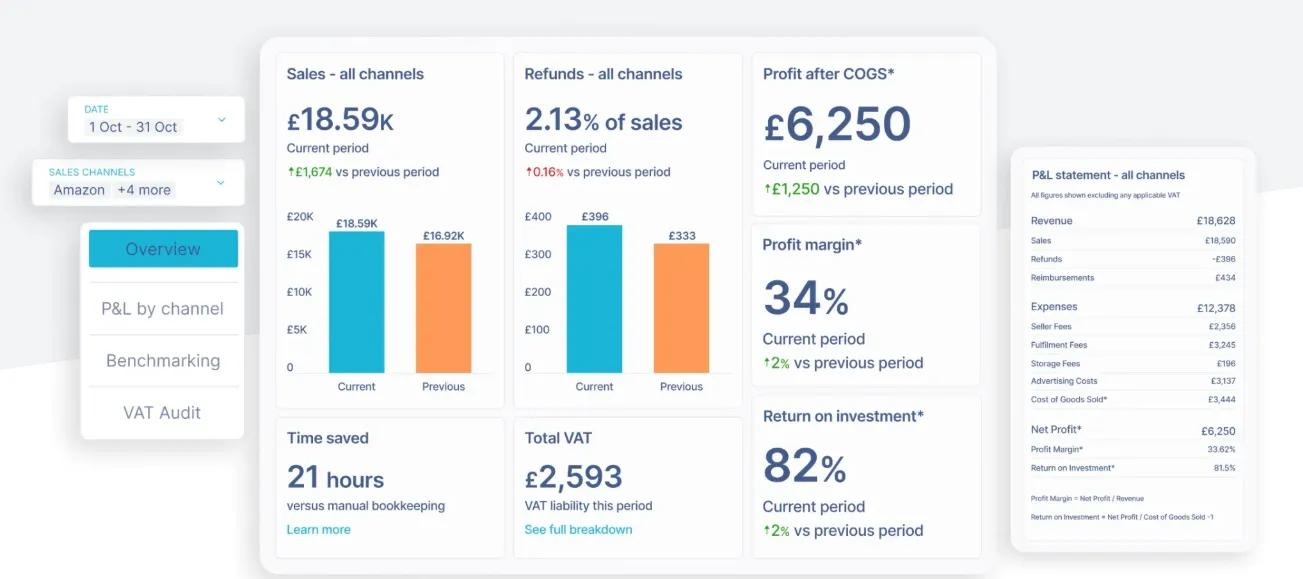
Each Walmart payout is transformed into an easy-to-read summary showing sales, refunds, fees, shipping income, and tax. You can see exactly how your gross revenue turns into your net deposit - all without touching a spreadsheet.
Profit and COGS Tracking
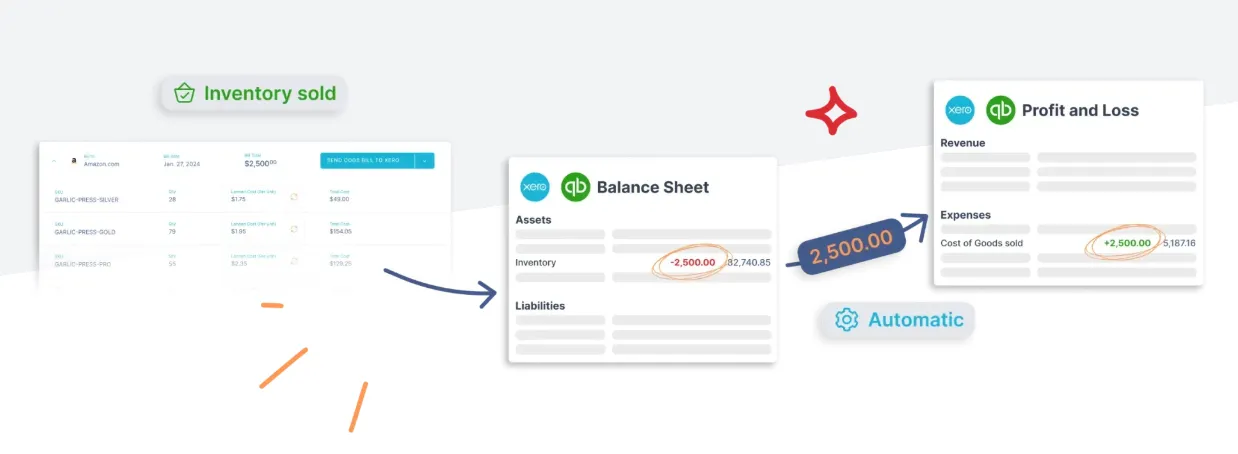
Knowing your real profit starts with tracking your costs accurately. Link My Books automatically maps your cost of goods sold (COGS) and separates platform fees so you can see true margins across every product and channel.
Fast Setup and Free Onboarding

Getting started takes minutes, not hours. The setup wizard walks you through connecting Walmart and your accounting software, mapping your accounts, and choosing between manual or automatic posting. And if you ever need help, you can book a free onboarding session with one of Link My Books’ qualified accountants.
Whether you’re a solo seller or managing multiple Walmart stores, Link My Books scales with your business - keeping your accounts accurate, compliant, and stress-free.
👉 Start your free trial of Link My Books today and experience how easy Walmart accounting can be.
Essential Walmart Transaction Report Figures to Know
Walmart’s payment statements and transaction exports roll many moving parts into each payout. Understanding what each line represents is the key to clean reconciliation and accurate tax reporting.
What to look for in your report
💡Tip: Use settlement-period totals rather than individual order dates when matching to your bank. Payouts often bundle multiple days of activity, which is why order-date sums rarely equal the deposit.
If you track the components above consistently, your revenue, fees, and tax stay accurate. Link My Books automates that breakdown and posts tidy summaries into Xero or QuickBooks, so every Walmart payout reconciles to the cent.
Why You Need a Walmart Transaction Report (and When You Don’t)
You need the Walmart transaction report whenever you’re preparing returns, auditing payouts, or fixing mismatches between Seller Center and your bank feed. It’s the only complete view that ties gross sales, refunds, fees, shipping, WFS charges, and tax into the net deposit you received.
That detail is what keeps revenue, fees, and VAT or sales tax accurate in your accounts.
When you need the report
- Month-end reconciliation: Use settlement-period totals to match each deposit and surface missed fees or late refunds before you close the books.
- VAT or sales-tax compliance: Separate marketplace-collected tax from your revenue so you don’t double-report or overpay.
- Profit analysis and COGS: Break out referral, WFS, and ad fees from sales so margin reporting reflects true costs.
- Investigations and audits: Trace adjustments, chargebacks, or reserves back to a settlement with a clean audit trail.
When you don’t need the report
If you’re using Link My Books, you don’t have to download or combine Walmart CSVs to keep accurate books. LMB sits between Walmart and your ledger, applies correct tax logic, splits each payout into sales, refunds, fees, shipping, and taxes, and posts one summary that matches your bank feed to the cent - ready for one-click reconciliation.
Why that matters: Most sellers and accountants struggle to line up channel reports with deposits; automation removes that risk and the time sink.
Quick view: manual report vs automated posting
How to Use Walmart Transaction Report Figures for Sales Tax

Walmart settlements combine gross sales, refunds, fees, shipping, and taxes into a single payout. To stay compliant and avoid double-reporting, map each component correctly and always separate marketplace-collected sales tax from revenue. If you use Link My Books, this separation and mapping are handled automatically; if you work manually, follow the steps below.
Step 1: Identify marketplace-collected tax vs. your taxable sales
- When Walmart collects and remits sales tax as a Marketplace Facilitator, that tax is not income. Post it to a sales-tax liability/control account and exclude it from taxable sales.
- If you’re responsible for collecting in any edge cases, calculate tax on your taxable base (net of refunds) and record it separately.
- Link My Books keeps facilitator-collected tax out of income and flags only the portions you’re responsible for.
Step 2: Build the taxable base correctly
Use settlement totals rather than order dates to avoid timing mismatches:
- Taxable base = Gross sales minus discounts and refunds, excluding facilitator-collected tax.
- Marketplace and WFS fees are expenses - never part of the taxable base.
- Automation via Link My Books applies these rules consistently so your returns line up with reality.
Step 3: Book fees and shipping separately
- Marketplace/WFS fees: Record to dedicated expense accounts so margins are clear.
- Shipping income: Record separately from sales, then offset with your shipping/WFS costs.
Clean categorization prevents sales-tax errors and keeps your P&L decision-ready.
Step 4: Reconcile to the penny
Match each Walmart settlement to the corresponding bank deposit. Differences typically stem from facilitator-collected tax, late refunds, or WFS fees landing after the sale. Link My Books posts one summary per payout that equals the bank deposit, so reconciliation in QuickBooks or Xero is one click. See also: Walmart QuickBooks integration.
Quick reference: what goes where
If you want this flow without spreadsheets, use Link My Books’ tax wizard and AutoPost. It enforces correct sales-tax treatment and keeps every Walmart payout reconciled automatically.
FAQ on Walmart Seller Sales and Tax Reporting

Will Walmart send me a 1099-K?
If you meet IRS reporting thresholds for third-party settlement organizations, Walmart typically issues Form 1099-K in your Seller Center tax documents. Thresholds can change, so confirm in your Tax Center and with your accountant. For how the deposit-matching works in your ledger, see Walmart QuickBooks integration.
How far back can I see Walmart sales?
Use settlement Statements for historical periods and Transactions for recent, line-level activity. Statements are grouped by settlement cycles, which often don’t align perfectly with order dates, so reconcile by settlement, not by order day.
Can I pull fee data (referral, WFS, shipping) from Walmart?
Yes. Payment statements include referral commissions, WFS storage and fulfillment charges, shipping, promos, and adjustments. Best practice is to post each fee type to its own expense account so margins stay clear.
Does Walmart automatically take out sales tax?
In many U.S. jurisdictions, Walmart is a Marketplace Facilitator and collects and remits sales tax on your behalf. Those amounts should not be treated as income; separate them from revenue when posting.
What should I do if my bank deposit doesn’t match my orders?
Match by settlement period, not order date. Deposits typically bundle multiple days plus fees, refunds, promos, and facilitator-collected tax. A single summary per settlement removes the mismatch.
How can I find sales by country on Walmart?
Export your Transactions CSV and filter by ship-to country to total revenue by destination. If you prefer a walkthrough of the exports you’ll use, see the Walmart sales report.
How should I record shipping income from Walmart?
Record shipping income separately from product sales, then offset it with WFS or carrier costs. Keeping delivery economics distinct preserves margin visibility.
What software should I use to keep Walmart books clean as I scale?
Choose a tool that handles payout reconciliation, facilitator-tax separation, WFS fees, and one-click matching in Xero or QuickBooks. We compare options in the Best Walmart accounting software.
Do I need to download CSVs every month if I’m automating?
Not for day-to-day bookkeeping. An automation layer can fetch settlements, split sales, refunds, fees, shipping, and facilitator-collected tax, and post clean summaries to your ledger; keep CSVs for investigations or audits. If you want an end-to-end workflow outline, see Walmart bookkeeping.
Simplify Accounting for Walmart with Link My Books

Manually downloading and reconciling Walmart transaction reports can work when you’re processing only a few orders - but as your volume grows, it quickly becomes unmanageable. Each payout includes dozens of hidden fees, refunds, and facilitator-tax adjustments that are easy to miss, and one mistake can throw your books off for months.
Link My Books eliminates that risk entirely. It connects your Walmart Marketplace account directly to Xero or QuickBooks, automatically categorizing sales, fees, refunds, and sales tax so every payout matches your bank feed perfectly.
You’ll save hours every month, reduce the chance of tax errors, and always have accurate, audit-ready books without touching a spreadsheet.
Integrating your Walmart account with Link My Books automates your bookkeeping and ensures complete accuracy across every transaction.
👉 Start your free 14-day trial of Link My Books today and experience effortless Walmart accounting.


.webp)



.png)