


WooCommerce does not pay you order by order. Your bank receives a net payout that bundles sales, refunds, gateway fees, discounts, and tax. QuickBooks, on the other hand, expects structured accounting data.
That mismatch causes three common problems for WooCommerce sellers:
Net deposits that never reconcile cleanly in the bank feed
Missing Stripe, PayPal, or WooCommerce Payments fees
Overstated revenue and incorrect VAT or sales tax reporting
If you are copying totals from WooCommerce reports or only recording the payout amount, your books will never fully balance. The bigger your store gets, the worse the problem becomes.
This article shows you how to record WooCommerce sales in QuickBooks correctly, so payouts reconcile, reports are accurate, and tax calculations hold up under review.
Key Takeaways from this Post
WooCommerce payouts are net amounts that combine sales, refunds, fees, and tax, so recording only the deposit creates inaccurate books.
Payout-level posting is the cleanest way to keep QuickBooks reconciled without cluttering your chart of accounts.
Link My Books automates WooCommerce bookkeeping by posting fully reconciled summaries into QuickBooks that match your bank deposits exactly.







Where most sellers go wrong with Recording WooCommerce Sales in QuickBooks
Many WooCommerce sellers run into trouble because they:
- Record only the net payout as income
- Assume WooCommerce reports include gateway fees, when fees actually live in Stripe or PayPal
- Try to post every order individually and then force QuickBooks to match batched deposits
QuickBooks does not reconcile based on order volume. It reconciles based on what hits the bank. That is why payout-level summaries work better for most stores.
How to Record WooCommerce Sales in QuickBooks (the easy way)
Before covering manual steps, it is important to understand the most reliable way to record WooCommerce sales in QuickBooks.
Link My Books sits between WooCommerce and QuickBooks. Instead of pushing individual orders or forcing you to build spreadsheets, it posts a clean summary for each payout that already includes the correct breakdown.
How the Easy Method Works
The Link My Books workflow follows four simple steps:
Step 1: Connect QuickBooks Online
Step 2: Connect WooCommerce and payment gateways
Step 3: Map accounts and tax rules once
Step 4: Post payouts automatically and reconcile
Each step is designed to eliminate manual handling and ensure every payout matches the bank feed.
Step 1: Connect QuickBooks Online
- You start by signing up for Link My Books
- Then you connect it to your QuickBooks Online account.
- This integration allows the system to read your chart of accounts and prepare correct mappings.
- No passwords are shared, and access can be revoked at any time.
Step 2: Connect WooCommerce
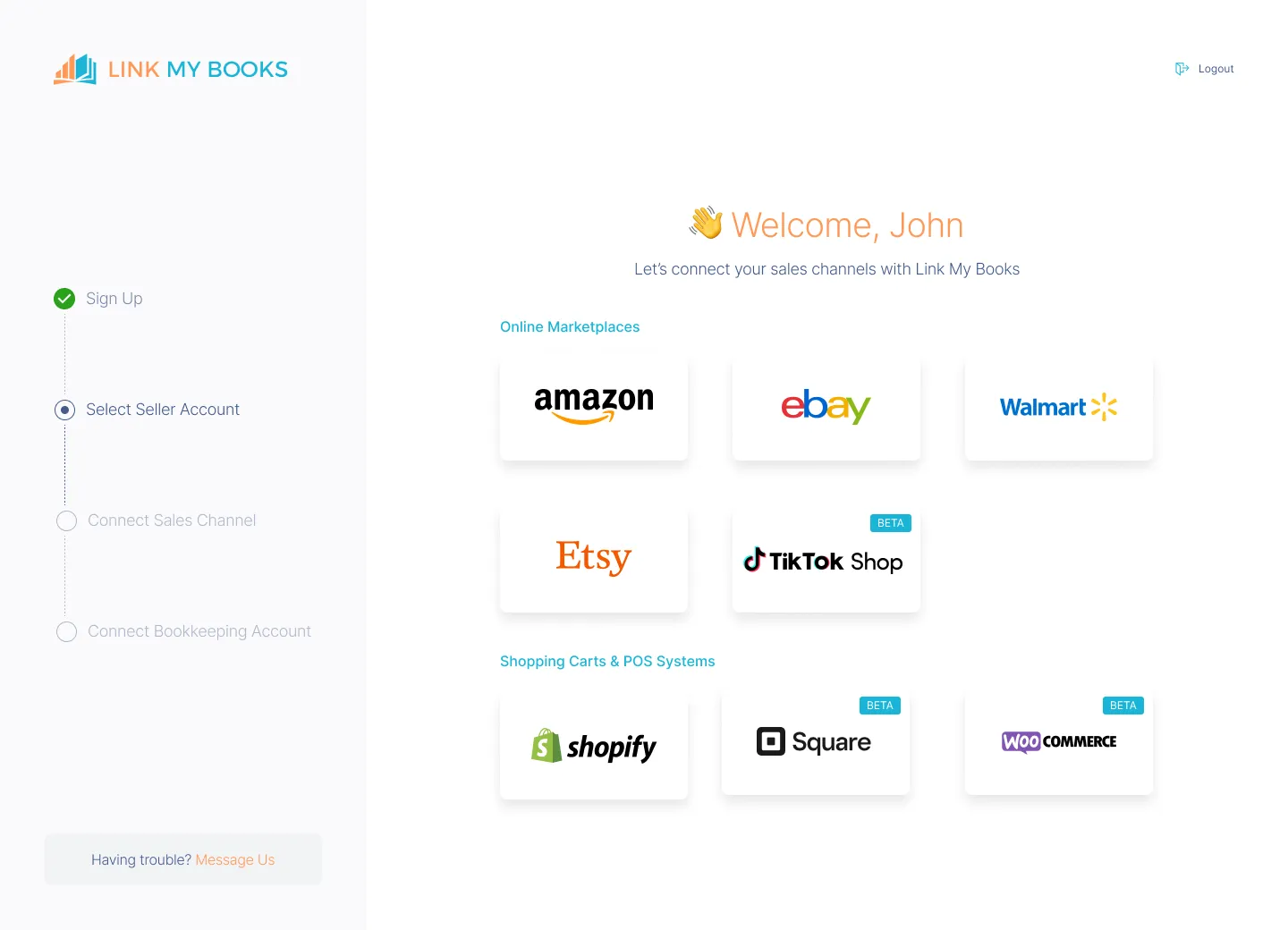
Next, you connect your WooCommerce store. Link My Books pulls order data from WooCommerce and fee data from supported gateways such as Stripe, PayPal, and WooCommerce Payments.
This matters because WooCommerce itself does not store payment processor fees in a way QuickBooks can use.
Step 3: Configure Mapping and Tax Settings
You complete the setup wizard once. During this step, you map:
- Product sales, refunds, shipping, and discounts
- Payment gateway fees
- VAT or sales tax codes for taxable and non-taxable sales
This ensures each payout posts to QuickBooks with the correct accounting treatment.
Step 4: Post WooCommerce Payouts and Reconcile
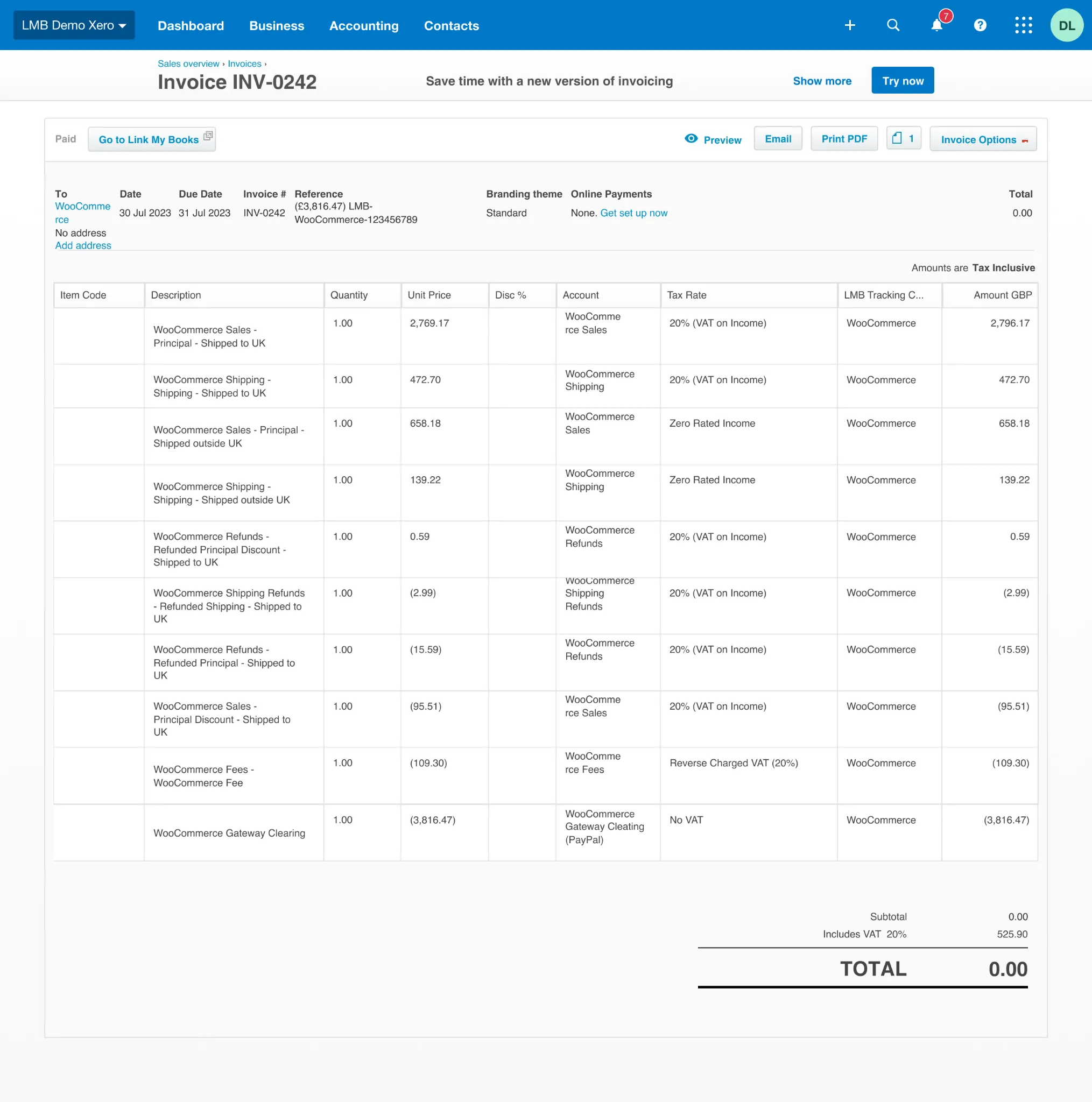
Each WooCommerce payout is posted as a single summary invoice or journal in QuickBooks, depending on your settings. When the deposit appears in the bank feed, you simply match it.
Reconciliation becomes a one-click task instead of a cleanup exercise.
What Gets Automated
For sellers who want clean books without spreadsheets, this is the most reliable way to record WooCommerce sales in QuickBooks.
If you want your WooCommerce accounting to run on autopilot, try out Link My Books. It takes only a few minutes to set up, and you can use it for 14 days, free of charge.
But, if you still want to do it the manual way, here’s how:
How to Record WooCommerce Sales in QuickBooks Without Automation
If you choose to do this manually, you need to recreate what automation does for you. This is possible, but it takes time and careful handling.
Step 1: Decide whether to post per order or per payout
Step 2: Export WooCommerce order data
Step 3: Pull tax totals from WooCommerce reports
Step 4: Pull fee and payout data from payment gateways
Step 5: Create summary entries in QuickBooks
Step 6: Match the bank deposit
Step 1: Choose Per Order or Per Payout
Per-order posting only works for very low-volume stores. Most sellers eventually move to payout-level summaries because they align with how deposits appear in the bank.
QuickBooks reconciles deposits, not individual orders.
Step 2: Export WooCommerce Orders
In WooCommerce, go to Orders and export a CSV for the relevant period. This gives you gross sales and refunds, but not complete fee data.
Step 3: Get Tax Totals
Use WooCommerce Analytics to pull tax totals for the same date range. You must identify what tax you collected versus what was already handled by a marketplace or gateway.
Step 4: Pull Gateway Fees and Payouts
Log into Stripe, PayPal, or WooCommerce Payments to download payout reports. These reports contain the actual fees deducted from your sales.
This step is often where errors creep in.
Step 5: Record the Breakdown in QuickBooks
Most sellers use a clearing account to hold WooCommerce activity.
You create a journal entry per payout that includes:
- Gross sales
- Refunds
- Gateway fees
- Tax liability
- Net amount to clearing
Step 6: Match the Deposit
When the payout hits your bank feed, you match it against the clearing account balance. If everything was entered correctly, the amounts line up.
Manual bookkeeping works, but it is time-consuming and prone to mistakes, especially once volume increases.
How Link My Books Makes Recording WooCommerce Sales in QuickBooks Automatic and Easy
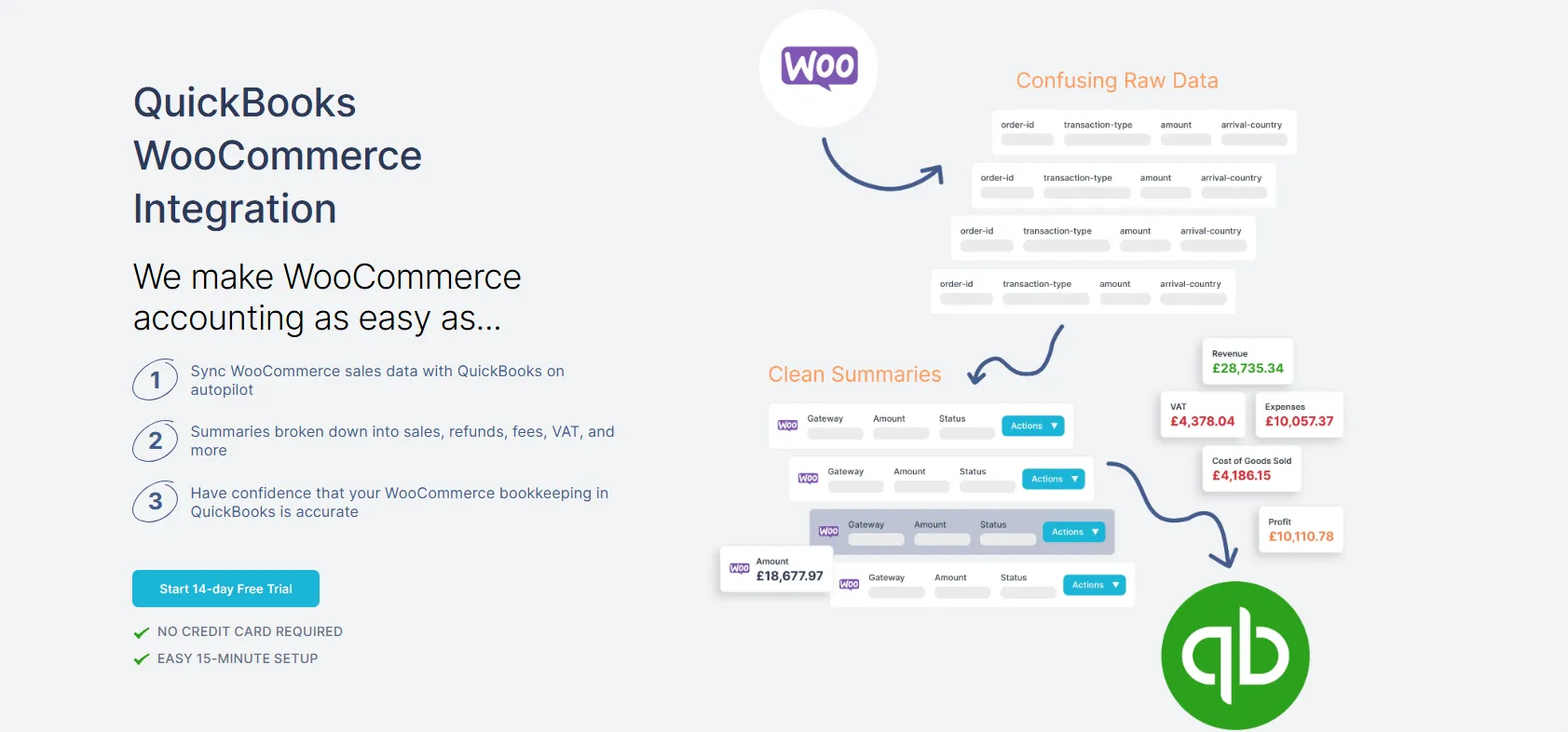
Recording WooCommerce sales in QuickBooks is difficult because payouts are net, data is split across WooCommerce and payment gateways, and tax rules vary by region. Link My Books is built specifically to solve those problems at the payout level, not at the order level.
Below are the core features and the practical benefits they deliver for WooCommerce sellers and accountants.
Automated Payout Reconciliation
Link My Books pulls every WooCommerce payout and posts a single, clean summary into QuickBooks that matches the exact amount deposited into your bank account.
What it does:
- Breaks each payout into sales, refunds, fees, and tax
- Posts a summary invoice or journal per payout
- Ensures the QuickBooks entry equals the net bank deposit
Your bank feed matches every time, so reconciliation is a one-click match instead of a manual adjustment. This eliminates suspense balances and unreconciled differences at month end.
Accurate Fee Capture From Payment Gateways
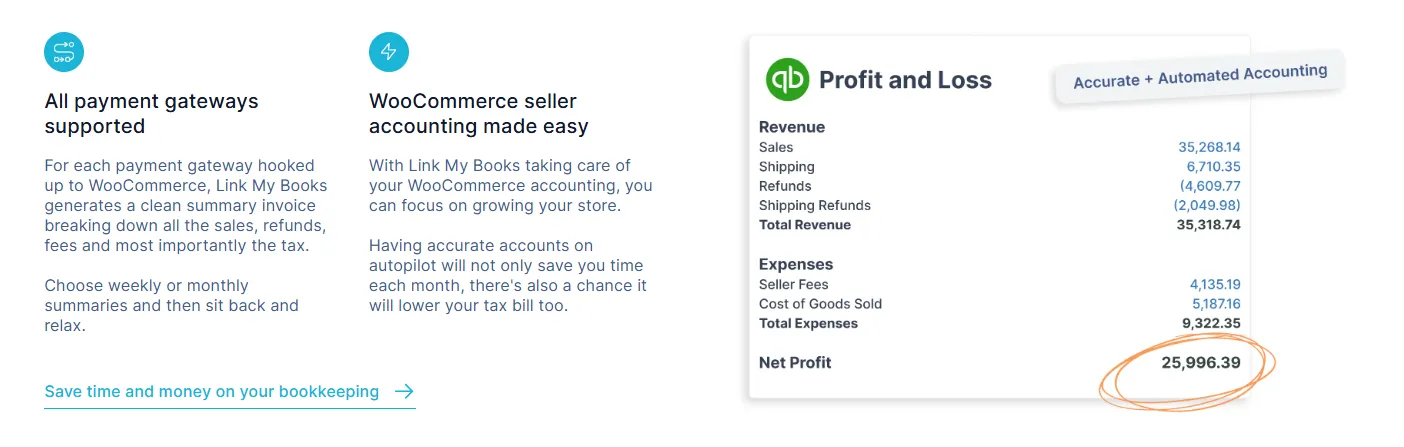
WooCommerce itself does not reliably track payment gateway fees. Those fees live in Stripe, PayPal, WooCommerce Payments, and other gateways.
What it does:
- Pulls fee data directly from supported payment gateways
- Separates transaction fees, chargebacks, and adjustments
- Posts fees to the correct expense accounts in QuickBooks
You see your true costs and margins. Fees are no longer buried inside net deposits or missed entirely, which prevents overstated profit.
Correct VAT and Sales Tax Handling
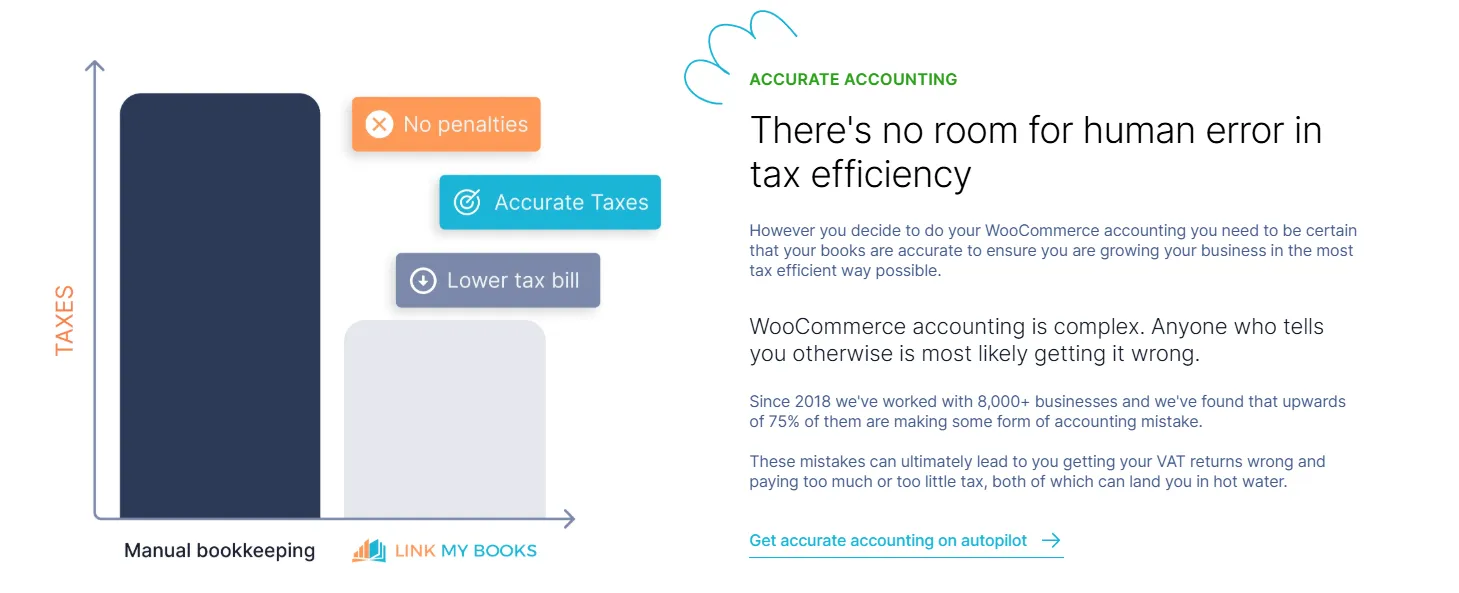
Tax errors are one of the most common WooCommerce bookkeeping issues, especially for UK, EU, and cross-border sellers.
What it does:
- Applies the correct VAT or sales tax treatment per transaction
- Supports standard, reduced, zero-rated, and non-taxable sales
- Separates tax you owe from tax already collected or handled at checkout
Your tax liability in QuickBooks reflects reality. This reduces the risk of overpaying VAT, misreporting sales tax, or failing an accountant or HMRC review.
One-Time Setup With Persistent Mapping
Manual workflows require repeated checking and rework every payout. Link My Books removes that repetition.
What it does:
- Uses a guided setup wizard to map income, fees, refunds, and tax once
- Remembers your mappings for all future payouts
- Allows accountants to review or adjust mappings without rework
After setup, WooCommerce bookkeeping runs in the background. There is no need to re-map accounts or rebuild spreadsheets each month.
Clean, Summary-Level Posting in QuickBooks

High-volume WooCommerce stores can overwhelm QuickBooks with thousands of transactions if data is pushed order by order.
What it does:
- Posts summary entries instead of individual orders
- Keeps your chart of accounts clean and readable
- Avoids performance issues caused by transaction overload
QuickBooks stays fast and usable, even as order volume grows. Your P&L and balance sheet remain easy to review and audit.
Clearing Account Logic Built for E-Commerce
Link My Books uses proper clearing account logic designed for marketplace and gateway payouts.
What it does:
- Posts gross activity to a clearing account
- Clears the balance automatically when the bank deposit is matched
- Prevents orphaned balances and reconciliation drift
Your WooCommerce clearing account always zeroes out correctly. This is one of the biggest pain points in manual WooCommerce bookkeeping.
Optional AutoPost for Hands-Off Bookkeeping
For sellers who want bookkeeping fully automated, Link My Books offers AutoPost.
What it does:
- Automatically posts new WooCommerce payouts to QuickBooks
- Runs in the background without manual approval
- Keeps books up to date in near real time
You spend minutes per month on bookkeeping instead of hours. Many sellers go from days of manual work to under 10 minutes per month.
Link My Books turns WooCommerce payouts into clean, reconciled QuickBooks entries automatically.
Sales, refunds, fees, and tax are handled correctly, reconciliation becomes effortless - your books stay accurate as you scale.
And you can try Link My Books out for free, no credit card needed!
How to Categorize WooCommerce in QuickBooks
A clean chart of accounts makes WooCommerce bookkeeping easier.
Fees should be expenses, not reductions of income. Taxes should sit in liability accounts until remitted.
FAQ
How do I sync WooCommerce sales with QuickBooks?
The most reliable way to sync WooCommerce sales with QuickBooks is by using a dedicated WooCommerce QuickBooks integration like Link My Books. It connects WooCommerce and your payment gateways to QuickBooks, then posts fully reconciled payout summaries that match your bank deposits. This avoids order-level clutter and keeps your books accurate as volume grows.
How do I import WooCommerce transactions into QuickBooks?
You can import WooCommerce transactions manually by exporting order CSVs from WooCommerce and payout reports from Stripe or PayPal, then summarising them in QuickBooks. This process is time-consuming and easy to get wrong. Most sellers switch to automation after struggling with reconciliation, as explained in this guide on how to reconcile WooCommerce payments in QuickBooks.
What is the best way to record WooCommerce sales in QuickBooks?
For most WooCommerce sellers, the best method is payout-level posting rather than recording individual orders. This ensures each QuickBooks entry matches the net amount deposited into your bank account. Automation tools designed for e-commerce bookkeeping outperform manual methods, especially as order volume increases.
Check out the best WooCommerce accounting software for options.
How does VAT work with WooCommerce and QuickBooks?
VAT handling depends on where your customers are located and how tax is applied at checkout. WooCommerce reports alone are not enough to ensure VAT accuracy in QuickBooks. You must separate taxable, zero-rated, and non-taxable sales correctly to avoid overpaying. This is covered in detail in our WooCommerce VAT guide.
Where should WooCommerce fees be recorded in QuickBooks?
WooCommerce-related fees from Stripe, PayPal, or WooCommerce Payments should be recorded as expenses, not netted against sales. Many sellers miss or miscategorize these fees, which distorts profit reporting. Proper WooCommerce seller accounting separates sales, fees, refunds, and taxes clearly so margins are accurate.
Do I need a separate clearing account for WooCommerce in QuickBooks?
Yes, using a clearing account is best practice when recording WooCommerce payouts. It allows you to post gross activity first and then clear the balance when the net deposit hits your bank. Most WooCommerce reconciliation issues stem from not using a clearing account correctly.
How Link My Books Makes Recording WooCommerce Sales Automatic
Recording WooCommerce sales manually takes hours and still leaves room for error. Link My Books automates the entire process by posting fully reconciled payout summaries into QuickBooks.
Each payout includes sales, refunds, fees, and tax, already categorized and ready to match to your bank feed. That means accurate reports, clean reconciliation, and less time spent on bookkeeping.
Integrating WooCommerce with Link My Books automates your QuickBooks workflow and removes guesswork from e-commerce accounting.
Start your free 14-day trial of Link My Books today and experience effortless WooCommerce bookkeeping.


.webp)



.png)