


Recording Walmart sales in QuickBooks looks simple until you try to reconcile your first payout. Walmart deposits a single net amount into your bank, but that figure includes sales, refunds, fees, and marketplace-collected sales tax. QuickBooks only sees the deposit, not the breakdown behind it.
Most Walmart sellers end up guessing, recording the deposit as income, and hoping reconciliation works itself out later. It doesn’t. The result is overstated revenue, missing fees, inaccurate profit reporting, and constant month-end cleanup.
This guide shows you exactly how to record Walmart sales in QuickBooks the right way. First, the easy automated method. Then the fully manual approach, so you understand why automation matters.
Key Takeaways from this Post
Walmart payouts combine sales, refunds, fees, and marketplace-collected sales tax, which QuickBooks cannot separate automatically.
Manually recording Walmart sales in QuickBooks is time-consuming and error-prone, especially as order volume grows.
Link My Books automates Walmart bookkeeping, posting clean, reconciliation-ready entries into QuickBooks in minutes.







Where Most Sellers Go Wrong with Recording Walmart Sales in QuickBooks
Most Walmart sellers make the same core mistake: they treat the Walmart deposit as revenue.
That single payout is not income. It is the net result of multiple components:
- Gross customer sales
- Walmart referral and fulfillment fees
- Refunds and adjustments
- Sales tax collected and remitted by Walmart under marketplace facilitator laws
When sellers record the net payout as income, QuickBooks reports inflated revenue and hides real costs. Profit margins look better than they are, fees disappear, and reconciliation becomes a monthly firefight.
What makes this worse is that many articles online stop at “record the deposit and move on.” That advice ignores how Walmart actually pays sellers and why QuickBooks struggles to reconcile marketplace payouts.
The correct approach is to record Walmart activity at the payout level, with a proper breakdown of sales, fees, refunds, and tax. This is exactly where Link My Books fits in.
How to Record Walmart Sales in QuickBooks (The Easy Way)

If you want Walmart bookkeeping done correctly without spreadsheets or manual journal entries, automation is the fastest and safest route.
Link My Books automates your entire workflow, eliminating manual downloads, tax guesswork, and reconciliation headaches, and it only takes a couple of simple steps to connect it to your QuickBooks account.
Here’s how to do it:
- Connect Your Walmart and Accounting Platforms
- Import Your Data Automatically
- Get Clean, Categorized Summaries in QuickBooks
- Reconcile Payouts in One Click
Let’s break it down:
Step 1: Connect Your Walmart and Accounting Platforms
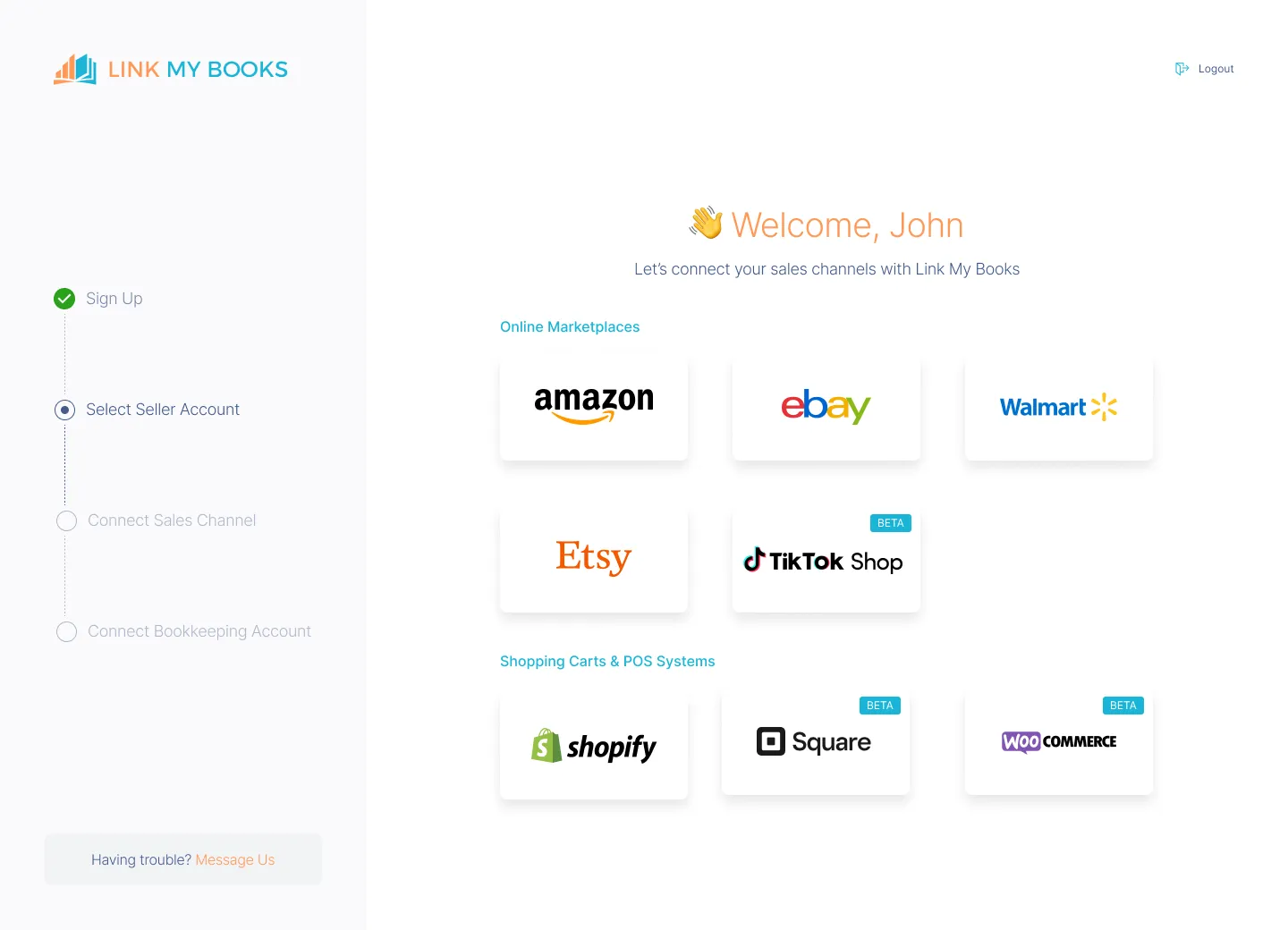
- Create your free Link My Books account and connect your Walmart store.
- Then, link your QuickBooks account.
- Set your tax preferences once, Link My Books handles it from there.
Step 2: Import Your Data Automatically

- Sales, fees, taxes, and refunds are pulled in from Walmart in real-time.
- No more missing transactions or mismatched payouts.
Step 3: Get Clean, Categorized Summaries in QuickBooks

- Transactions are grouped, categorized, and tax-mapped, ready for reconciliation.
- COGS tracking included for clear profit analysis.
Step 4: Reconcile Payouts in One Click

- Each Walmart payout is automatically matched to your bank deposit.
No spreadsheets. No manual entries. Just clean books, fast.
🔹 Link My Books turns Walmart chaos into tax-ready clarity, and you can try it free (no credit card needed).

If you still want to try the manual way, here’s how:
How to Record Walmart Sales in QuickBooks Manually
To manually record Walmart sales in QuickBooks, you need to:
- Download Walmart transaction reports for the payout period
- Separate sales, fees, refunds, and sales tax
- Create a summary journal entry in QuickBooks
- Match the entry to the Walmart bank deposit
- Reconcile the transaction manually
Recording Walmart sales manually in QuickBooks requires careful handling of reports and a clear understanding of how Walmart structures payouts. Walmart does not send QuickBooks a clean breakdown of your activity. Instead, you receive a net deposit that includes multiple transaction types rolled together.
To record Walmart sales correctly, you must recreate that breakdown yourself before anything will reconcile.
Step 1: Download the Walmart Transaction Report
Log in to Walmart Seller Center and export the transaction data for the payout period you want to record.
This report contains every component behind your payout, including:
- Customer sales
- Walmart referral and fulfillment fees
- Refunds and adjustments
- Sales tax collected by Walmart
You’ll typically use a settlement or transaction-level report, which is the same data referenced in the Walmart transaction report.
Important: Walmart payouts often span multiple days or accounting periods. You must ensure the report date range matches the deposit hitting your bank, not just the calendar month.
Step 2: Identify What Walmart Pays You vs What It Collects
This is the most critical step, and where many sellers go wrong.
Walmart operates as a marketplace facilitator in the United States. That means:
- Walmart collects sales tax from customers where required
- Walmart remits that sales tax directly to the tax authorities
- That tax money is never yours and should not be treated as income
When reviewing your report, you must separate:
- Gross product sales
- Walmart seller fees
- Refunds
- Sales tax collected by Walmart
Sales tax collected by Walmart should be excluded from income and should not be posted to a sales tax payable account in QuickBooks. Recording it incorrectly will inflate revenue and create false tax liabilities.
Step 3: Create a Summary Entry in QuickBooks
Once you’ve summarized the report, you need to recreate the payout in QuickBooks using a journal entry or summary transaction.
A typical structure looks like this:
- Credit income for gross Walmart sales
- Debit Walmart fees to an expense account
- Debit refunds as negative income or contra-revenue
- Exclude Walmart-collected sales tax entirely
- Balance the entry to match the net payout
The total of the entry must equal the exact amount deposited into your bank account. If it does not, reconciliation will fail later.
This process must be repeated for every payout period.
Step 4: Reconcile the Walmart Deposit
After posting the summary entry, go to QuickBooks Banking and locate the Walmart deposit.
If everything was done correctly:
- The journal entry total matches the bank deposit
- QuickBooks allows a clean one-to-one match
- The transaction can be reconciled
If there is even a small difference, you’ll need to trace it back to missing fees, refunds, timing differences, or rounding issues in the report.
This is where most sellers lose time.
Why Mismatches Are Common with Manual Walmart Bookkeeping
Manual Walmart reconciliation frequently fails because:
- Walmart fees change and are easy to miss
- Refunds may post days after the original sale
- Payouts may span multiple reporting periods
- Sales tax is accidentally included as income
- Spreadsheet errors compound over time
Even small errors prevent QuickBooks from reconciling properly. This is why most Walmart sellers eventually move to automation once their store gains traction.
How Link My Books Makes Recording Walmart Sales in QuickBooks Automatic & Easy
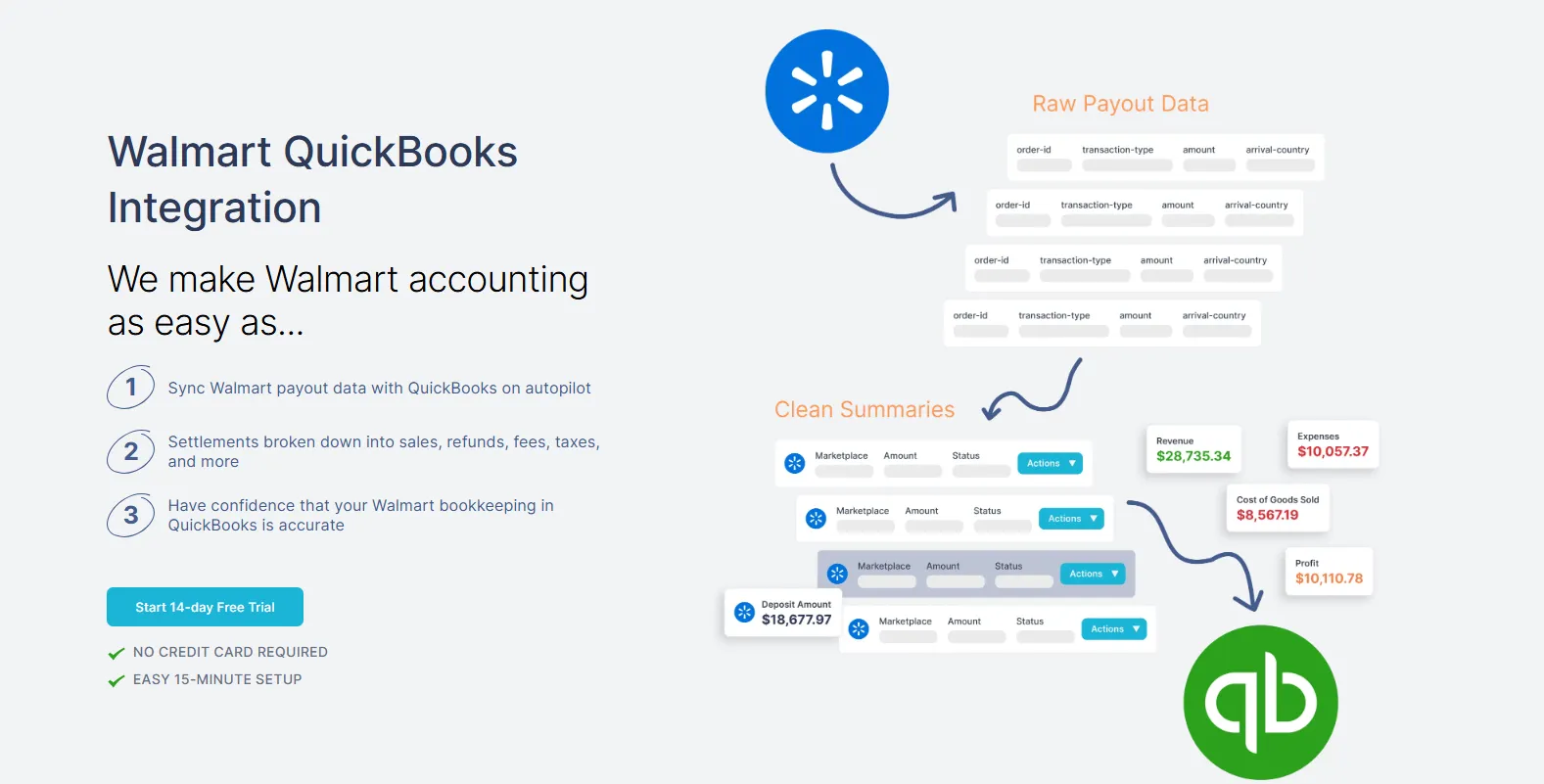
Manual Walmart bookkeeping breaks down because it depends on spreadsheets, perfect timing, and repeated accuracy. Every payout forces you to download reports, split transactions, double-check fees, and hope nothing was missed.
Link My Books removes that risk by automating the entire Walmart-to-QuickBooks workflow. Instead of forcing QuickBooks to “figure out” Walmart payouts, Link My Books does the heavy lifting before anything reaches your books.
Here’s what changes when you automate.
What Link My Books Automates for Walmart Sellers
Instead of hundreds of individual transactions, Link My Books posts clean, summarized entries that match your Walmart deposits exactly.
Automatic Data Import from Walmart
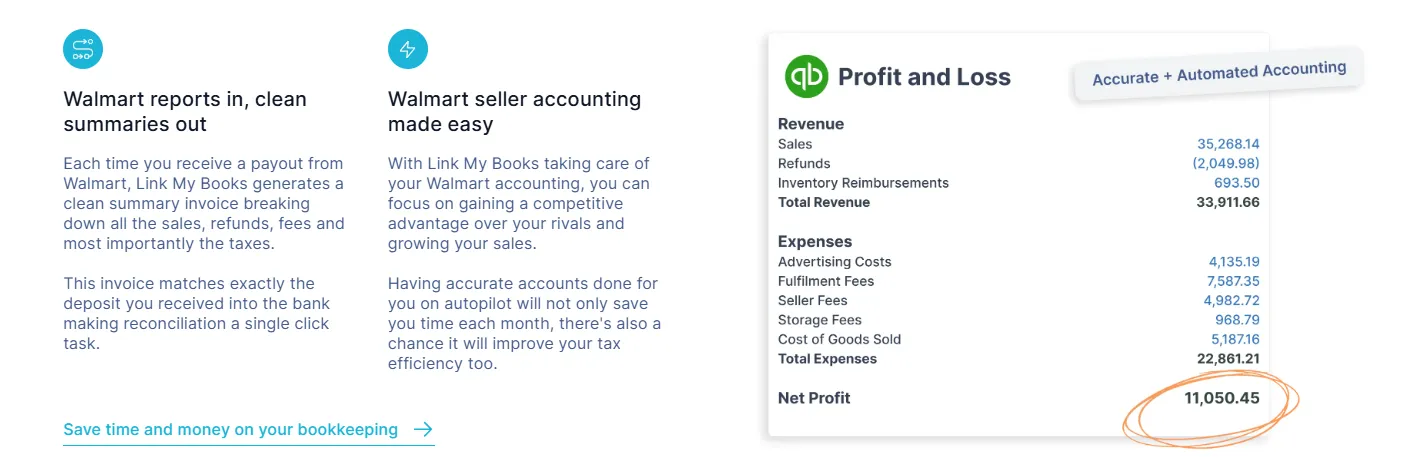
Link My Books connects directly to Walmart Seller Center and pulls in all the data required for accurate bookkeeping:
- Gross customer sales
- Walmart seller fees
- Refunds and adjustments
- Marketplace-collected sales tax
- Payout totals
Because Walmart does not send this data to QuickBooks in a usable format, this step alone eliminates hours of manual work each month.
You never need to download CSVs or reconcile spreadsheets again.
Correct Sales Tax Treatment for Walmart Sellers
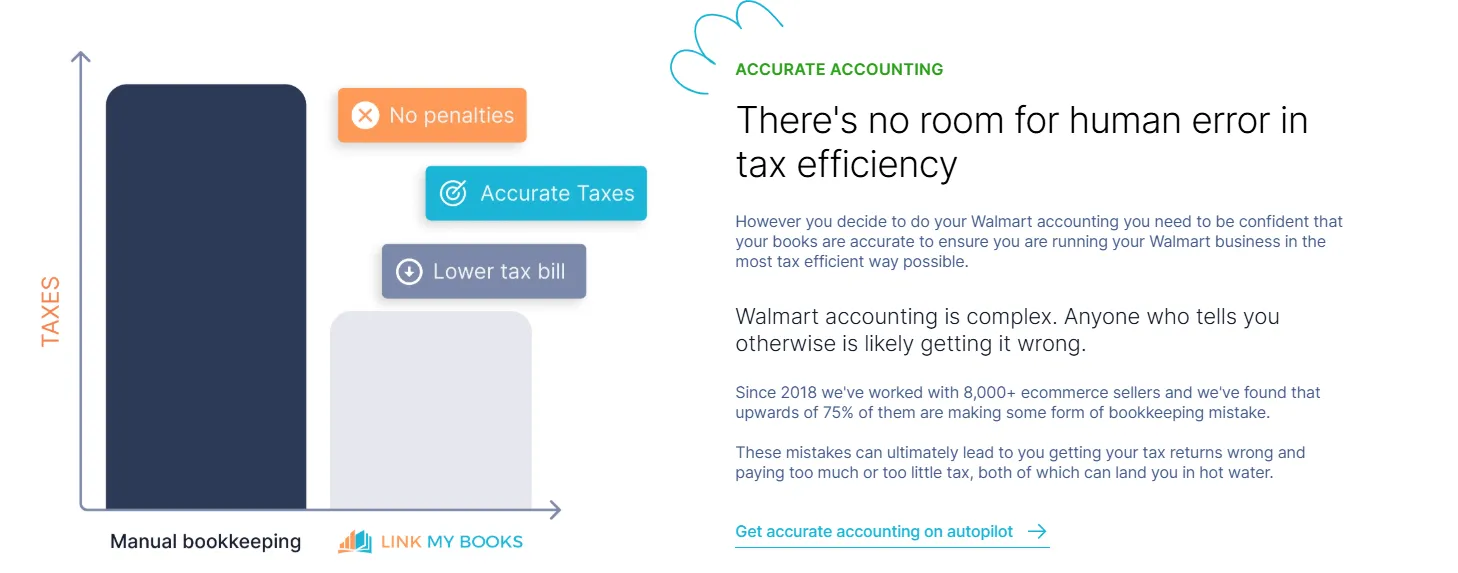
Walmart operates as a marketplace facilitator in the US. That means Walmart collects and remits sales tax on qualifying transactions.
This is where many sellers get QuickBooks wrong.
Link My Books automatically:
- Identifies sales tax collected by Walmart
- Excludes it from your income
- Prevents it from posting to sales tax payable accounts
As a result, your QuickBooks reports reflect true revenue, not inflated totals that include tax money you never received.
Clean Summary Entries That Match Your Bank Deposits
Instead of flooding QuickBooks with individual orders, Link My Books creates one summarized entry per Walmart payout.
Each summary includes:
- Total gross sales
- Total fees
- Total refunds
- Excluded marketplace-collected sales tax
- Net payout amount
This summary is posted in a format that matches the exact amount deposited into your bank.
When you open QuickBooks Banking, the Walmart deposit matches immediately. Reconciliation becomes a single click.
Built for Reconciliation First, Not Just Data Sync
Many integrations focus on importing data. Link My Books focuses on reconciliation accuracy.
Every Walmart payout posted by Link My Books is designed to:
- Match one-to-one with a bank deposit
- Eliminate timing differences
- Avoid rounding errors
- Keep month-end balances clean
This makes it easy to close your books quickly and confidently.
Accountant-Ready Records Without Extra Cleanup
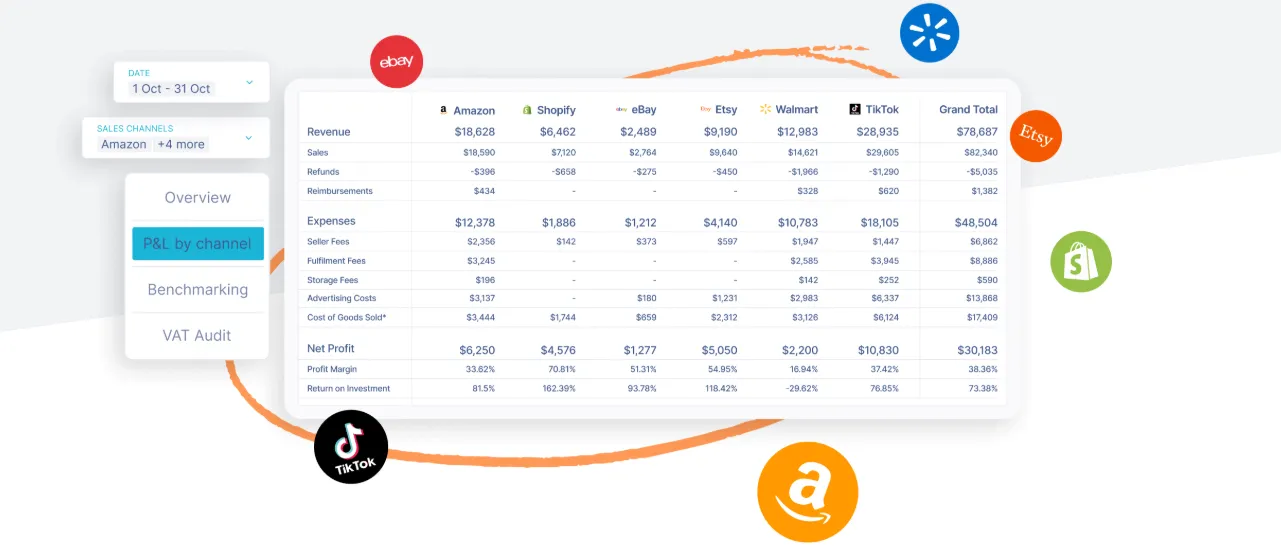
Because entries are summarized, categorized, and tax-safe:
- Your P&L reflects real profitability
- Fees are visible and auditable
- Refunds are handled correctly
- Your accountant doesn’t need to rebuild entries
You can invite your accountant directly into Link My Books to review mappings or reconciliation logic without sharing spreadsheets or raw reports.
Recording Walmart Sales in QuickBooks: Manual vs Automated
What This Means in Practice
The manual method relies on perfect spreadsheets and constant attention. One missed fee or refund breaks reconciliation and distorts your profit reports.
The automated approach with Link My Books removes manual steps entirely. Walmart payouts are converted into clean QuickBooks entries that reconcile perfectly every time.
That difference is why most Walmart sellers move to automation as soon as volume increases.

Start your free trial of Link My Books today and make Walmart accounting effortless.
How to Categorize Walmart in QuickBooks

Correct categorization is what makes Walmart reporting reliable in QuickBooks. If your categories are wrong, your profit and loss report will be misleading, reconciliation will be painful, and your accountant will spend time undoing entries instead of reviewing them.
Walmart payouts are not simple sales deposits. Each payout includes multiple transaction types that must be categorized separately to reflect reality.
Below is the best-practice structure for categorizing Walmart activity in QuickBooks.
Walmart Sales: Use a Dedicated Income Account
Walmart sales should be posted to a dedicated Walmart income account, not mixed with other marketplaces or general sales.
Best practice:
- Create an income account called Walmart Sales or Walmart Marketplace Revenue
- Post gross sales, not net payouts
Why this matters:
- Keeps Walmart performance visible on your P&L
- Prevents netting fees against revenue
- Makes channel-level profitability clear
If you record only the net deposit as income, QuickBooks will overstate margins and hide Walmart’s true cost structure.
Link My Books automatically posts gross Walmart sales to the correct income account based on your mapping, so revenue is always reported accurately.
Walmart Fees: Separate Expense Accounts
Walmart deducts multiple fees, including referral fees and fulfillment-related charges. These should never be netted against sales.
Best practice:
- Create an expense account such as Walmart Seller Fees
- Optionally split into sub-accounts if volume justifies it
Why this matters:
- Shows the true cost of selling on Walmart
- Allows margin analysis and fee monitoring
- Prevents inflated profit figures
Many sellers accidentally bury fees by recording net deposits. This makes Walmart look more profitable than it actually is.
Link My Books automatically separates Walmart fees and posts them to the correct expense accounts, eliminating manual adjustments.
Refunds: Record as Negative Income or Contra-Revenue
Refunds must reduce revenue, not inflate expenses.
Best practice:
- Record refunds as negative income against Walmart sales
- Alternatively use a Sales Returns and Allowances contra-revenue account
Why this matters:
- Keeps revenue figures honest
- Prevents double-counting refunds as expenses
- Maintains accurate gross margin reporting
Refunds are often delayed or batched differently than sales, which makes them easy to miss manually.
Link My Books identifies refunds at the payout level and applies them correctly, even when they occur days after the original sale.
Sales Tax: Exclude Walmart-Collected Tax
This is one of the most important categorization rules for Walmart sellers.
Walmart is a marketplace facilitator in the US. That means:
- Walmart collects sales tax from customers
- Walmart remits that tax directly to tax authorities
- That money is never yours
Best practice:
- Do not record Walmart-collected sales tax as income
- Do not post it to a sales tax payable account
Why this matters:
- Prevents overstated revenue
- Avoids false tax liabilities in QuickBooks
- Keeps tax reports aligned with reality
Link My Books automatically identifies and excludes Walmart-collected sales tax so it never inflates your books or creates cleanup work later.
Payouts: Reconcile Through a Clearing Account
Walmart payouts should reconcile cleanly against your bank feed, not be forced to match.
Best practice:
- Use a clearing or holding account (e.g. Walmart Clearing)
- Post summary entries that match the exact payout amount
- Reconcile one payout to one bank deposit
Why this matters:
- Enables one-click reconciliation
- Prevents timing and rounding mismatches
- Keeps month-end close fast and predictable
Without a clearing approach, sellers often resort to “forcing” matches in QuickBooks, which creates hidden issues that surface later.
Link My Books automatically creates payout-level summaries designed to reconcile perfectly, eliminating the need for manual clearing adjustments.
Why This Categorization Structure Works Long-Term
When Walmart is categorized correctly:
- Your P&L shows true Walmart profitability
- Fees are visible and controllable
- Sales tax is handled correctly without intervention
- Reconciliation is consistent every month
- Your accountant trusts the numbers
This structure is scalable. It works whether you process 50 orders a month or 5,000.
Manual bookkeeping makes this structure hard to maintain. Automation makes it the default.
FAQ
How do I sync Walmart sales with QuickBooks?
The most reliable way to sync Walmart sales with QuickBooks is by using a dedicated Walmart QuickBooks integration. Link My Books connects directly to Walmart Seller Center, pulls sales, fees, refunds, and payouts automatically, and posts reconciliation-ready summaries into QuickBooks without manual uploads.
How do I import Walmart transactions into QuickBooks?
You can import Walmart transactions manually by downloading CSV files from your Walmart transaction report and summarizing the data before entering it into QuickBooks. This process works at low volume but becomes time-consuming and error-prone as sales grow. Automation removes the need for CSVs entirely.
What is the best way to integrate Walmart with QuickBooks?
The best approach is to use accounting software designed specifically for marketplaces, rather than relying on manual journal entries. Tools listed among the best Walmart accounting software post payout-level summaries that match bank deposits exactly and handle fees and marketplace-collected sales tax correctly.
Why doesn’t my Walmart payout match QuickBooks?
Walmart payouts combine sales, refunds, fees, and marketplace-collected sales tax into one deposit, while QuickBooks only sees the net amount. If these components are not separated correctly, reconciliation will fail. This is explained in detail in our guide on how to reconcile Walmart payments in QuickBooks.
What’s the correct way to handle Walmart bookkeeping long-term?
The most sustainable approach is to treat Walmart as its own sales channel in your accounting system, with dedicated income and expense accounts and payout-level reconciliation. Our Walmart seller accounting guide covers best practices for keeping Walmart books accurate and audit-ready as you scale.
Record Walmart Sales in QuickBooks Automatically with Link My Books

Recording Walmart sales in QuickBooks doesn’t have to involve spreadsheets, manual journal entries, or reconciliation headaches. The problem isn’t Walmart - it’s trying to force complex marketplace payouts into accounting software that wasn’t built to handle them on its own.
Link My Books connects Walmart Seller Center to QuickBooks and does the hard work for you. Every Walmart payout is broken down into sales, fees, refunds, and marketplace-collected sales tax, then posted as a clean summary that matches your bank deposit exactly. Reconciliation takes minutes, not hours, and your books stay accurate as your store grows.
If you’re tired of fixing mismatches, second-guessing your profit numbers, or cleaning up Walmart entries every month, it’s time to automate.
Start your free trial of Link My Books today and make Walmart accounting effortless.



.webp)




.png)