


Recording WooCommerce sales in Xero becomes messy the moment your order volume increases. WooCommerce shows you gross sales, refunds, shipping, discounts, and tax, but none of that flows into Xero automatically. If you rely only on bank deposits, your revenue ends up overstated, fees disappear from your P&L, and VAT becomes inaccurate. If you sync every order into Xero using a plugin, you quickly generate thousands of invoices, duplicate fees, and reconciliation problems.
The real challenge is simple: WooCommerce payouts never equal your WooCommerce sales. Payment gateways like Stripe, PayPal, and WooCommerce Payments deposit a net amount that excludes fees and may include refunds or FX adjustments. Xero needs the full breakdown to record your revenue correctly and reconcile your bank feed without errors.
This guide shows you how to record WooCommerce sales in Xero the easy way, first (using Link My Books), and then walks through the full manual method if you still prefer to do it yourself.
Key Takeaways from this Post
Recording WooCommerce sales in Xero using bank deposits alone leads to overstated revenue, missing gateway fees, and inaccurate VAT reporting.
Sending every WooCommerce order into Xero via plugins creates thousands of invoices, duplicated data, and reconciliation problems as your store grows.
The most reliable method is to record WooCommerce sales in Xero using summary entries per payout, and Link My Books automates this by posting accurate sales, fees, discounts, and VAT directly into Xero.







Where Most Sellers Go Wrong With Recording WooCommerce Sales in Xero
Most WooCommerce sellers start by either pushing every order into Xero or by booking only the net bank deposit as revenue. Both methods seem logical at first, but both create major accounting problems once order volume increases.
Here are the most common mistakes:
- Recording only the bank deposit as sales: Xero sees a single net amount, but WooCommerce sales include shipping income, discounts, VAT, refunds, and multiple gateway fees. Deposits are always lower than revenue, so income becomes understated or misclassified.
- Syncing every WooCommerce order into Xero: Plugins like the old WooCommerce Xero extension push one invoice per order. This quickly floods Xero with hundreds or thousands of invoices each month, making reconciliation slow and causing duplicated fees or tax entries. Xero itself warns that high-volume sellers should avoid order-level syncing.
- Missing Stripe, PayPal, or WooCommerce Payments fees: WooCommerce does not track gateway fees. If you record sales without accounting for these fees, your P&L will show inflated profits and incomplete expense data.
- Incorrect VAT treatment: WooCommerce sellers often mix domestic sales, EU OSS, and zero-rated exports in one lump figure. Without splitting VAT correctly, Xero reports become inaccurate and VAT returns may be overpaid.
- Not matching sales to payment gateway payouts: WooCommerce sales and Xero’s bank feed never match naturally. Gateways batch multiple order days together, include refunds in different periods, and deduct fees automatically. Without a summary method, reconciliation becomes guesswork.
The root issue: WooCommerce and Xero use different structures. WooCommerce focuses on orders; Xero focuses on financial summaries. Without converting WooCommerce activity into structured payout summaries, your accounting will always be off.
How to Record WooCommerce Sales in Xero (The Easy Way using Link My Books)
The fastest and most accurate way to record WooCommerce sales in Xero is to automate the process with Link My Books. Instead of pushing every order into Xero or manually rebuilding payout summaries in spreadsheets, Link My Books converts your WooCommerce payouts into clean, tax-compliant summaries that match the exact deposits in your bank feed.
You get accurate sales, fees, shipping, discounts, and VAT posted automatically. And because each summary matches the bank deposit to the cent, reconciliation in Xero becomes a one-click action.
Here’s how to do it:
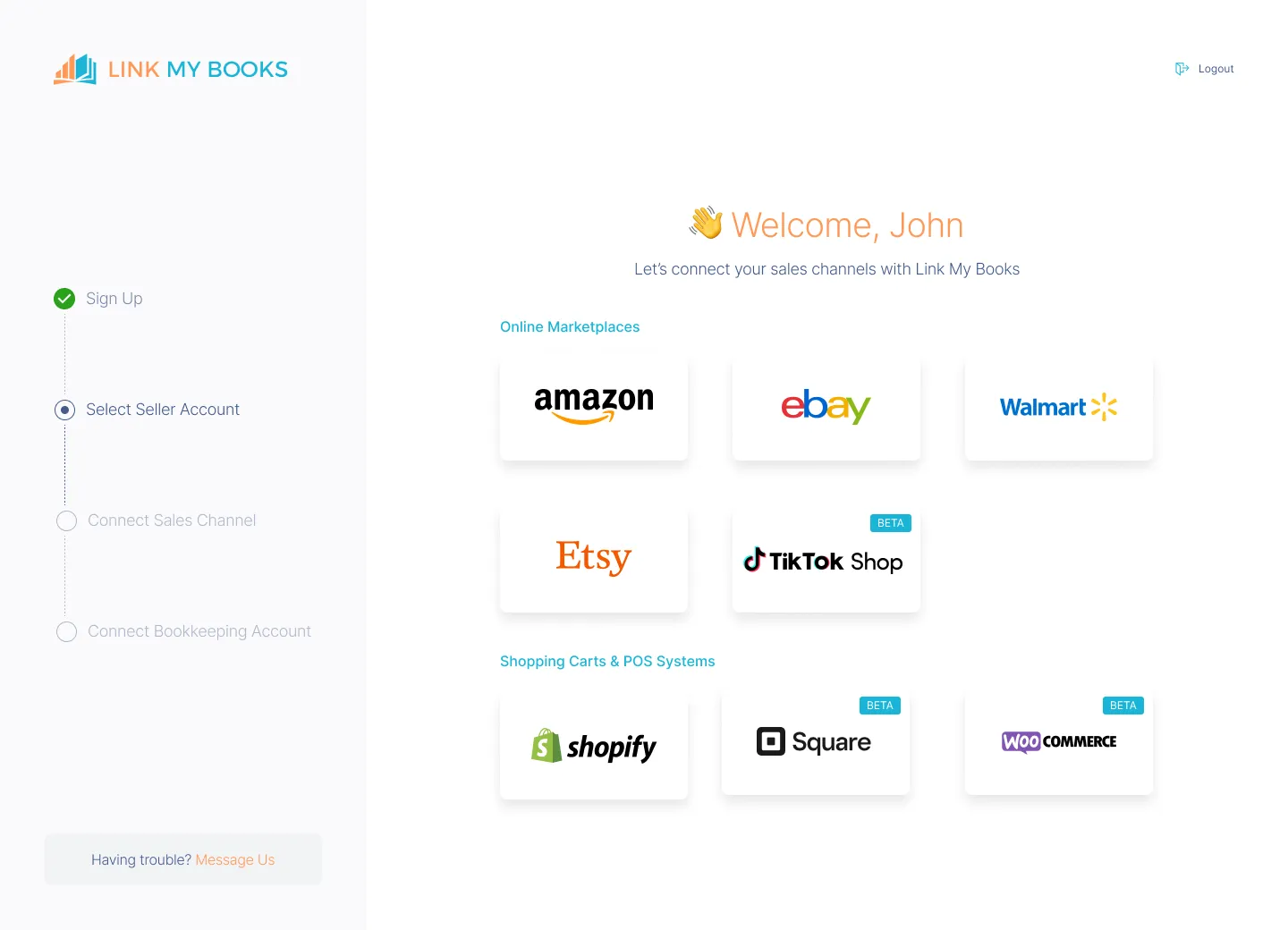
- Connect Xero and WooCommerce to Link My Books
- Complete the Setup Wizard and Tax Mapping
- Choose How You Want WooCommerce Sales Posted in Xero
- Sync WooCommerce Payouts and Sales
- Reconcile in Xero
Step 1: Connect Xero and WooCommerce to Link My Books
Connect to Xero
- Sign up for your free 14-day trial, and choose Xero as your accounting platform.
- Authenticate using Xero’s secure OAuth login.
- Select the Xero account you want to connect.
Link My Books is listed on the Xero App Store and uses Xero’s approved connection flow, so this step is fully compliant and secure.
Connect WooCommerce
- Click Add Account
- Select WooCommerce
- Follow the secure connection flow to authorize access
This allows Link My Books to import WooCommerce orders, refunds, taxes, and payout information.
Step 2: Complete the Setup Wizard and Tax Mapping
Map WooCommerce Income Categories to Xero
You will map:
- Sales
- Shipping income
- Discounts
- Refunds
Configure VAT Rules
You will assign:
- Standard-rated sales
- Reduced-rate and zero-rated sales
- EU OSS sales
- Export sales
Link My Books applies these VAT rules automatically to every payout summary.
Step 3: Choose How You Want WooCommerce Sales Posted in Xero

Within Link My Books, WooCommerce sales are sent to Xero as summary invoices, and you can choose how often those summaries are generated. According to the Link My Books WooCommerce help, you can set your summary report frequency to:
- Daily
- Weekly
- Monthly
Each summary invoice breaks down sales, refunds, shipping, discounts, fees, and tax for that period and is designed to line up with your WooCommerce payment activity and bank deposits.
Why summary invoices work well
- They prevent thousands of individual WooCommerce orders from cluttering Xero.
- They make bank reconciliation much easier, because Link My Books creates clean summary entries in Xero that match deposits in your bank account exactly.
- They keep VAT and tax treatment consistent and auditable when you apply the same mappings and tax codes to every summary.
Many e-commerce accountants prefer this summary-invoice method for WooCommerce sellers, particularly once order volume starts to scale.
Step 4: Sync WooCommerce Payouts and Sales
How Link My Books Processes WooCommerce Data
For each payout, Link My Books automatically imports and separates:
- Gross sales
- Shipping income
- Discounts
- Refunds
- Payment gateway fees
- VAT by region
- Any adjustments
The result is a clean summary uniquely structured for Xero.
Automatic Posting
Once reviewed or auto-approved, Link My Books posts the summary directly into Xero using the exact accounts and VAT codes you selected.
Step 5: Reconcile in Xero
Match Each Summary Entry to Your Bank Feed
- Open Xero → Accounting → Bank Accounts → Reconcile
- Xero will automatically suggest a match for each WooCommerce payout
- Click OK to reconcile
Because the Link My Books summary equals the bank deposit exactly, reconciliation is instant.
Most sellers go from several hours of bookkeeping per month to 10–15 minutes.
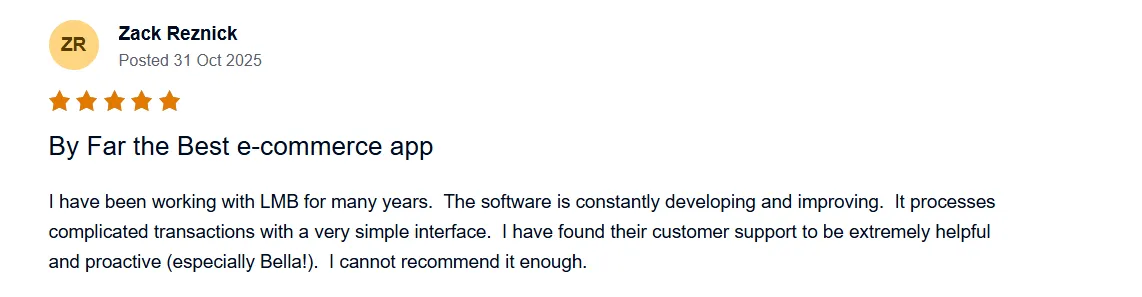
If you want your WooCommerce accounting to run on autopilot, try out Link My Books. It takes only a few minutes to set up, and you can use it for 14 days, free of charge.
But, if you still want to do it the manual way, here’s how:
How to Record WooCommerce Sales in Xero Manually
- Export WooCommerce Sales Reports
- Summarize Sales by Type
- Create Manual Invoices or Journals in Xero
- Record Payment Gateway Fees and Refunds
- Reconcile Bank Transactions in Xero
If you prefer not to use an automation tool, you can record WooCommerce sales in Xero manually. This method works, but it requires downloading reports from WooCommerce and your payment gateways (Stripe, PayPal, WooCommerce Payments), breaking down each payout into sales, fees, discounts, shipping, and VAT, and then rebuilding a summary entry inside Xero.
Manual recording is time-consuming and becomes difficult at scale, but here are the exact steps to do it properly.
Step 1: Export WooCommerce Sales Reports
Download WooCommerce Order Data
In WooCommerce:
- Go to Analytics
- Open Orders or Revenue
- Filter by date range
- Export the CSV
If you’re using older versions of WooCommerce:
- Go to WooCommerce → Reports → Orders
- Select a date range
- Export CSV
Why this matters
Xero cannot see WooCommerce sales automatically, so you need the exported data to understand your gross sales, tax amounts, refunds, and shipping.
Step 2: Summarize Sales by Type
Break Out the Key Sales Components
Split your WooCommerce data into:
- Gross sales
- Shipping income
- Discounts
- Refunds
- VAT on each tax rate (standard, reduced, zero-rated)
- Countries for OSS reporting if applicable
Separate by Payment Method
You should create separate summaries for:
- Stripe
- PayPal
- WooCommerce Payments
- Any other gateways
This ensures each payout matches what appears in your bank feed.
Step 3: Create Manual Invoices or Journals in Xero
Option A: Create One Daily Summary Invoice
- Go to Business → Invoices → New Invoice
- Create a single invoice for each day’s sales
- Add separate line items for sales, shipping, discounts, and VAT
- Approve the invoice
This works for low-volume sellers but becomes unmanageable quickly.
Option B: Create One Journal per Payout
Recommended for medium and high-volume sellers.
- Go to Accounting → Advanced → Manual Journals
- Create a journal for each payout
- Debit and credit the appropriate sales, VAT, fee, and clearing accounts
- Ensure the net amount equals the payout deposited in your bank
This is the closest manual equivalent to what accounting automation tools do.
Step 4: Record Payment Gateway Fees and Refunds
Export Gateway Reports
For each payment method, export fee and refund data:
- Stripe: Dashboard → Payments or Payouts → Export
- PayPal: Activity → Statements → Custom → CSV
- WooCommerce Payments: Payments → Deposits → View Transactions → Export CSV
Record Fees in Xero
- Post Stripe, PayPal, or WooCommerce Payments fees to a fee expense account
- Record refunds to a refunds/returns account
- Ensure VAT is excluded, as gateway fees are typically exempt
This step is essential because WooCommerce does not track gateway fees natively.
Step 5: Reconcile Bank Transactions in Xero
Match Your Summary Entries to Deposits
- Go to Accounting → Bank Accounts → Reconcile
- Find the payout in your bank feed
- Match it to your invoice or journal entry
- Confirm the difference is 0.00
Your WooCommerce sales are now correctly recorded in Xero.
How Link My Books Makes Recording WooCommerce Sales in Xero Automatic and Easy
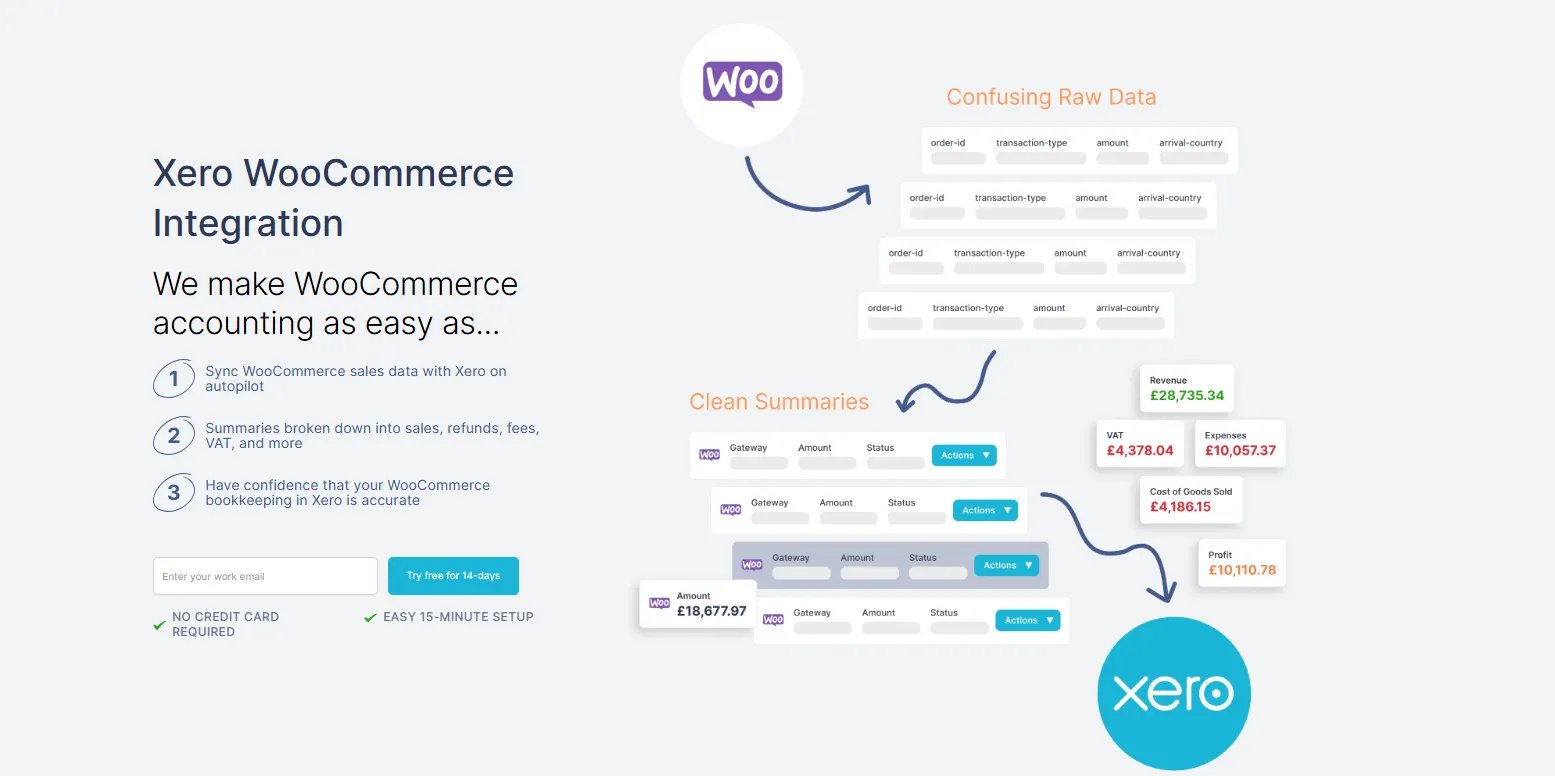
Link My Books is a Xero-approved app that connects WooCommerce directly to Xero and automates the entire bookkeeping flow. Instead of exporting reports and rebuilding summaries in spreadsheets, each WooCommerce payout is imported, broken down into sales, refunds, fees, and taxes, and posted to Xero as a clean summary entry that matches your bank deposit exactly.
This turns WooCommerce bookkeeping from a manual monthly task into an automatic background process.
Seamless WooCommerce to Xero integration
Link My Books is listed on the Xero App Store and connects to Xero using Xero’s secure authorisation flow. You then connect your WooCommerce store in a few clicks using read-only access.
Once connected, Link My Books syncs WooCommerce payouts with Xero, so you no longer need to push individual orders or retype figures.
Automatic payout import and breakdown
Every time you receive a WooCommerce payout, Link My Books:
- Imports the payout
- Splits it into sales, refunds, fees, and taxes
- Groups the data into a structured summary for Xero
You do not need to download CSVs from WooCommerce or your payment gateways. The system is built specifically to handle ecommerce payouts and their fee structures.
Clean summary entries that match deposits
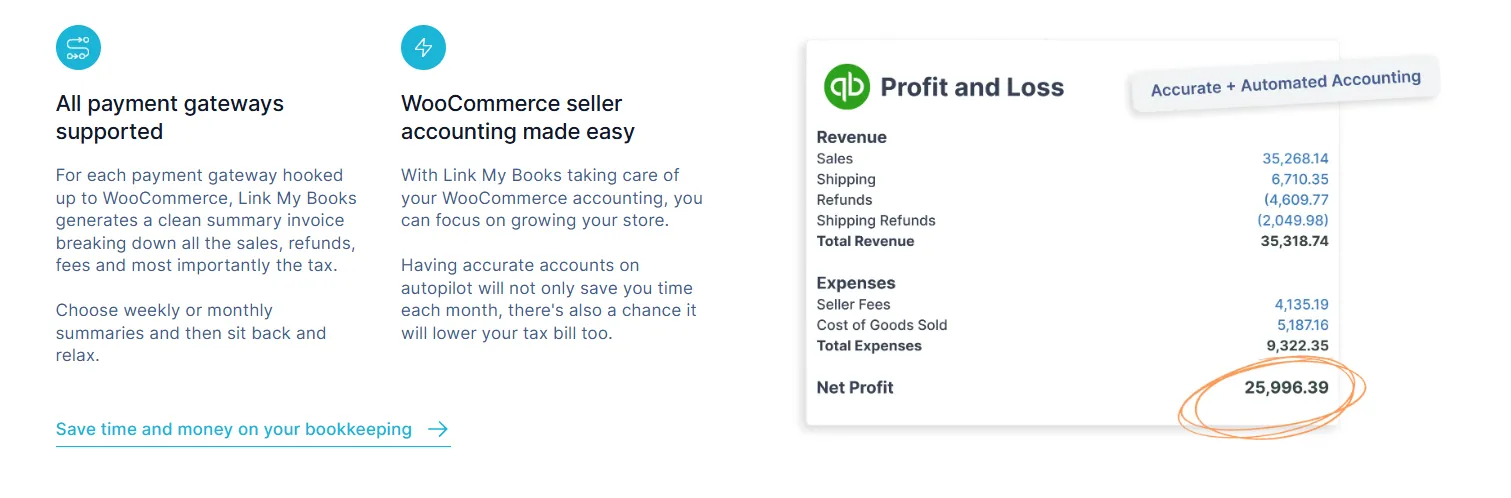
For each payout, Link My Books creates an accurate summary entry in Xero that is designed to match the deposit in your bank account to the cent.
When you open the Xero bank reconciliation screen, Xero can suggest a direct match between:
- The WooCommerce payout in your bank feed
- The summary entry posted by Link My Books
You simply approve the match and reconciliation is complete.
Built-in VAT, sales tax, and GST logic
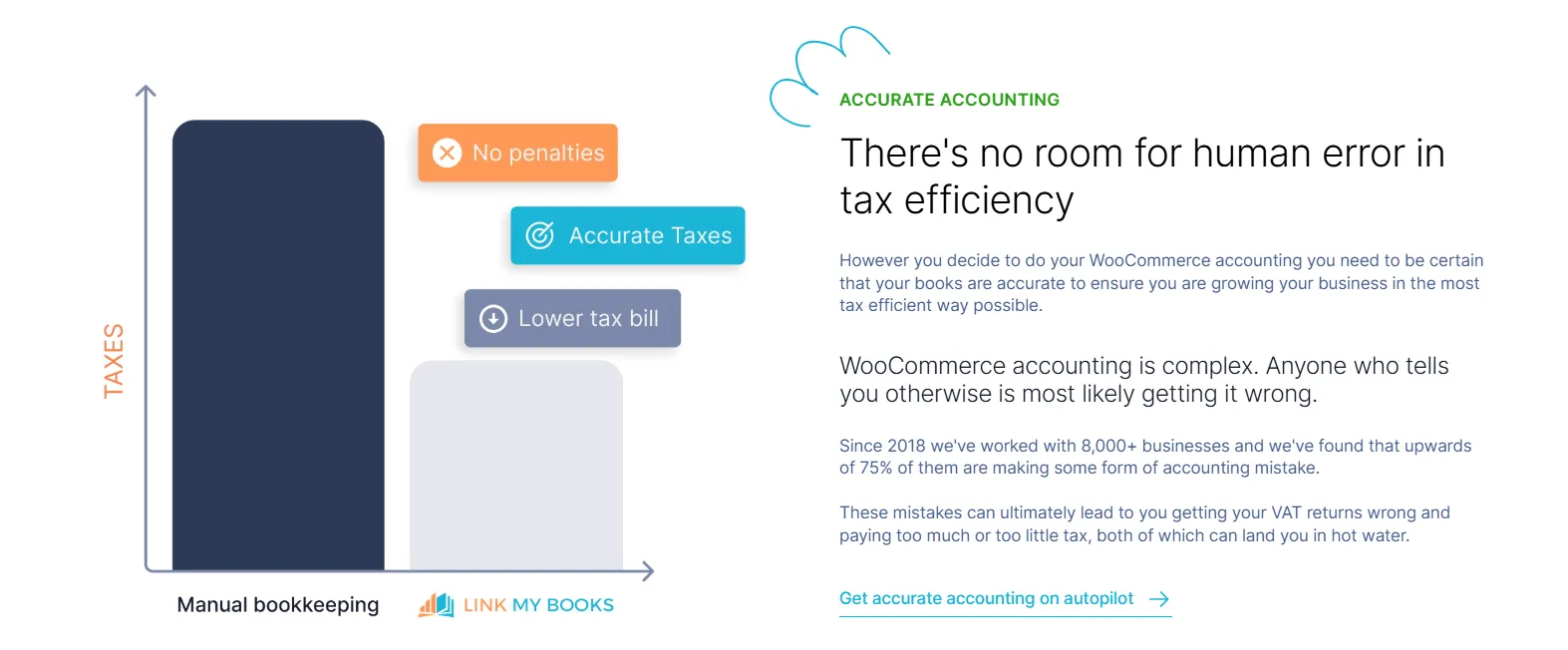
Link My Books has tax handling built in. It automatically applies the correct VAT, sales tax, or GST rules to each transaction based on the mappings and presets you configure during setup.
For WooCommerce sellers, that means:
- Domestic and international sales can be coded correctly
- Different tax rates can be applied via product groups
- Tax treatment remains consistent across all summaries
Multi-currency and tracking support
If you sell in multiple currencies, Link My Books can send entries to Xero in the original foreign currency, provided your Xero plan supports multi-currency.
You can also use features like Multi-Location Tracking to report WooCommerce performance by payment gateway or location inside Xero, which is useful for more advanced reporting.
Designed for ecommerce accountants and growing sellers

Link My Books is built specifically for ecommerce and is used by thousands of sellers and accountants to automate Amazon, Shopify, eBay, Etsy, TikTok Shop, Walmart, WooCommerce, and Square bookkeeping in Xero.
In practice, that means:
- Less time spent on manual data entry
- Fewer reconciliation errors
- Consistent treatment of WooCommerce sales, fees, and taxes as the business scales
And you can try Link My Books out for free, no credit card needed!
How to Categorize WooCommerce in Xero
Getting WooCommerce right in Xero is mostly about using a clear, consistent chart of accounts. If sales, refunds, fees, shipping, and VAT all end up in one or two generic accounts, your P&L becomes noisy, VAT returns are harder to check, and it is difficult to see whether WooCommerce is actually profitable.
Whether you post entries manually or via Link My Books, you should route each part of a WooCommerce payout into a specific Xero account.
Here is a simple structure you can use.
When you set up Link My Books, the mapping wizard walks you through assigning each of these components to the appropriate Xero account and tax rate once, then reuses those mappings for every future summary. That is what turns WooCommerce bookkeeping from a manual task into a repeatable system.
FAQ on WooCommerce and Xero
How do I sync WooCommerce sales with Xero?
WooCommerce does not sync to Xero on its own, so you must use an integration tool. You can push orders individually using plugins, but this becomes unmanageable for high-volume sellers. Most brands use a summary-based integration like Link My Books, which posts clean WooCommerce sales summaries into Xero automatically. For a deeper overview, see our guide to WooCommerce Xero integration.
How do I import WooCommerce transactions into Xero without an app?
You can export order data from WooCommerce Analytics as CSV files, summarise the figures manually, and then create invoices or journals in Xero. However, this requires splitting out sales, fees, refunds, and VAT manually. If you want a faster approach, our guide on how to reconcile WooCommerce payments in Xero explains how automation handles this for you.
What is the best way to integrate WooCommerce with Xero?
Most accountants recommend using a summary-based integration rather than pushing every order into Xero. This keeps your Xero account clean and ensures reconciliation matches payouts. Tools like Link My Books are designed specifically for ecommerce and are often chosen over plugin-based methods. You can compare options in our review of the best WooCommerce accounting software.
How do I record WooCommerce VAT in Xero?
You need to split sales by tax rate and destination, then apply the correct Xero VAT codes. Domestic VAT, EU OSS, and zero-rated exports all require different treatment. Link My Books automates this by assigning the correct VAT codes to each WooCommerce summary entry. For detailed tax rules, see our WooCommerce VAT guide.
How do I handle Stripe and PayPal fees in Xero?
You must export payout activity from Stripe or PayPal and record fees as expenses in Xero. If you post WooCommerce sales summaries manually, you need to include these fees in the summary so the net amount matches your bank deposits. Automations such as Link My Books capture and post these fees for you automatically through your WooCommerce data.
Can I reconcile multiple WooCommerce stores in one Xero account?
Yes. Xero allows you to use tracking categories or separate accounts to record multiple stores in the same ledger. Link My Books also supports multiple WooCommerce stores under one login and keeps each store’s sales summaries separate, so your WooCommerce seller accounting stays clean.
How do I track WooCommerce sales for tax and reporting?
You can track sales using WooCommerce Analytics and export revenue, tax, and refund data for each period. However, most sellers prefer using an accounting integration that posts summaries directly into Xero, as this keeps VAT and revenue reporting consistent. Our WooCommerce Sales Tax Report guide explains what you can extract manually if needed.
What accounts should I use for WooCommerce in Xero?
The most common setup includes revenue accounts for WooCommerce sales and shipping, contra-income for discounts, expense accounts for payment gateway fees, and VAT control accounts for tax.
Read more about Mastering WooCommerce Reports for Business Growth.
Do I need a special app to manage WooCommerce in Xero?
Strictly speaking, no, you can enter summaries manually. But as your order volume grows, handling WooCommerce data manually becomes slow and error-prone. If you want accurate sales, fees, VAT, and reconciliation without spreadsheets, tools like Link My Books offer the cleanest WooCommerce-to-Xero workflow.
Record WooCommerce Sales in Xero Automatically With Link My Books
Recording WooCommerce sales manually in Xero takes time, creates inconsistencies, and makes it difficult to keep VAT, fees, and payouts accurate. Link My Books automates the entire process by importing WooCommerce data, creating clean summary entries, and matching every payout to your bank feed automatically. You get accurate revenue, correct VAT treatment, and one-click reconciliation.
If you want bookkeeping that scales with your WooCommerce store, automation is the simplest path.
Start your free 14-day trial and record your WooCommerce sales in Xero automatically from the next payout.


.webp)



.png)