


Recording Square sales in Xero looks simple on the surface. Money hits your bank account. You mark it as income. Job done.
That shortcut is exactly where most sellers get into trouble.
Square does not pay out gross sales. It deposits net payouts that already include fees, refunds, tips, and tax adjustments. When you post that deposit directly to income in Xero, you lose visibility into what actually happened inside Square.
The result shows up later:
- Revenue looks lower than reality
- Fees disappear into thin air or get double-counted
- VAT or sales tax figures don’t tie out
- Bank reconciliation becomes a monthly guessing game
To make things more confusing, Square does provide detailed transaction data. Sales, refunds, tips, and fees all exist in Square reports. They only look “bundled” once the net payout lands in your bank. That distinction matters, especially for accurate bookkeeping and tax reporting.
This guide walks you through:
- How Square payouts actually work
- The correct accounting structure inside Xero
- The fastest automated way to record Square sales cleanly
- The manual method, if you insist on doing it yourself
By the end, you’ll know exactly how to get Square and Xero to agree, without reconciliation stress or tax surprises.
Key Takeaways from this Post
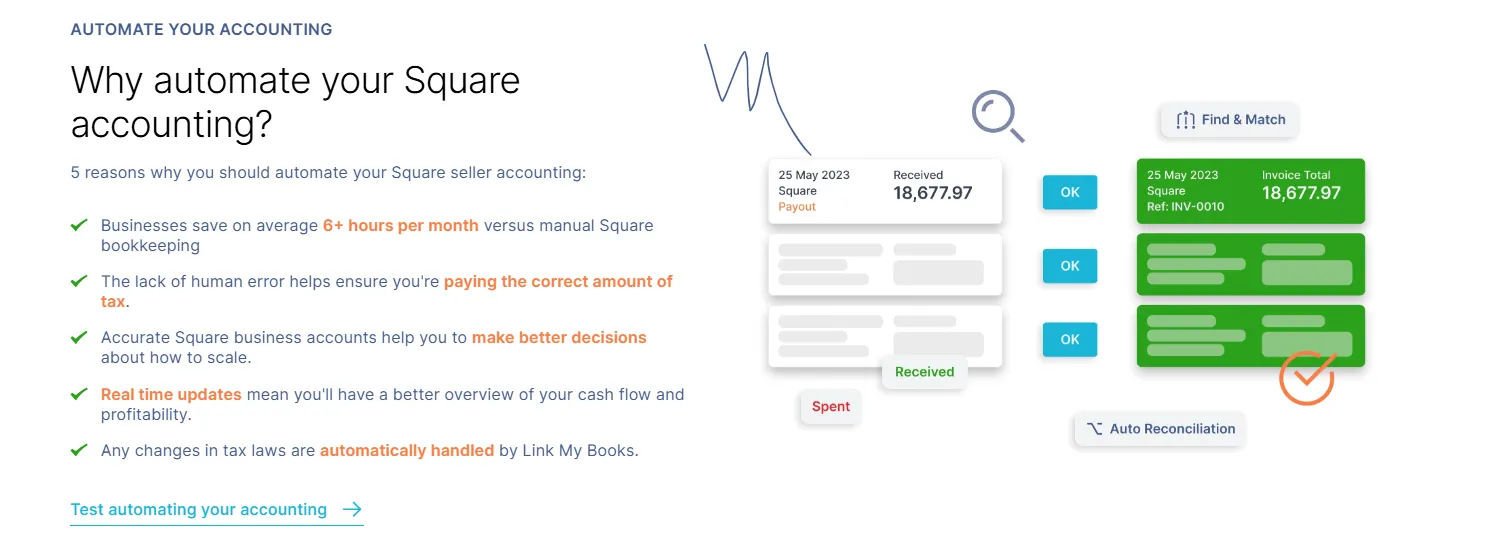
Square deposits net payouts that bundle sales, refunds, fees, tips, and tax at the bank level, which is why posting deposits directly to income in Xero creates inaccurate books and reconciliation issues.
To record Square sales correctly, you need to separate gross sales, Square fees, refunds, and tax using a clearing-account structure that mirrors how payouts actually work.
Link My Books automates this process by syncing Square transactions into Xero as clean summary entries that reconcile perfectly to bank deposits, apply the correct VAT or sales tax treatment, and eliminate hours of manual bookkeeping each month.







Where Most Sellers Go Wrong With Recording Square Sales in Xero
Most Square accounting problems don’t come from missing data. They come from using the wrong structure inside Xero.
The most common mistake is treating a Square bank deposit as revenue. That deposit is already net of fees, refunds, tips, and tax adjustments. When you post it straight to a sales account, you understate revenue and lose visibility into costs. Over time, this distorts margins and makes it impossible to explain why Square totals never match Xero reports.
Another frequent issue is skipping a Square clearing account. Without one, there is no place to hold gross activity while payouts move through the system. Sellers then end up forcing reconciliations, writing balancing journals, or leaving transactions unreconciled at month end.
Tax handling is where things usually break completely. Square may collect and report tax, but sellers often:
- Apply VAT or sales tax again in Xero
- Record tax-inclusive income incorrectly
- Miss the difference between tax collected and tax owed
This leads to overpayments, compliance risk, and messy VAT reports.
Finally, many sellers rely on basic bank feeds or lightweight connectors that pull only net deposits. These tools make reconciliation look easy, but they remove the detail accountants actually need. Everything appears fine until you try to answer a simple question like: How much did Square charge me in fees this month?
If your Square balance never quite ties out, or your accountant keeps “adjusting” your numbers, this is why.
How to Record Square Sales in Xero (The Easy Way)
The cleanest way to record Square sales in Xero is to let software handle the structure for you instead of forcing net payouts into place after the fact.
Link My Books sits between Square and Xero, pulling in Square data exactly as it happens and posting it into Xero in a format that accountants actually expect.
Here’s what to do:
- Connect Square and Xero to Link My Books
- Import your transactions
- Get clean summaries
- Choose how often data syncs
- Reconcile payouts automatically as they arrive
Step 1: Connect Square to Your Accounting Software
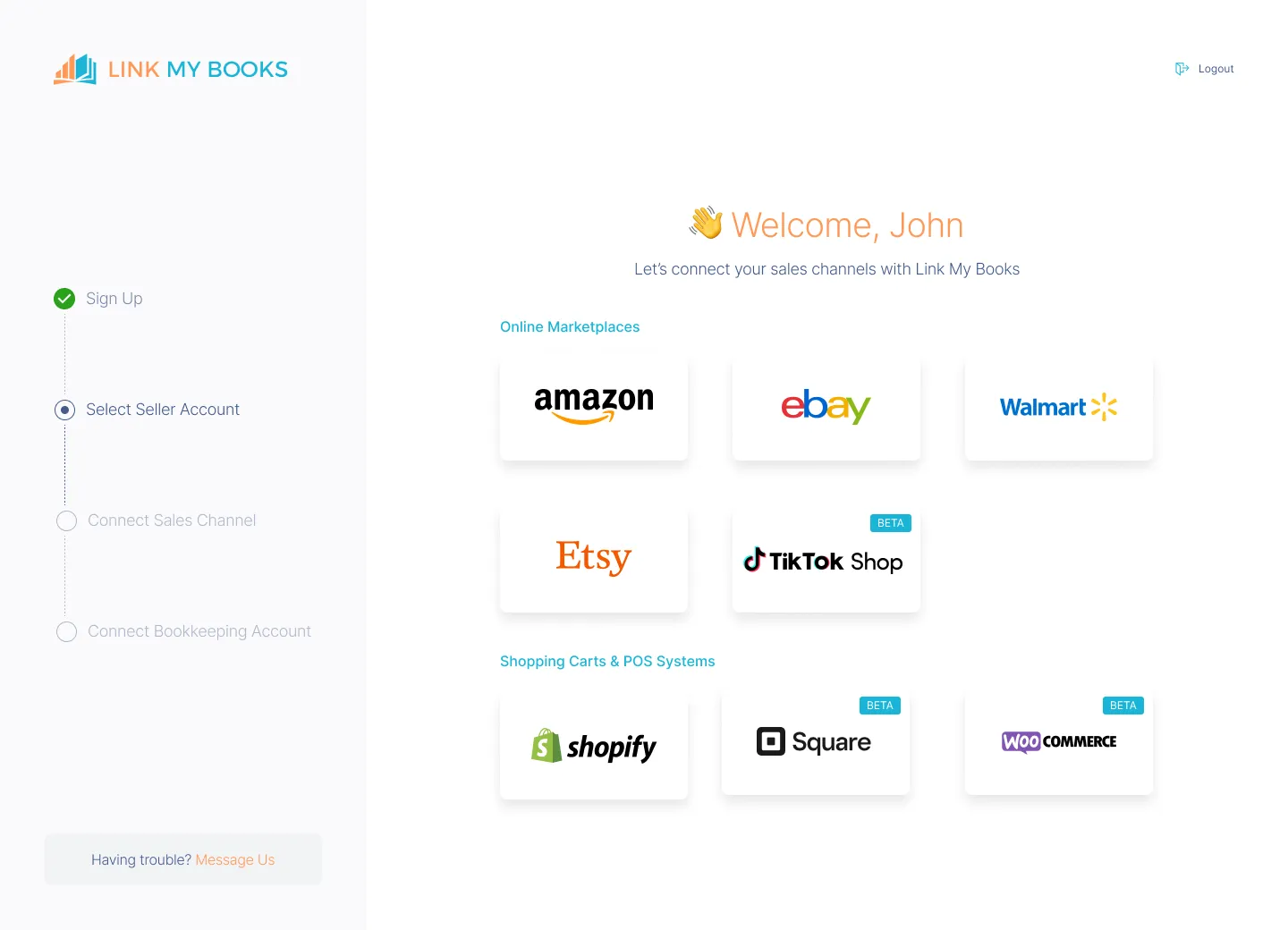
- Sign up for Link My Books and connect your Square account.
- Next, link your Xero account.
You’ll then go through the guided setup wizard to confirm your account mappings and tax settings. This is a one-time setup. Once confirmed, Link My Books applies the correct accounting and tax rules automatically going forward.
Step 2: Import and Categorize Square Transactions Automatically
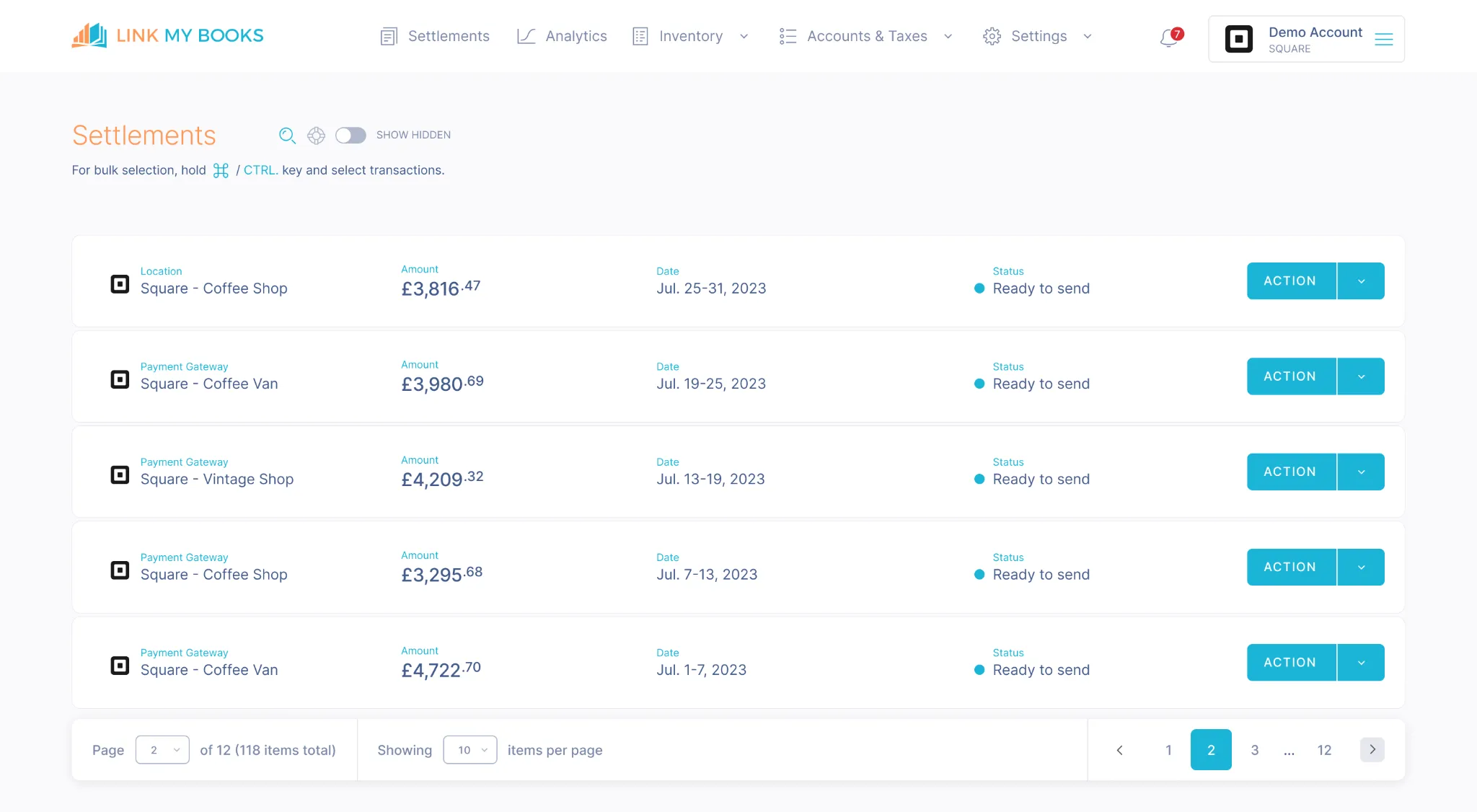
Link My Books pulls Square data directly from the platform, including:
- Sales
- Fees
- Refunds
- Tips
- Tax
Transactions are categorized correctly as part of the sync , your transaction report is accurate from the get go.. There’s no manual sorting, no spreadsheet cleanup, and no risk of missing entries.
Step 3: Get Clean, Structured Summaries in Xero
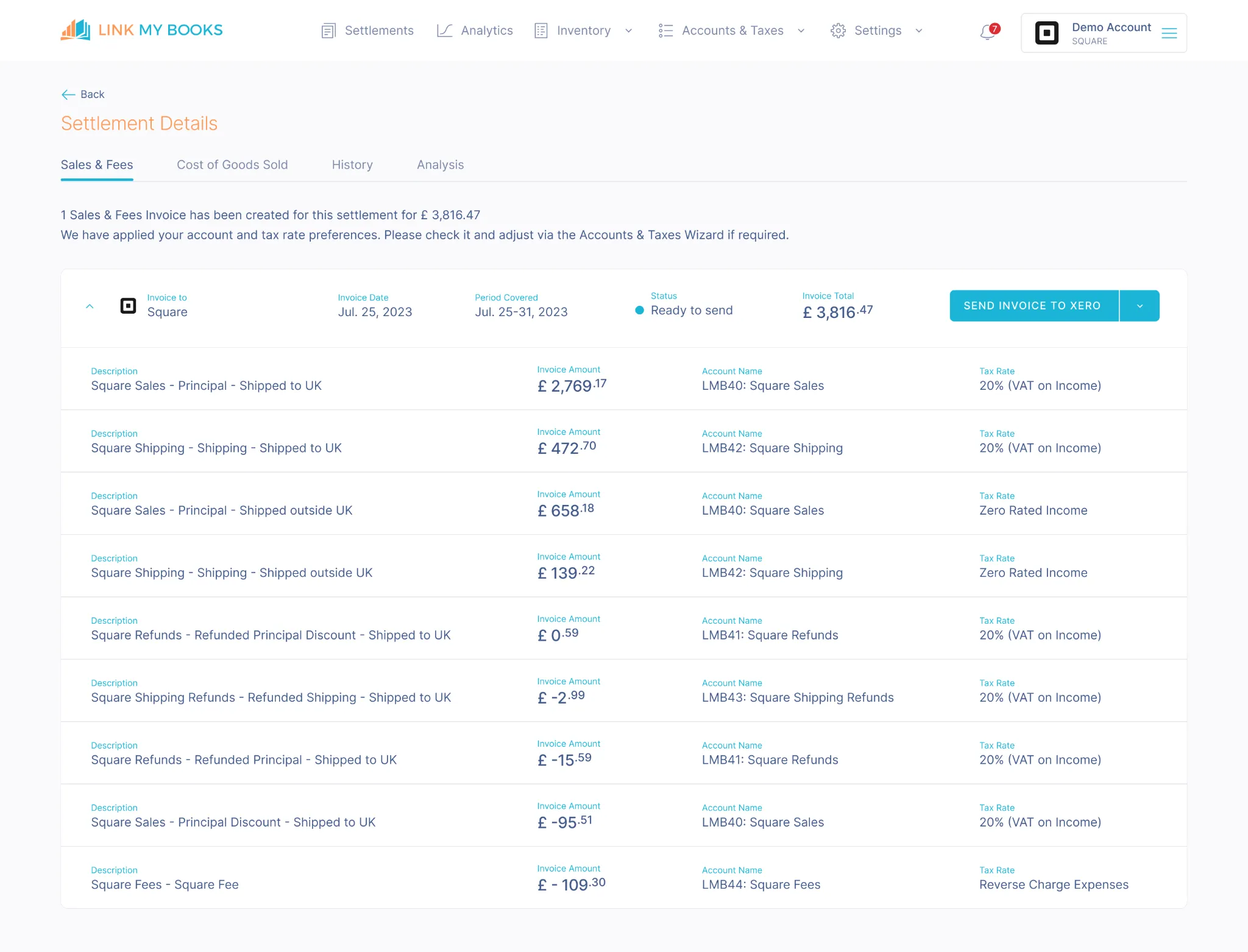
Instead of flooding your accounting software with individual transactions, Link My Books creates clean summary entries for each Square payout.
Each summary breaks activity down into:
- Gross sales
- Square fees
- Refunds
- Tax collected
- Tips (if applicable)
This structure keeps your books readable, accurate, and ready for reporting, while still reflecting what actually happened in Square.
Step 4: Choose Your Sync Mode
Link My Books gives you two posting options depending on how hands-on you want to be.
- Manual sync: You approve each Square payout before it posts to Xero. This works well during initial setup or if you want tight control.
- AutoPost: Link My Books posts summaries automatically from a chosen start date. This is the best option for ongoing bookkeeping.
In both cases, Link My Books creates one summary entry per payout, not thousands of individual transactions. That keeps Xero fast, readable, and accountant-friendly.
Step 5: Reconcile Square Payouts in a Single Click
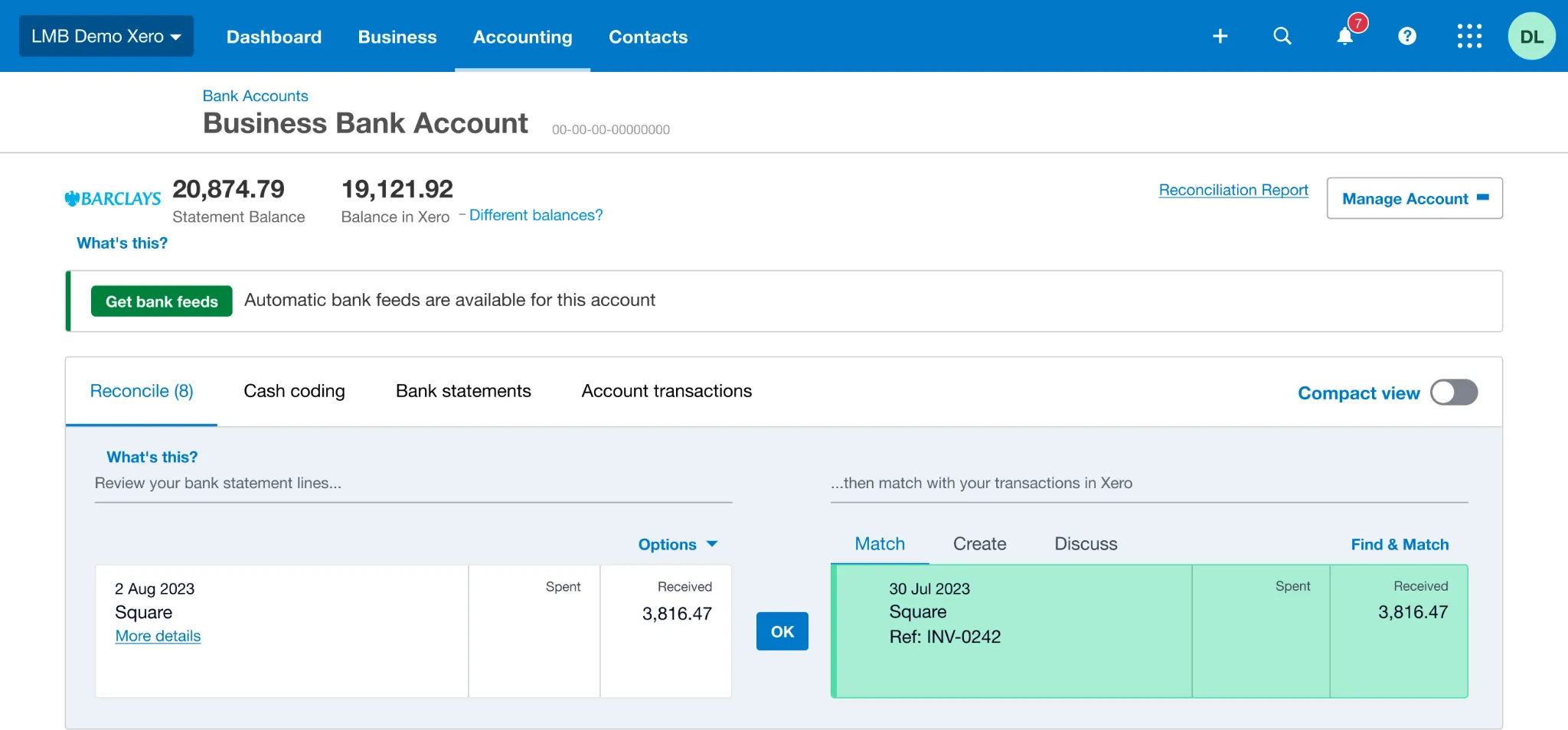
When a Square payout hits your bank feed, it matches directly to the corresponding summary entry.
Reconciliation takes one click:
- No balancing journals
- No spreadsheet cross-checking
- No unexplained differences
You can reconcile your Square payments in Xero in minutes, not hours.
There is no balancing entry and no “suspense” account cleanup at month end. Your Square balance clears to zero, exactly as it should.
Why This Works Better Than Native or Bank-Feed Methods
Square data is detailed. Bank feeds are not.
Bank feeds only show what hit your account, not:
- What you sold
- What Square charged
- What was refunded
- How much tax was collected
Link My Books uses Square’s transaction-level data to build accurate accounting entries, then posts only what Xero needs to stay clean and reconcilable. That’s why you get accurate revenue, correct fees, and tax figures that tie out without adjustments.

💳 You can try Link My Books completely free. No credit card required.
Next, we’ll walk through how to pull and record Square sales manually, if you really want to do it the hard way.
How to Record Square Sales in Xero Manually
- Export the right Square reports for the period
- Build totals for sales, fees, refunds, tips, and tax
- Post a summary journal or summary invoice into Xero using a clearing account
- Reconcile the net payout to the bank feed
You can record Square sales in Xero manually, but you need to treat Square payouts the right way. Square deposits net payouts into your bank account, while Xero needs the gross components recorded separately (sales, fees, refunds, tips, and tax). If you skip the breakdown, reconciliation and reporting will drift.
Here’s what to do:
Step 1: Export the Right Square Reports
Do not rely on bank deposits or payout totals alone. You need transaction-level detail.
From Square, export reports for the same date range:
- Sales report: Gross sales activity
- Fees report: Processing fees and other Square charges
- Refunds report: Full and partial refunds
- Tax report: Tax collected (if you charge tax)
- Payout report: Net deposits sent to your bank (used for reconciliation, not revenue)
Important nuance: Square does not literally bundle every transaction type into one combined report line. Square keeps detailed breakdowns in separate reports. The “bundling” happens only when the net payout lands in your bank account.
Step 2: Set Up a Square Clearing Account in Xero
Create a clearing account in Xero to hold Square activity before it reaches the bank.
In Xero:
- Go to your chart of accounts
- Create a new account (commonly a current asset)
- Name it something like: Square Clearing or Square Payments Clearing
This account acts as the bridge between Square activity and your bank deposit. It’s best practice for payment processors that pay out net.
Manual Step 3: Post a Summary Entry Into Xero for the Period
Using the totals from your Square reports, create either:
- A manual journal (common accountant method), or
- A summary invoice/receipt (also acceptable, depending on your workflow)
Your entry should reflect what happened inside Square, not what hit your bank.
At minimum, include lines for:
- Gross sales: Posted to your sales income account
- Square fees: Posted to a fees expense account
- Refunds: Posted as a reduction to sales (or a dedicated refunds/returns account, depending on your setup)
- Tips (if applicable): Posted to a tips account or appropriate income category
- Tax collected: Posted to the correct tax account (not income)
Post the balancing line to your Square clearing account so the entry nets to zero.
Practical check: After this step, the balance in Square Clearing should represent what you are “waiting to receive” in payouts (net of fees and refunds), based on the timing of Square deposits.
Step 4: Reconcile the Square Payout in Xero
When the Square payout hits your bank feed in Xero:
- Match the bank deposit to the corresponding clearing activity
- Reconcile it so the Square Clearing balance moves back toward zero
If the payout does not match cleanly, the cause is usually one of these:
- A refund processed outside your chosen date range
- A fee or adjustment you missed
- A payout timing difference (Square activity date vs bank deposit date)
The goal: Each payout should reconcile without forcing a plug or suspense entry.
Step 5: Repeat Monthly and Lock in a Simple Review Routine
Manual Square accounting only stays accurate when you follow a consistent routine:
- Use the same reporting date rules every month
- Track fees and refunds separately, not inside “sales”
- Reconcile every payout, not just the month-end total
- Spot-check a few days of activity against Square to catch drift early
If you find yourself spending hours fixing discrepancies, that’s the natural limit of the manual approach.
How Link My Books Makes Recording Square Sales in Xero Automatic and Easy
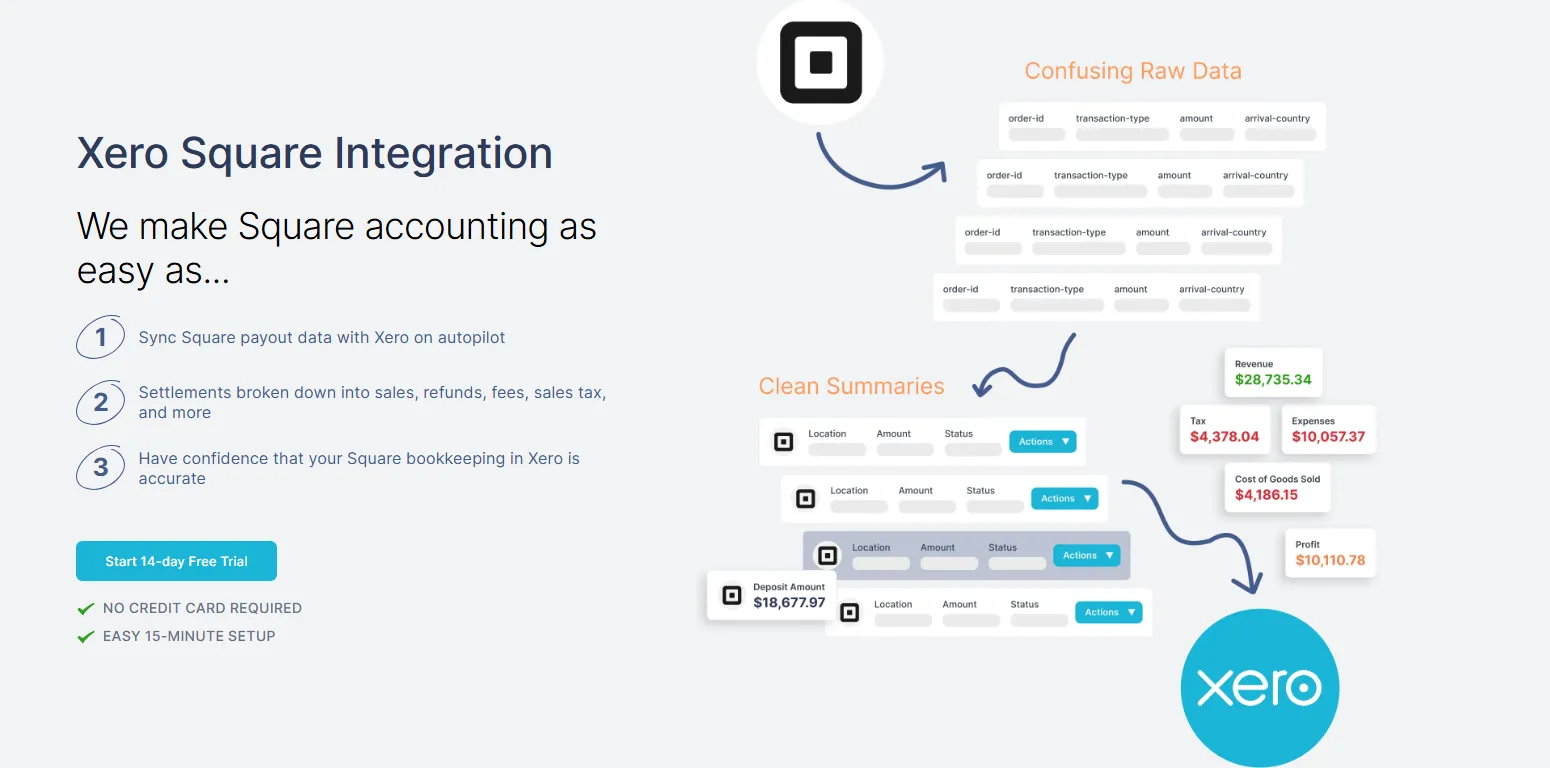
Square payouts hit your bank as net deposits, but Xero needs the payout broken into the parts that explain the money: sales, fees, refunds, tips, and tax. Link My Books automates that structure so you stop forcing bank deposits into income and fixing the mess later.
What Link My Books Does for Square + Xero
- Guided setup wizard for accounts and tax: You run through the Accounts and Taxes flow once, confirm your mappings and tax rates, and Link My Books uses those rules going forward.
- Clean settlement posting: Link My Books sends settlement summaries to Xero, rather than relying on net-only bank deposits. This keeps entries readable and makes reconciliation predictable.
- AutoPost for hands-off bookkeeping: You can switch on AutoPost from Settlement Settings and Link My Books will automatically send new settlements to Xero (or QuickBooks). It staggers posting in batches to avoid API throttling limits.
- VAT troubleshooting built around Product Groups: When VAT rates look wrong, Link My Books support guidance points you to Product Groups and Settlement Settings first, which keeps your workflow consistent and fixable.
Reporting Features That Matter for Square Sellers in Xero
If you want tighter reporting in Xero, Link My Books adds automation around tracking codes:
- Multi-Location Tracking for Xero: For Square connected to Xero, Link My Books can automatically tag settlements with tracking codes by payment gateway and location, so you can report profit by location or gateway inside Xero without manual tagging.
- Two tracking codes per marketplace: You can apply up to two Xero tracking codes per settlement for a given marketplace so you can report across two dimensions (for example market and region), as long as they come from different Xero tracking categories.
Why This Makes Your Books Cleaner
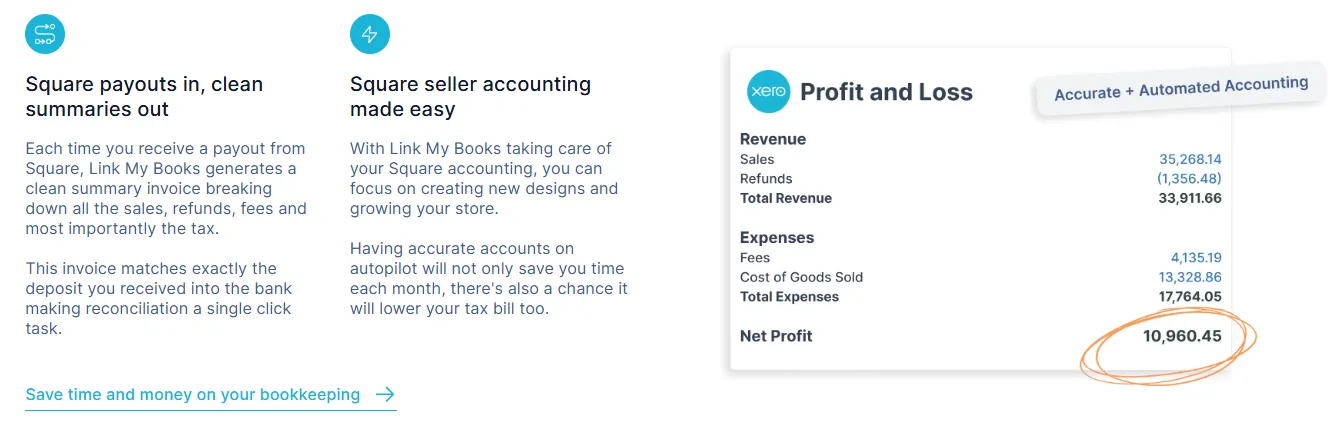
When Link My Books posts structured settlement summaries and you reconcile payouts against them, you get three practical wins: faster month-end close, fewer reconciliation discrepancies, and clearer profitability because fees and refunds sit in the right places instead of disappearing into a net deposit. AutoPost and tracking automation remove repeat work that usually drags down accuracy over time.
Connect Square to Xero in minutes. Automate sales, fees, refunds, tips, and tax. Reconcile payouts with one click.

How to Categorize Square in Xero
Square bookkeeping goes wrong when everything gets lumped into one place (usually Income) because the bank deposit looks like “the sale.” It isn’t. It’s a net payout after fees, refunds, tips, and tax adjustments. Categorize Square in Xero by separating what happened in Square (gross activity) from what hit your bank (net deposit).
The Account Structure You Want in Xero
Set up these accounts (names can vary, the function matters):
- Square clearing account: Holds Square activity until payouts land in the bank
- Sales income: Records gross sales
- Square fees expense: Records card processing and Square charges
- Refunds/returns: Reduces revenue (or a dedicated contra-revenue account)
- Tips income (optional): Keeps gratuities separate from sales
- Tax control accounts: Holds VAT or sales tax collected (not revenue)
Categorization Table: What Each Square Item Should Be in Xero
Practical Rules That Keep You Out of Trouble
- Use a clearing account for Square: This is the anchor that makes payouts reconcile cleanly.
- Record gross activity first, then reconcile the payout: Xero needs the breakdown to produce correct profit reporting.
- Keep tax out of revenue: Tax collected belongs in a liability account until you file and remit.
- Treat refunds consistently: Refunds should reduce revenue. If you want cleaner reporting, use a dedicated refunds or contra-revenue account.
- Do not use the bank feed as your “sales report”: The bank feed only shows net cash movement, not the underlying economics of the transactions.
If You Use Link My Books
This categorization becomes automatic because Link My Books posts payout summaries into the mapped accounts and uses a clearing structure by design. You get accurate sales, visible fees, clean refund handling, and one-click reconciliation to the bank deposit.
If you want, I can also add a short mini-example (numbers for one payout) that shows exactly how the journal lines should look in Xero.
FAQ
How Do I Sync Square Sales With Xero?
You have two options:
- Automated sync: Use Link My Books to connect Square to Xero, then let it post clean payout summaries that include sales, fees, refunds, tips, and tax. This is the fastest way to keep Xero accurate without manual journals.
- Manual sync: Export Square reports, post a summary journal or invoice to a Square clearing account, then reconcile the net payout to the bank feed.
If you want the automated route, use a proper Square Xero integration so you don’t end up treating net payouts as revenue.
How Do I Import Square Transactions Into Xero?
You can export transaction reports from Square and then use them to create a summary entry in Xero. Xero does not natively convert Square transaction exports into a clean, reconcilable accounting structure, so you still need to:
- Separate gross sales from fees, refunds, tips, and tax
- Post the breakdown to a Square clearing account
- Reconcile the payout deposit afterward
For the manual method, start by pulling the right Square sales report so you work from transaction detail, not bank deposits.
What Is the Best Way to Integrate Square With Xero?
The best method is the one that keeps three things true every month:
- Gross sales hit income (not net payouts)
- Square fees stay visible as an expense
- Bank reconciliation matches each payout without plug entries
A purpose-built connector that creates payout summaries and supports a clearing-account structure usually wins here, especially once refunds, tips, and tax enter the picture. If you sell in VAT regions or handle mixed tax treatments, you’ll also want a process that keeps tax consistent, which is where your Square VAT guide becomes relevant.
How Do I Reconcile Square Payments in Xero?
To reconcile Square payments correctly, match the net bank deposit to activity posted to a Square clearing account. The payout should clear the balance down, not get categorized as sales.
A clean workflow looks like this:
- Post a payout summary (sales, fees, refunds, tips, tax) against Square clearing
- When the net payout hits the bank feed, reconcile it to the clearing activity
- Confirm the clearing balance returns toward zero
If reconciliation keeps breaking, the issue usually comes from fees or refunds that were not separated properly. This is covered in more detail in our guide on how to reconcile Square payments in Xero.
How Should I Handle Square Fees in Xero?
Treat Square fees as an expense, not as a reduction of sales. This keeps your P&L honest and makes it easier to track processing costs over time.
You’ll typically:
- Create a “Square fees” expense account
- Post fees there as part of your payout summary
- Reconcile the net payout separately via clearing
If you want a broader view of workflows for sellers, including fee categorization patterns, see our Square seller accounting guide.
Do I Need a Square Clearing Account in Xero?
Xero doesn’t require it, but accurate Square bookkeeping effectively does. The clearing account is what lets you separate:
- What happened in Square (gross activity)
- What hit your bank (net payout)
Without clearing, you either:
- Post net payouts to income (inaccurate), or
- Add manual adjustments each month (fragile and time-consuming)
How Do I Categorize Tips From Square in Xero?
If you accept tips, keep them separate from product revenue whenever possible. Tips can distort revenue reporting and margin analysis when they sit inside sales.
Common approaches:
- Post tips to a dedicated “Tips received” income account, or
- Post tips to other income, depending on your reporting preferences
Then keep the payout reconciliation process unchanged.
Does Square “Bundle” Everything Into One Report Line?
Square provides detailed breakdowns in its reporting. The “bundling” sellers experience happens at the bank level because the payout is a net deposit. That’s why you need either:
- Manual summary posting based on reports, or
- Automated payout summaries that reconcile cleanly in Xero
Record Square Sales in Xero Without the Headaches
If you record Square payouts as income, your books will drift fast. Fees disappear, refunds skew monthly revenue, tax gets misreported, and reconciliation turns into a monthly repair job. The fix is always the same: record Square activity as gross components (sales, fees, refunds, tips, tax) and reconcile the net payout through a clearing account.
You can do this manually using reports, but it takes time and discipline. If you want a faster, cleaner workflow, Link My Books automates the entire process. It connects Square to Xero, posts organized payout summaries, applies the correct tax rules once you set them, and lets you reconcile deposits in a single click.
If you’re ready to stop fighting your payouts and get clean books every month, try Link My Books free and set up your Square-to-Xero workflow the right way.




.webp)




.png)